
Team
The Team page shows who uses ZERPY in your company. Here you invite people by e-mail and give them one or more roles – the roles decide what a person sees and can do.
Who can manage the team
Only an owner or admin manages the team. Other roles do not see this page.
Inviting a colleague
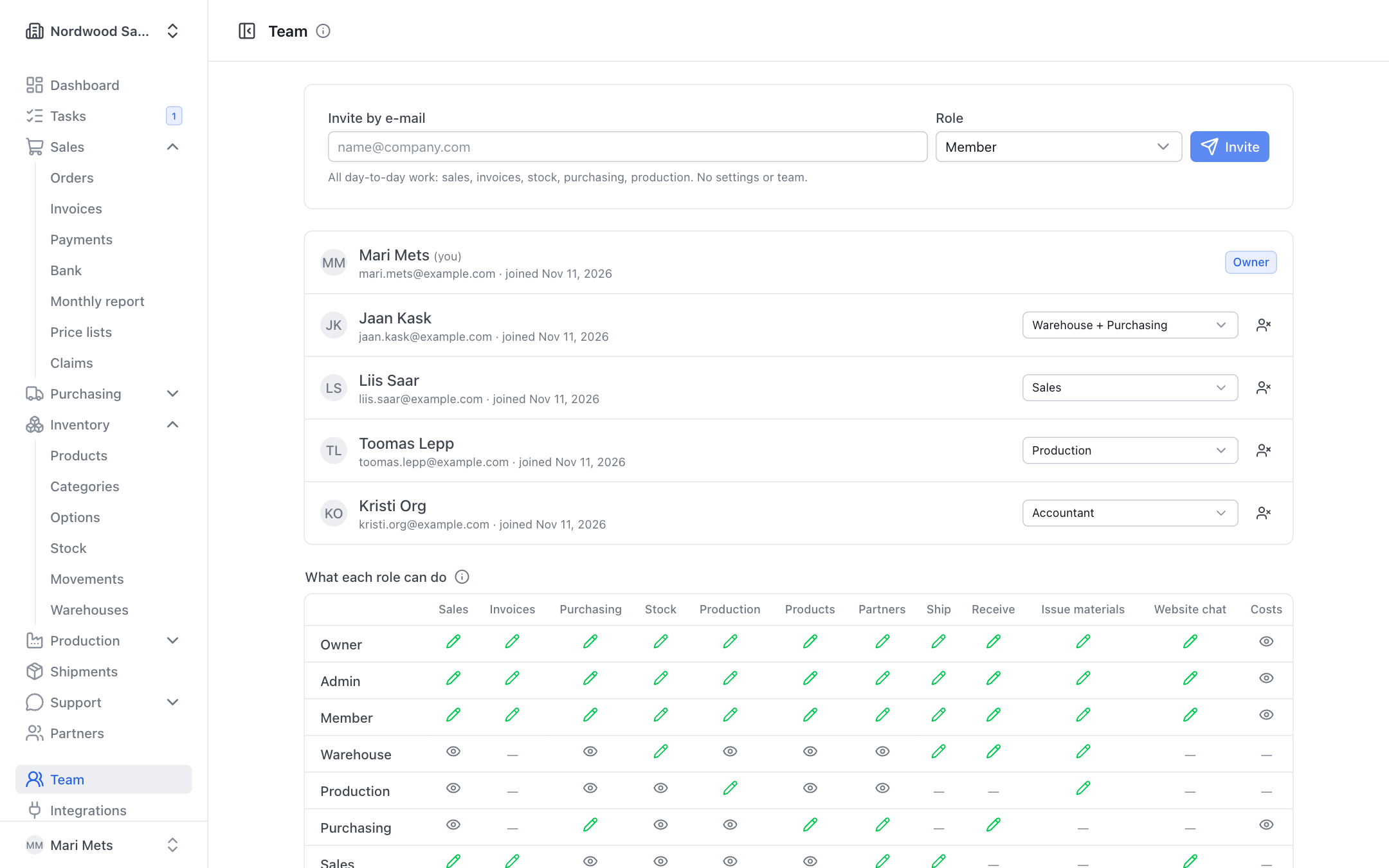
- Open Team.
- Type your colleague's e-mail address in Invite by e-mail.
- Choose a Role (see below). A short explanation of what the role can do is shown under the field.
- Press Invite.
Your colleague receives an e-mail with a link. The invitation is valid for 14 days, can be used once and must be accepted with the same e-mail address (see Getting started).
Until it is accepted, the invitation is listed as invited, valid until …. You can withdraw it with Cancel. A new invitation to the same person replaces the old one.
TIP
Partners (resellers) do not get access here. They are invited from the partner form and only see the partner portal, never the internal app.
Roles
| Role | What it does |
|---|---|
| Owner | Full control, including other owners. Give this to as few people as possible. |
| Admin | Everything except managing owners: settings, integrations, team. |
| Member | All day-to-day work: sales, invoices, stock, purchasing, production. No settings or team. |
| Warehouse | Stock, counts and transfers; ships sales orders, receives purchases, issues materials to production. No invoices, sales figures or cost prices. |
| Production | Production plan, production orders and recipes; takes materials from stock and completes production. No invoices, sales figures or cost prices. |
| Purchasing | Purchase orders, suppliers and products; receives goods. No invoices or sales figures. |
| Sales | Customers, sales orders, quotations, price lists, shipping, invoices and the website chat. No cost prices or margins. |
| Accountant | Sees everything except the website chat; issues invoices and credit notes and marks them paid. Cannot change orders or stock. |
| Viewer | Sees everything except the website chat, changes nothing – e.g. an investor or board member. |
Only owners and admins see and change company settings, integrations, the team and the activity log.
What each role can do
At the bottom of the page is the table What each role can do. Here is the same table: E = can change (edit), V = can see (view), – = hidden.
| Role | Sales | Invoices | Purchasing | Stock | Production | Products | Partners | Ship | Receive | Issue materials | Website chat | Costs |
|---|---|---|---|---|---|---|---|---|---|---|---|---|
| Owner | E | E | E | E | E | E | E | E | E | E | E | V |
| Admin | E | E | E | E | E | E | E | E | E | E | E | V |
| Member | E | E | E | E | E | E | E | E | E | E | E | V |
| Warehouse | V | – | V | E | V | V | V | E | E | E | – | – |
| Production | V | – | V | V | E | V | V | – | – | E | – | – |
| Purchasing | V | – | E | V | V | E | E | – | E | – | – | V |
| Sales | E | E | V | V | V | V | E | E | – | – | E | – |
| Accountant | V | E | V | V | V | V | V | V | V | V | – | V |
| Viewer | V | V | V | V | V | V | V | V | V | V | – | V |
What the columns mean:
- Sales – sales orders, quotations, price lists;
- Invoices – invoices, credit notes, payments, sales figures and profit;
- Purchasing – purchase orders and suggestions;
- Stock – stock levels, counts, transfers;
- Production – production orders, recipes, plan, serial numbers;
- Products – products and categories;
- Partners – customers and suppliers;
- Ship – shipping sales orders, shipping notices;
- Receive – receiving goods on purchase orders;
- Issue materials – issuing and returning materials for production;
- Website chat – answering customers in the website chat;
- Costs – cost prices, purchase prices, stock value, job costs and margins.
Several roles for one person
One person can have several roles, for example Warehouse + Purchasing. They can then do everything any of these roles allows – the permissions add up.
- In the role field, simply pick several roles.
- Owner, Admin and Member already include everything and are not combined with others. If you pick one of them, only that role remains.
Example: Sales + Purchasing also sees cost prices, because Purchasing sees costs.
Who sees cost prices and costs
Cost prices, purchase prices, stock value, job costs and order profit are visible to Owner, Admin, Member, Accountant, Viewer and Purchasing.
Warehouse, Production and Sales do not see them – ZERPY hides these figures from them everywhere (also in the product form and on the stock page).
Changing a role
- Open Team.
- Click the role field on the person's row and tick the new roles.
- Close the menu – the change is saved when it closes.
Rules:
- Only an owner can give the owner role or change another owner.
- You cannot change your own role or remove yourself (so nobody locks themselves out by accident).
- The company always keeps at least one owner.
The owners and the person concerned get an e-mail about the role change.
Removing someone
- Open Team.
- Press Remove from company on the person's row.
- Confirm.
They lose access immediately. Their past work (orders, invoices) stays. The owners and the removed person get an e-mail about it.
Who did what and when is shown under Activity log (see Settings).