
Purchasing
With a purchase order you order goods and services from your suppliers. When the goods arrive you receive them — stock and cost prices are updated automatically. You find purchase orders under Purchasing → Purchase orders.
Draft → Ordered → Partly received → Received
Purchase orders are made by owner, admin, member and purchasing. Warehouse staff can receive goods too.
Creating a new purchase order
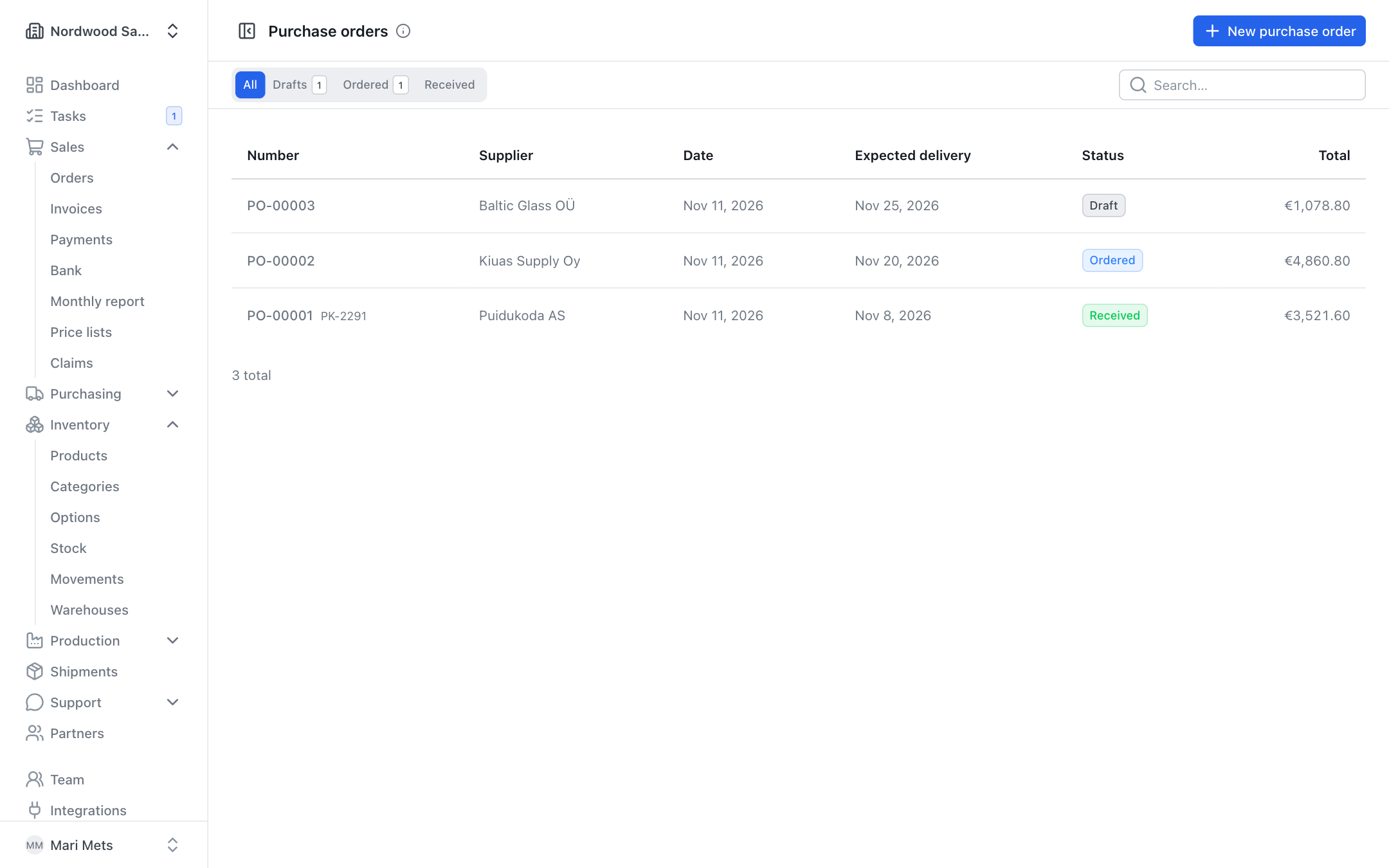
- Open Purchasing → Purchase orders and press New purchase order.
- Choose the Supplier.
- Check Receive into — the warehouse the goods arrive in.
- If you like, fill in Expected delivery and Supplier reference (their order confirmation or quote number).
- Add lines: product and quantity. The Unit price (net) is filled in with the supplier's price or the current cost price — change it if the supplier's price is different.
- Press Save draft.
Purchase lines have no discount.
Prices
Purchase prices, purchase order totals and the PDF are shown only to roles that see cost prices (owner, admin, member, accountant, viewer, purchasing).
Sending the order to the supplier
A draft gives you two options:
- Send to supplier — e-mails the purchase order PDF to the supplier. Sending marks the order as ordered by itself.
- Mark as ordered (in the ⋮ menu) — when you ordered by phone, in the supplier's webshop or some other way.
After that the order status is Ordered. The ordered quantity counts as incoming goods on the Reorder page and in the production plan.
If the product has a supplier code, it is printed on the purchase order ("Your code: …").
Changes
Until anything has been received, you can take an ordered order back to draft (⋮ → Back to draft) or cancel it (Cancel order).
Receiving goods
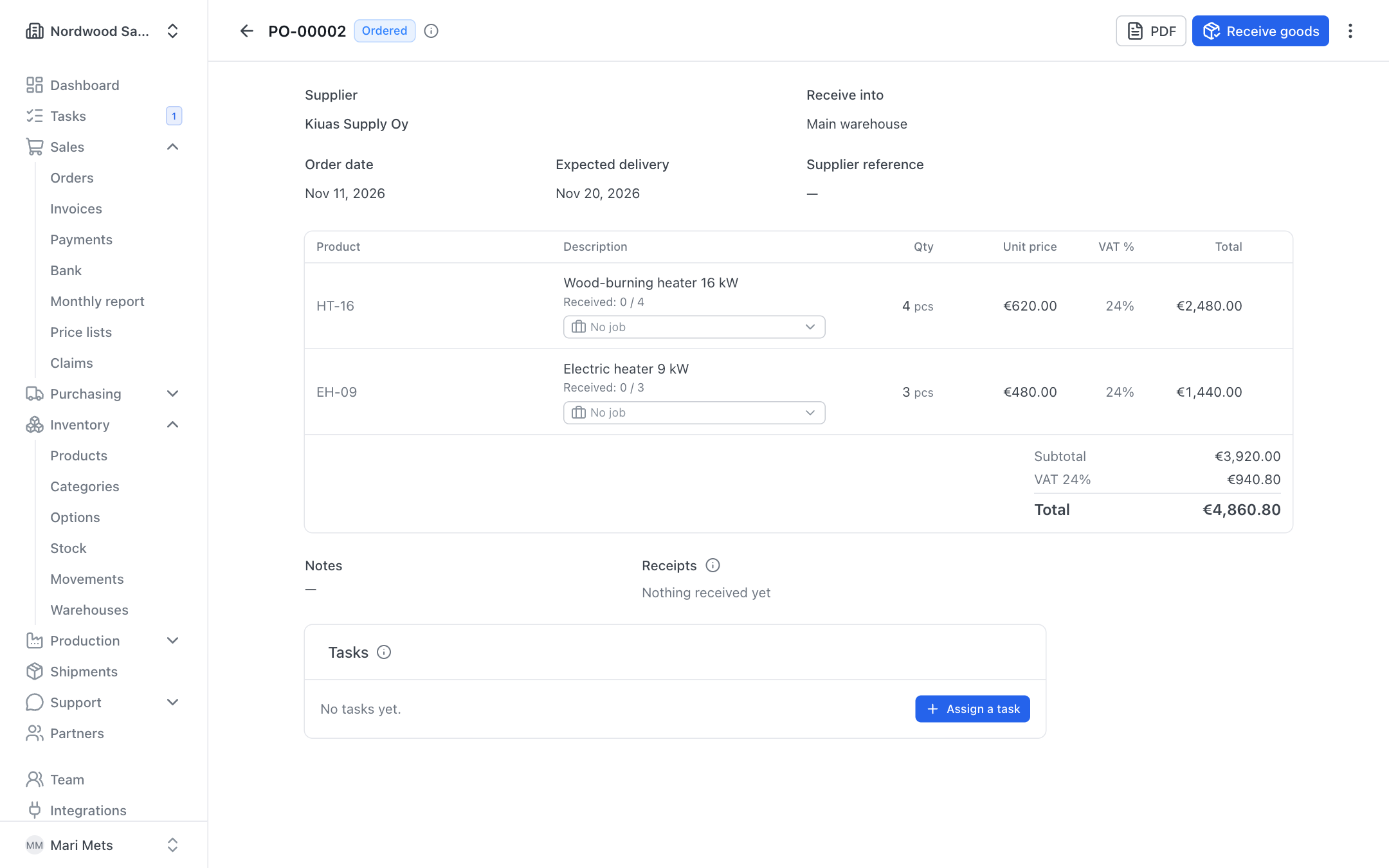
- Open the purchase order and press Receive goods.
- In the Receiving column, enter what arrived. Partial deliveries are fine.
- If you like, enter the Delivery note no.
- Press Receive goods.
When you receive goods:
- stock goes up immediately;
- the product's Cost price is recalculated as a weighted average: the value of the current stock plus the value of the goods received;
- the supplier's latest price is saved on the product.
Every receipt is listed in the Receipts section.
Closing the order
If the supplier will not deliver the rest, open the partly received order and choose ⋮ → Close order. Remaining quantities are no longer expected.
Suppliers and their prices
On the product card (see Products), when Purchased is ticked, you can add who sells you the product in the Suppliers section with Add supplier:
- Their code — the supplier's product code;
- Price — the supplier's price (net);
- Min. qty — the smallest quantity the supplier sells;
- Pack of — how many pieces are in a pack;
- Delivery time — how many days delivery takes.
Suppliers are seen and changed only by roles that see cost prices.
The Preferred supplier, marked with a star, is offered first on the Reorder page and in the production plan. The supplier's price is filled in on purchase orders automatically and is updated on every receipt.
Buying for a specific job
A purchase order line can be booked to a job — a production order or a sales order. This way, for example, the cost of cutting, painting or transport goes into the cost of that job or order.
- Choose the job on the line (default No job).
- Or start from the job: the production order has Order for this job, the sales order has Order for this order. The lines of the new purchase order are then booked to that job straight away.
You can change the link after ordering too — it is internal costing and the supplier does not see it.
What is counted?
Services and free-text lines count into the job once the purchase order is ordered. The cost of stock items is counted when they are used from stock — so nothing is counted twice. Drafts and cancelled orders are listed but not counted.
See also Production and Sales orders.
Reorder
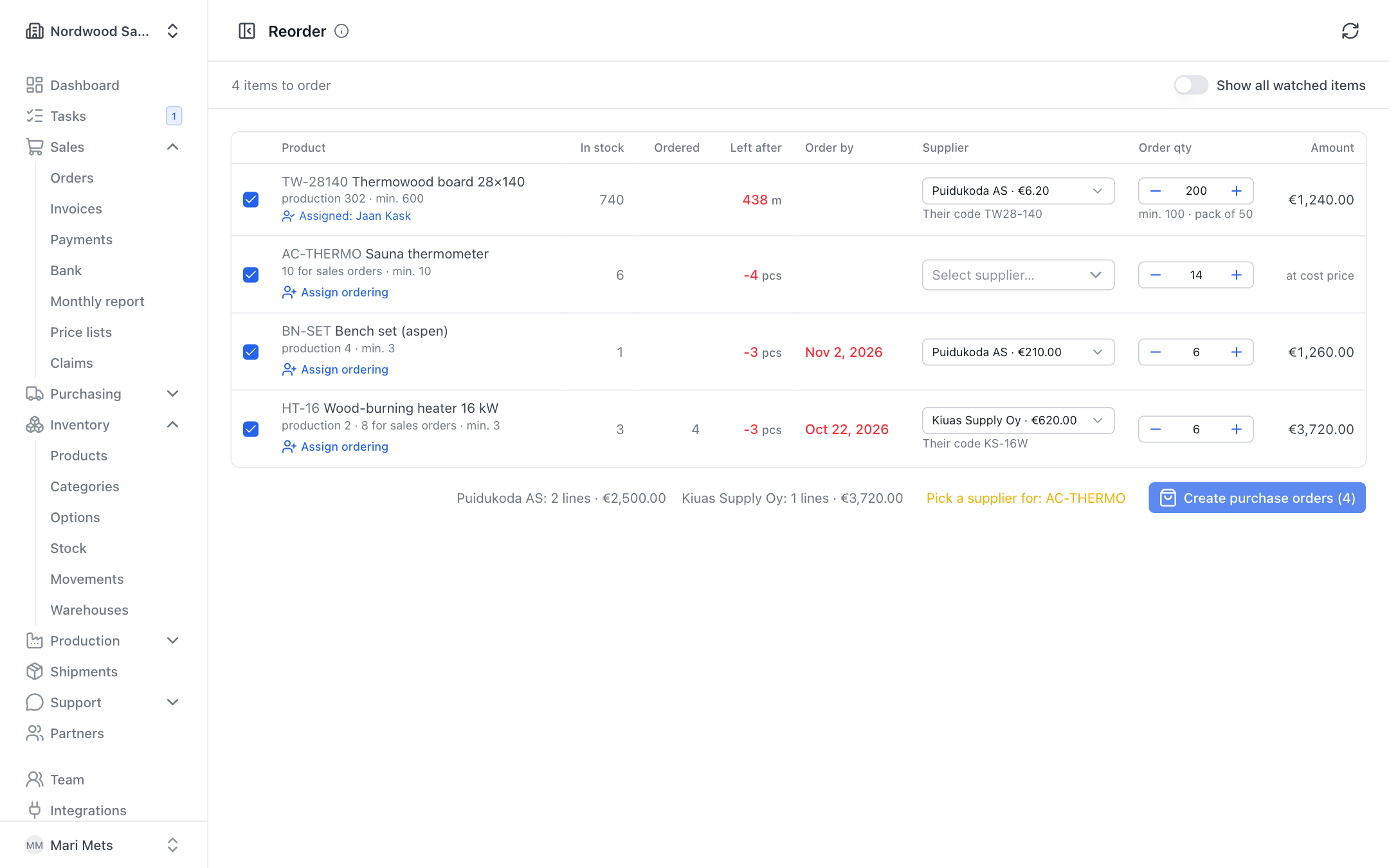
The Purchasing → Reorder page shows what needs ordering: by the products' reorder level and production needs, counting goods already ordered and draft purchase orders.
Columns: In stock, Ordered, Left after, Order by, Supplier, Order qty (and Amount for those who see cost prices). The Show all watched items switch also shows products that need no ordering right now.
Quantities are rounded up to the supplier's minimum and pack size (under the row you see e.g. "min. 10 · pack of 5").
Creating purchase orders from suggestions
- Tick the rows to order.
- Check each row's Supplier and Order qty.
- Press Create purchase orders (…).
One draft purchase order is created per supplier. Review the drafts and send them to the suppliers.
If a product has no supplier, you see "Pick a supplier for: …" — choose a supplier before creating the orders.
Assigning the ordering to a colleague
If someone else does the ordering, press Assign ordering on the row. A task opens (e.g. "Order … – …") with a colleague who has the purchasing role suggested as the assignee. After that the row shows "Assigned: …". See Tasks.
Reorder level
If the list is empty, set a Reorder level (on the product card) for the products you want to keep in stock. Material needs for production come from the production plan.