
Partner portal
The partner portal is a web space for your resellers and business customers. There they can order at their own prices, follow orders, shipments and invoices, report sales of consignment stock, file warranty claims and get a product feed for their webshop.
The first half of this page is for your team, the second half for the partner.
For your team: inviting a partner to the portal
Only an owner or admin can send portal invitations. The partner must be a customer.
- Open Partners and choose the partner.
- The partner form has a Partner portal section. Enter the portal user's e-mail address and click Invite.
- The partner gets an e-mail with a link. The invitation is valid for 14 days and can be used once — with the same e-mail address.
- From the link the partner creates a new account (Create account and join) or signs in with an existing one (Sign in and join).
A sent invitation shows the date it is valid until. Remove access with Remove access. A partner can have several portal users.
What the partner sees
- Only their own company's data: their orders, shipments, invoices, consignment stock and warranty claims.
- Their own prices — always calculated by ZERPY from the partner's price list (see Price lists), in the partner's currency.
- Never cost prices, internal notes or other partners' data.
Orders from the portal are confirmed right away: the goods are reserved and the order is shipped from your default own warehouse. They appear among your sales orders like any other order (see Sales).
For the partner: using the portal
The portal menu has Order, Orders, Invoices, Claims, Product feed and — if you hold our consignment stock — Consignment stock. Choose the language (English or Estonian) in the user menu at the top right.
Ordering
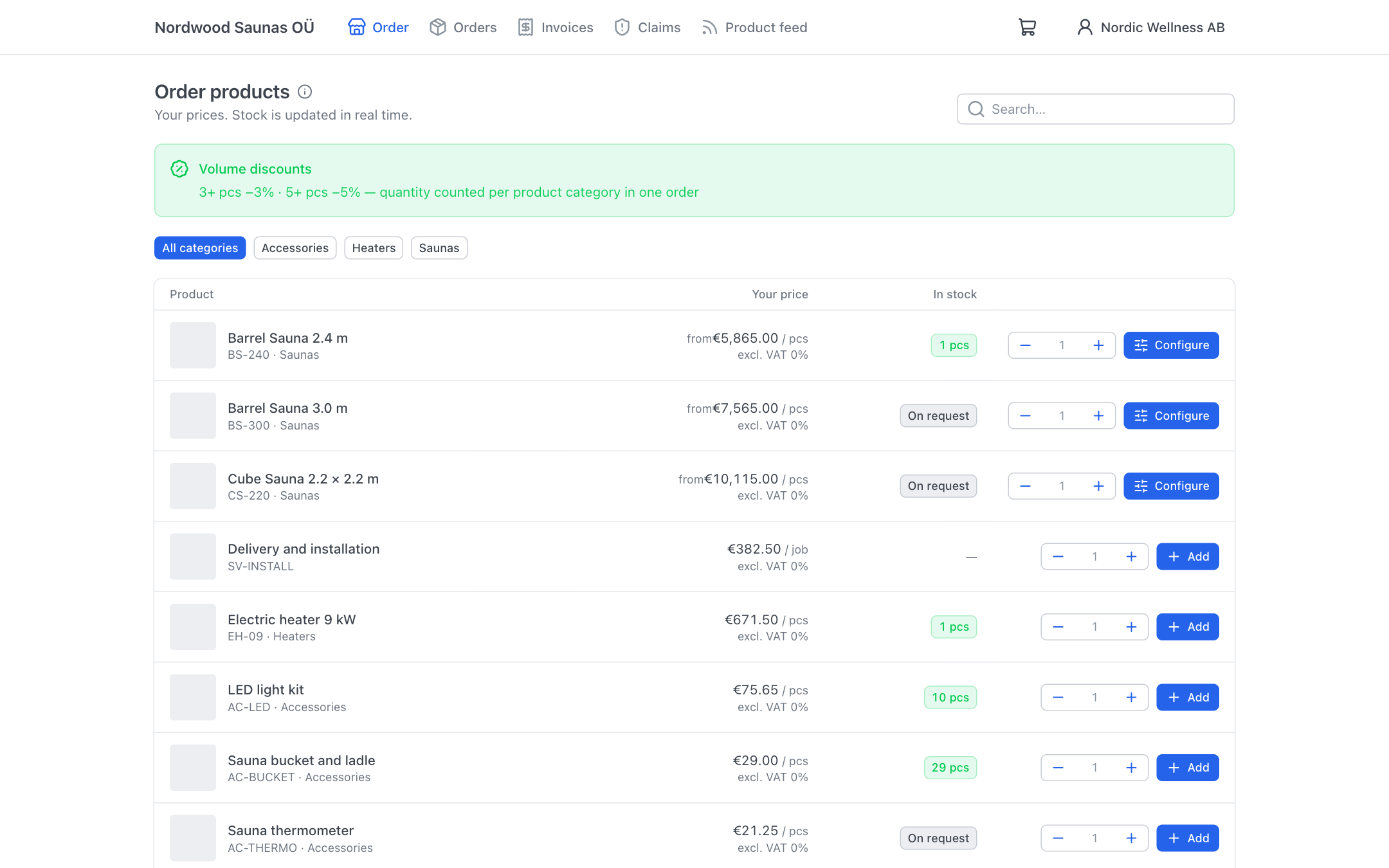
- Open Order. You see the products with Your price and stock (In stock). You can search or filter by category.
- Click Add next to a product. For a product with options (e.g. model, colour) click Configure, choose the options — the price updates as you choose — and add it.
- If your price list has volume discounts, they are shown with the product (e.g. "5+ pcs −5%"). The discount is applied automatically.
- Open the cart and review the order. Optionally add Your reference (e.g. your PO number), a Requested delivery date and Notes.
- Click Place order.
Prices are confirmed when you place the order. Products priced On request cannot be ordered in the portal — ask for a quote.
Orders, shipments and invoices
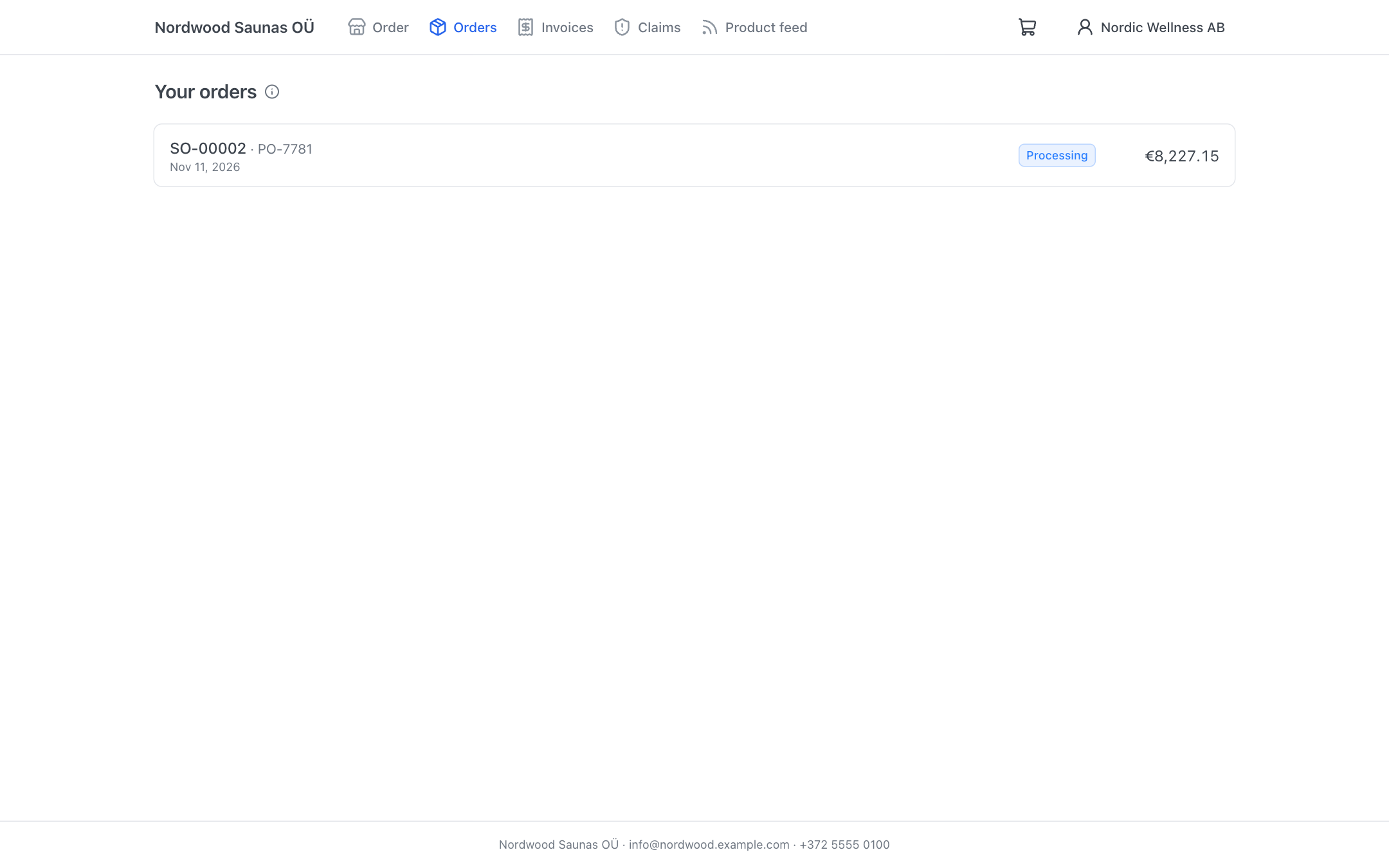
Orders shows your orders and their status: Received, Processing, Partly shipped, Shipped or Cancelled. Open an order to see its lines, shipments (with tracking) and invoices. You can download the Order confirmation (PDF) and the Delivery note of each shipment.
Invoices shows your invoices and credit notes, the due date and whether an invoice is Paid. Click an invoice to open it as a PDF.
Consignment stock
If our goods are held at your premises for sale (consignment), Consignment stock shows what is At you.
- Enter the quantity sold (Sold) for each product and optionally a note.
- Click Report sales.
Your report immediately becomes an order, the goods are booked out of your stock and we invoice you for them. In the order list it is marked as a consignment sales report.
Claims
- Open Claims and click New claim.
- Which product? — choose a delivered product or serial number. Claims can only be filed for products delivered to you.
- Write the Problem and Describe what happens.
- Optionally add Photos or PDF (up to 10 MB each).
- Click Submit claim.
On the claim page you can write messages and add photos (e.g. the damage, the serial number label). We get notified and answer there; you also get an e-mail about our reply. You see the claim's status, warranty and resolution. A closed claim cannot take new messages. See also Claims.
Product feed
The Product feed shows our products on your website or in your shop system — with your prices, images and live stock.
- Click Create feed key and give it a name (e.g. "Our webshop (WooCommerce)").
- Click Create key.
- Copy the Feed link (CSV) (for a shop import plugin, Google Sheets or Excel) or the API key (for a developer). The key is shown only when it is created.
The key is read-only: it can read products, your prices and stock, but cannot place orders or see invoices. You can have up to 5 keys. Click Revoke when a key is no longer used or has leaked — anything using it stops getting data immediately.
Keep the key private
Anyone who has the key or the feed link can see your purchase prices. Do not publish the link on a public web page.
For developers: the API is described in Partner product feed.
On your supplier's side, owners and admins see partners' feed keys on Integrations and can revoke them there.