
Price lists
Price lists give different customers different prices: a general discount, fixed prices for chosen products and quantity discounts. A price list is assigned on the customer's card and applies in sales orders, the partner portal and the API.
Who can change price lists
Price lists are created and changed by the owner, admin, member and sales roles.
How the price is found
When you add an order line for a customer, ZERPY looks for the price in this order:
- A fixed price in the customer's price list – if the product has one, it is used.
- Otherwise the product's standard price minus the price list's General discount.
- If the customer has no price list, the product's standard price.
When enough is ordered, a quantity break is added on top as a line discount.
Creating a price list
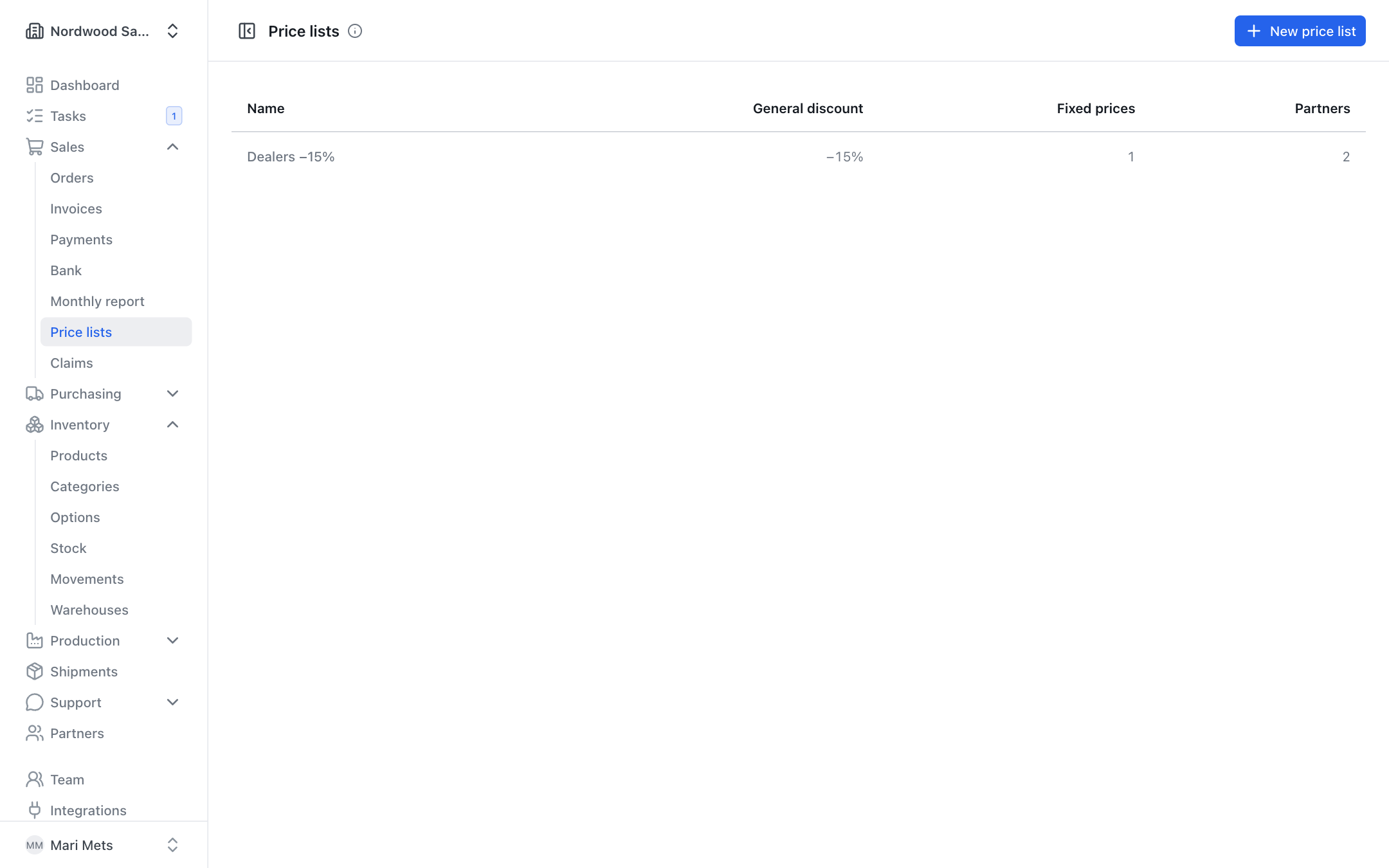
- Open Sales → Price lists and press New price list.
- Enter the Name (e.g. "Resellers").
- Choose the Currency (see below).
- Enter the General discount in percent – it applies to all products without a fixed price.
- Add fixed prices and quantity breaks if needed.
- Press Save.
Fixed prices
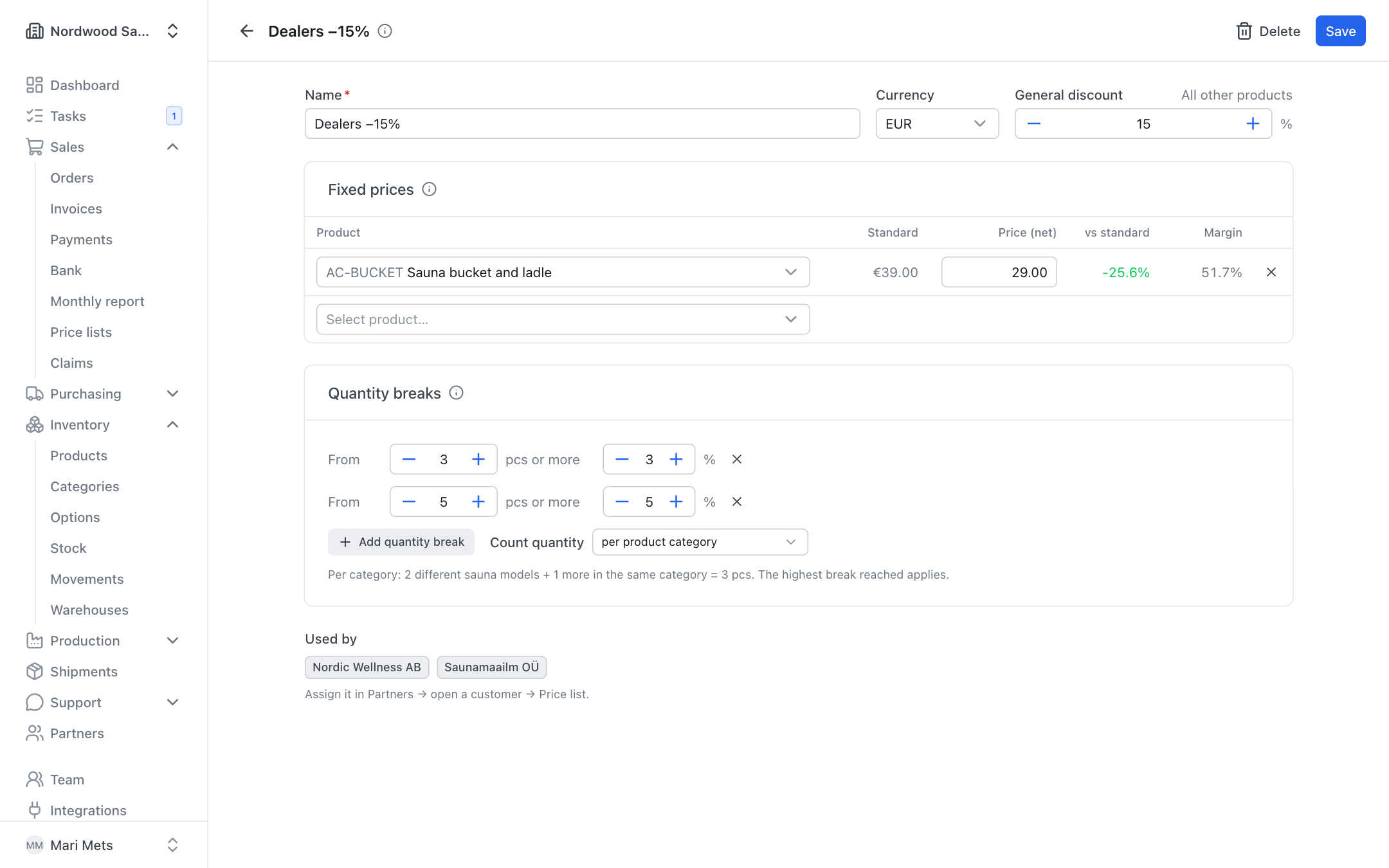
A fixed price is a set price for a chosen product. It wins over the price list's general discount.
- Choose a product in the Fixed prices table.
- Enter the Price (net).
The table shows the product's Standard price and how many percent the price differs vs standard. People who see costs also see the Margin – a negative margin is red. Press the cross to remove a row.
Quantity breaks
The more the customer orders, the bigger the discount – for example 5% off from 5 pcs.
- In the Quantity breaks block, press Add quantity break.
- Enter From … pcs or more and the discount percentage.
- Add more steps if needed (up to 10).
- Choose how to Count quantity:
- per product – all lines of the same product on the order are added up;
- per product category – all lines of the same category are added up. For example 2 different sauna models + 1 more in the same category = 3 pcs. A product without a category is counted per product.
The highest break reached applies. The discount is added to the order line automatically – on top of a fixed price or the generally discounted price – and is shown on documents.
TIP
If you type a discount on a line in the order form yourself, your number stays and ZERPY does not overwrite it. For partner portal orders the server always calculates the quantity break.
Categories are managed under Inventory → Categories (see Products).
Currency
A price list has its own Currency. By default it is your company currency.
- For a price list in a foreign currency, standard prices are shown converted at today's ECB rate.
- Fixed prices are in the price list's currency and are never converted.
- A customer can only be given a price list in their own currency. While a customer uses the price list, its currency cannot be changed to anything other than the customer's currency.
Assigning a price list to a customer
- Open Partners and choose the customer.
- In the Price list field, choose the price list (or Standard prices).
- Press Save.
At the bottom of the price list page, the Used by block shows which partners use this price list. See also Partners.
Deleting a price list
Open the price list and press Delete. A price list that a partner uses cannot be deleted – move those partners to another price list first.
Where price list prices apply
- Sales orders – the price and quantity break fill in on the line automatically (see Sales).
- Partner portal – the partner sees and orders at their own prices (see Partner portal).
- Partner product feed and API – with the partner's key, the partner sees their own prices and quantity breaks.