
Claims
Warranty and service claims are kept in one place: the conversation with the customer, photos, parts sent free of charge, the warranty cost and the resolution. You can enter a claim yourself, or a partner files it in the partner portal.
Claims are under Sales → Claims. Roles with sales rights manage them; roles with shipping rights can send parts. Costs are shown only to roles allowed to see costs.
Statuses
Open → In progress → Resolved or Rejected
- Open — the claim has been entered.
- In progress — you clicked Start working, replied to the customer for the first time or sent parts.
- Resolved / Rejected — the claim is closed. Reopen takes it back to In progress.
Entering a new claim
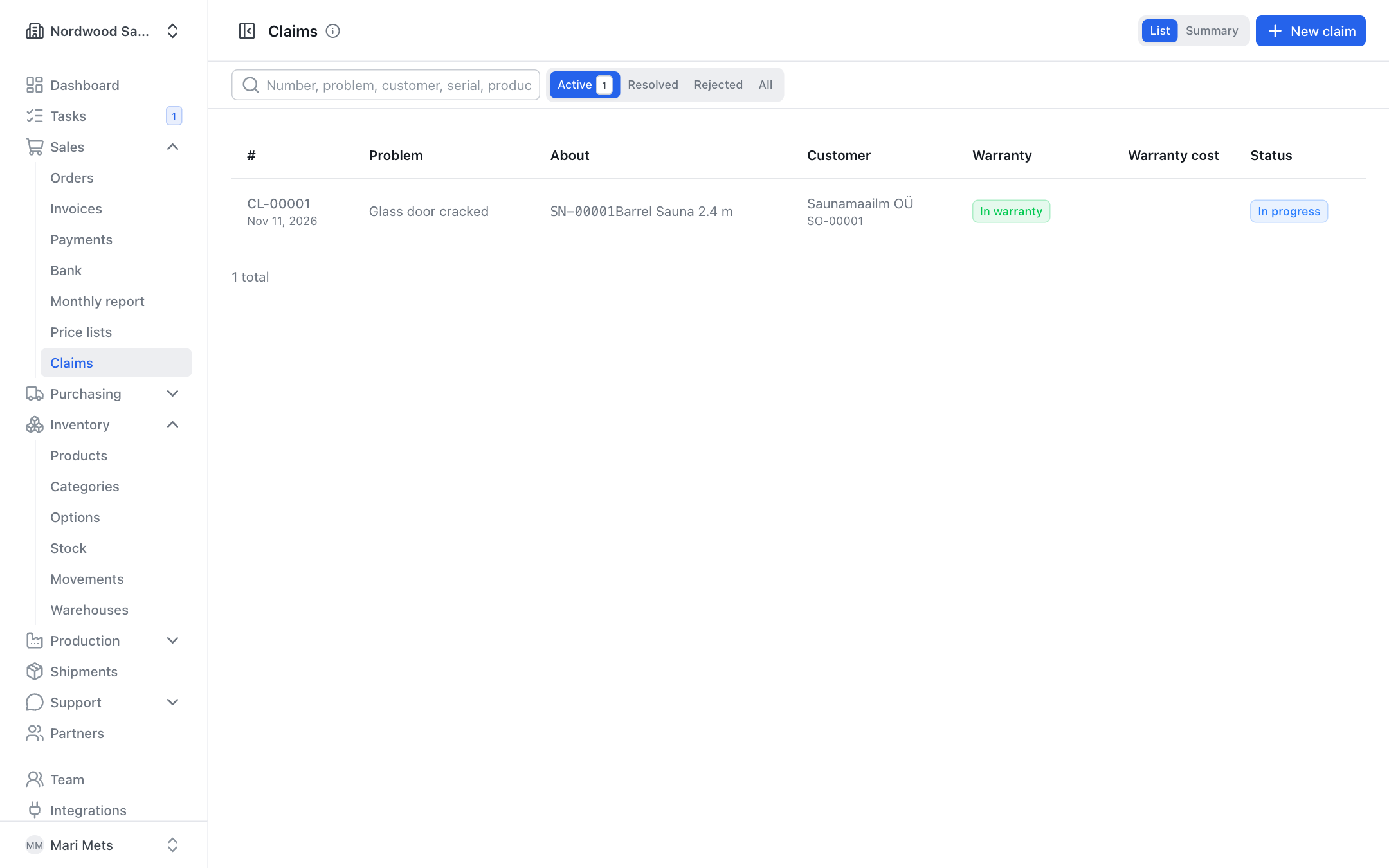
- Open Sales → Claims and click New claim.
- Choose the Unit (serial number) — it fills in the product, order and customer. If there is no serial number, use or choose the product and optionally the Sales order.
- Write the Problem (short, e.g. "Heater control panel does not turn on") and optionally a Description.
- Optionally choose the Faulty part — the summary later shows which parts and suppliers cause claims.
- Save.
You can also create a claim from the serial number page (Production → Serial numbers → unit → New claim). The serial number page lists all claims of that unit.
Warranty check
ZERPY works out the warranty itself: delivery date + the product's Warranty (months) (see Products). The delivery date is the date the serial number was shipped, or the first shipment of that product on the order. The warranty end is stored on the claim, so later product changes do not move it.
The claim is marked:
- In warranty — the claim was reported during the warranty;
- Warranty expired;
- No delivery date — the product has not been delivered yet;
- No warranty — the product has no warranty period.
Conversation and files
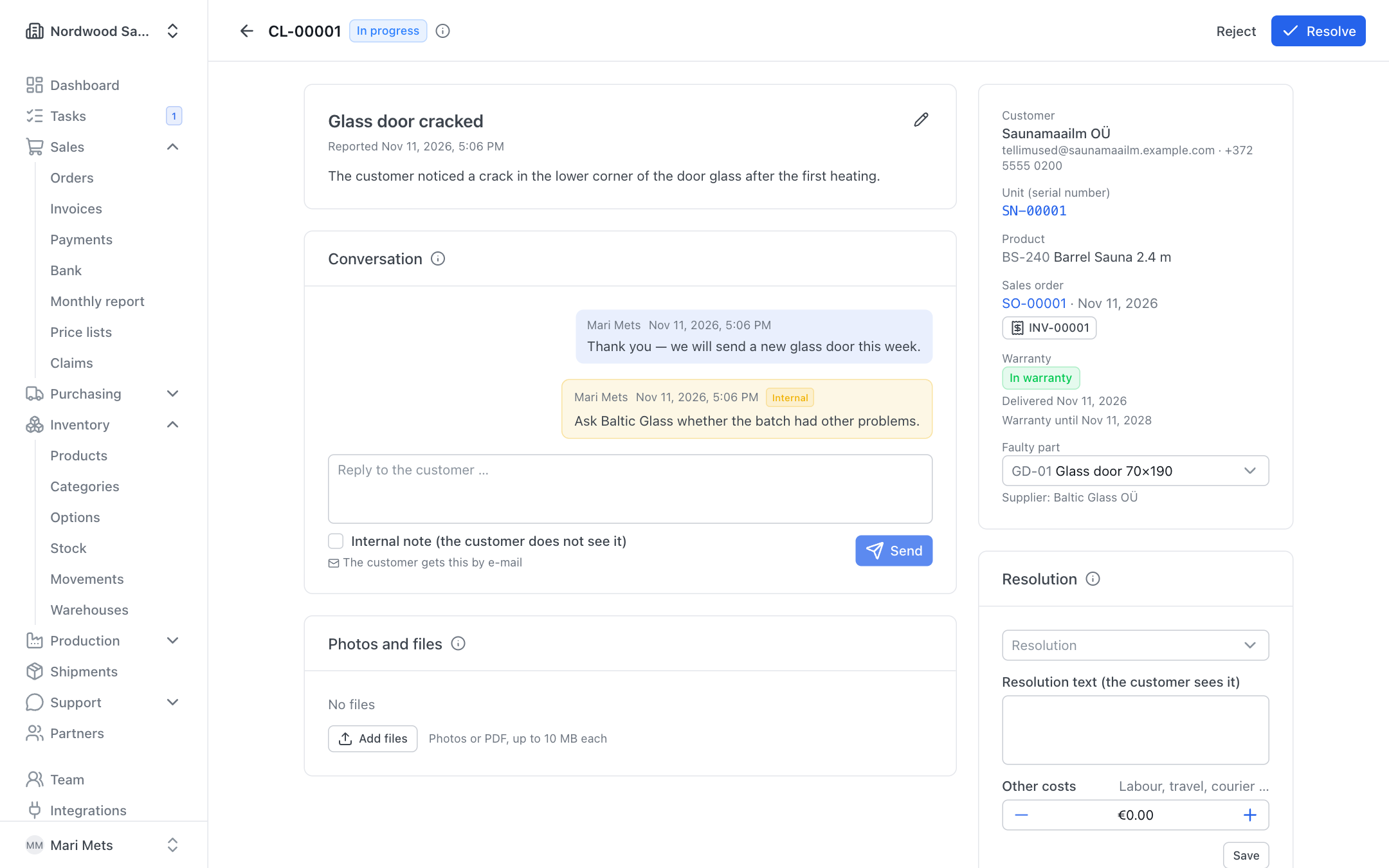
On the Conversation card you write to the customer. When you switch on Internal note (the customer does not see it), the message is only for your team.
On the Photos and files card you can add photos and PDFs (up to 10 MB per file, up to 20 files per claim) with Add files. The customer can add files in the portal too. Metadata (e.g. location) is removed from photos.
Sending parts
- On the Parts sent free of charge card click Send parts.
- Choose the warehouse, add the parts and quantities, optionally a note.
- Confirm.
The parts leave stock as warranty movements (shown in Inventory → Movements, type Warranty parts) and their cost counts as the warranty cost of this claim.
Resolution and costs
On the Resolution card:
- Choose the type of resolution: Parts sent, Repaired, Replaced, Credit note or No action needed.
- Write the Resolution text (the customer sees it) — this text is visible to the customer. Write internal remarks into the conversation as an internal note.
- Other costs — labour, travel, courier, etc.
- Click Resolve or Reject (or Save if the claim stays open).
Warranty cost = parts at cost + other costs. It is added to the sales order's profitability on the Warranty claims line (see Sales).
Summary
Sales → Claims has two views: List and Summary.
The summary covers the last 12 months: number of claims, active, in warranty, warranty cost and average days to resolve, plus the tables By product and By faulty part with the part's preferred supplier. This shows which parts fail most often.
Claims from the partner portal
A partner's portal users can file claims about their own delivered products and serial numbers, write messages, add photos and see the status, warranty and resolution text. They do not see costs, the faulty part, the supplier or internal notes. Such claims are marked From portal. See Partner portal.
E-mail notifications
An owner or admin sets up notifications on Settings, card Notifications:
- Send notifications to — up to 5 addresses; empty = the company e-mail.
- New claims and partner messages — an e-mail to you when a partner files a claim or writes on one in the portal.
- E-mail partners about their claims — your replies (not internal notes) and resolved / rejected claims with the resolution text are e-mailed to the partner's portal users, in the partner's language.
It also shows when e-mails could not be sent in the last 7 days.