
Tasks
With a task you give a colleague a piece of work: what to do, by when and what it is about (e.g. an order, or a product to order). The assignee gets an e-mail, and the task shows up on their home page and in the menu.
Tasks are in the Tasks menu. Every staff member except the viewer role can create tasks.
Statuses
To do → In progress → Done or Cannot be done
- To do — a new task.
- In progress — the assignee clicked Start.
- Done — the work is finished.
- Cannot be done — the assignee wrote a reason (e.g. "The supplier has no posts until March").
A finished or blocked task can be opened again with Reopen.
Creating a task
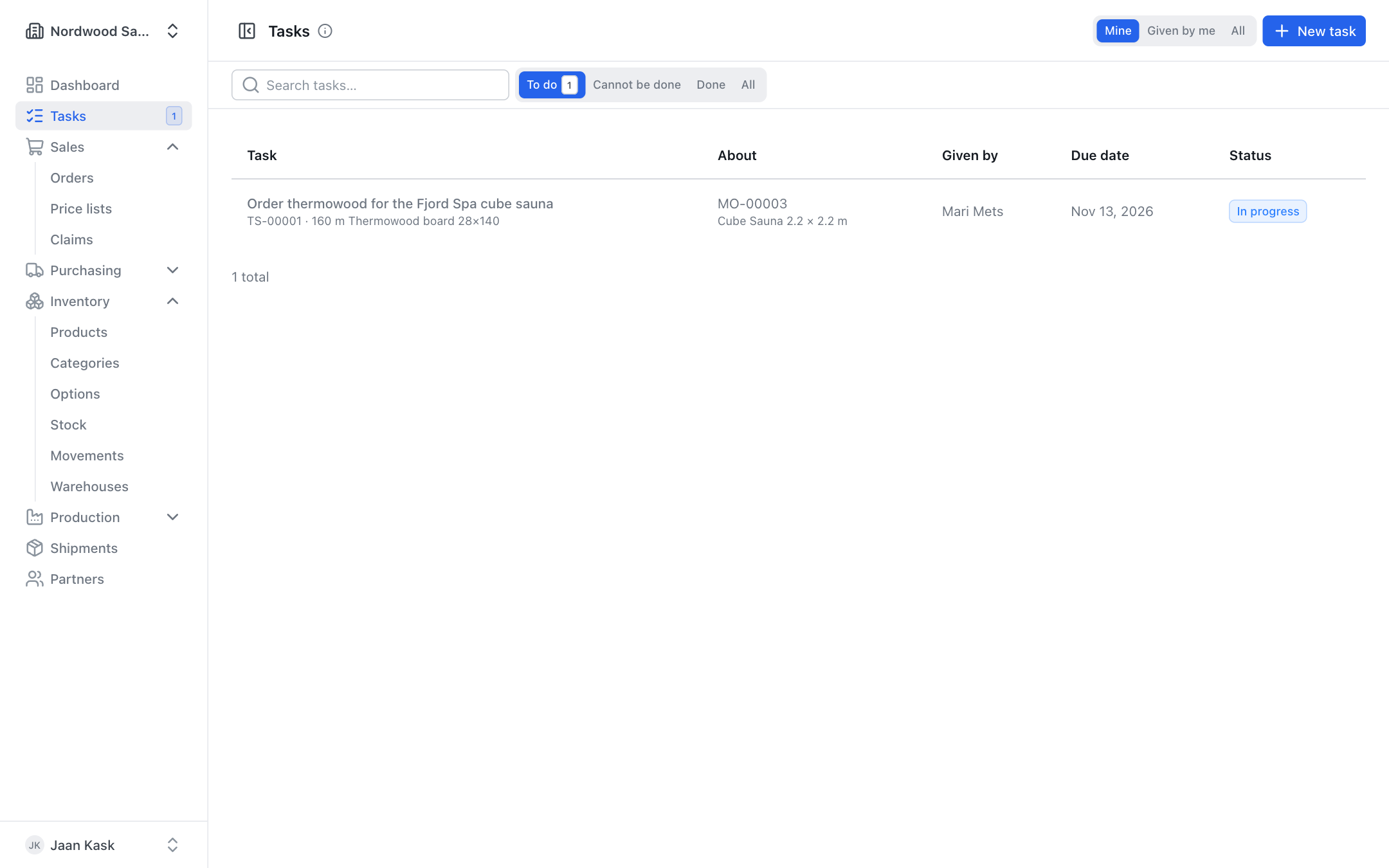
- On the Tasks page click New task.
- What needs to be done — a short title (e.g. "Order the posts 120×120, 40 pcs").
- Details — optional.
- Who does it — choose a colleague or Me.
- Due date — optional.
- Save. The assignee gets an e-mail.
A task from a document
Sales orders, production orders, purchase orders, claims and the partner form have a Tasks card. Click Assign a task — the new task is linked to that document (About) and the card lists all tasks of the document. The task page links back to the document. A colleague who may not see that document sees only its number.
An ordering task (product + quantity)
On Production → Plan (tab Materials) and Purchasing → Reorder a material row has an Assign ordering button. The task gets the product and quantity, and the suggested assignee is the first colleague with the purchasing role. The row then shows Assigned: name. See Production plan and capacity and Purchasing.
Working with tasks
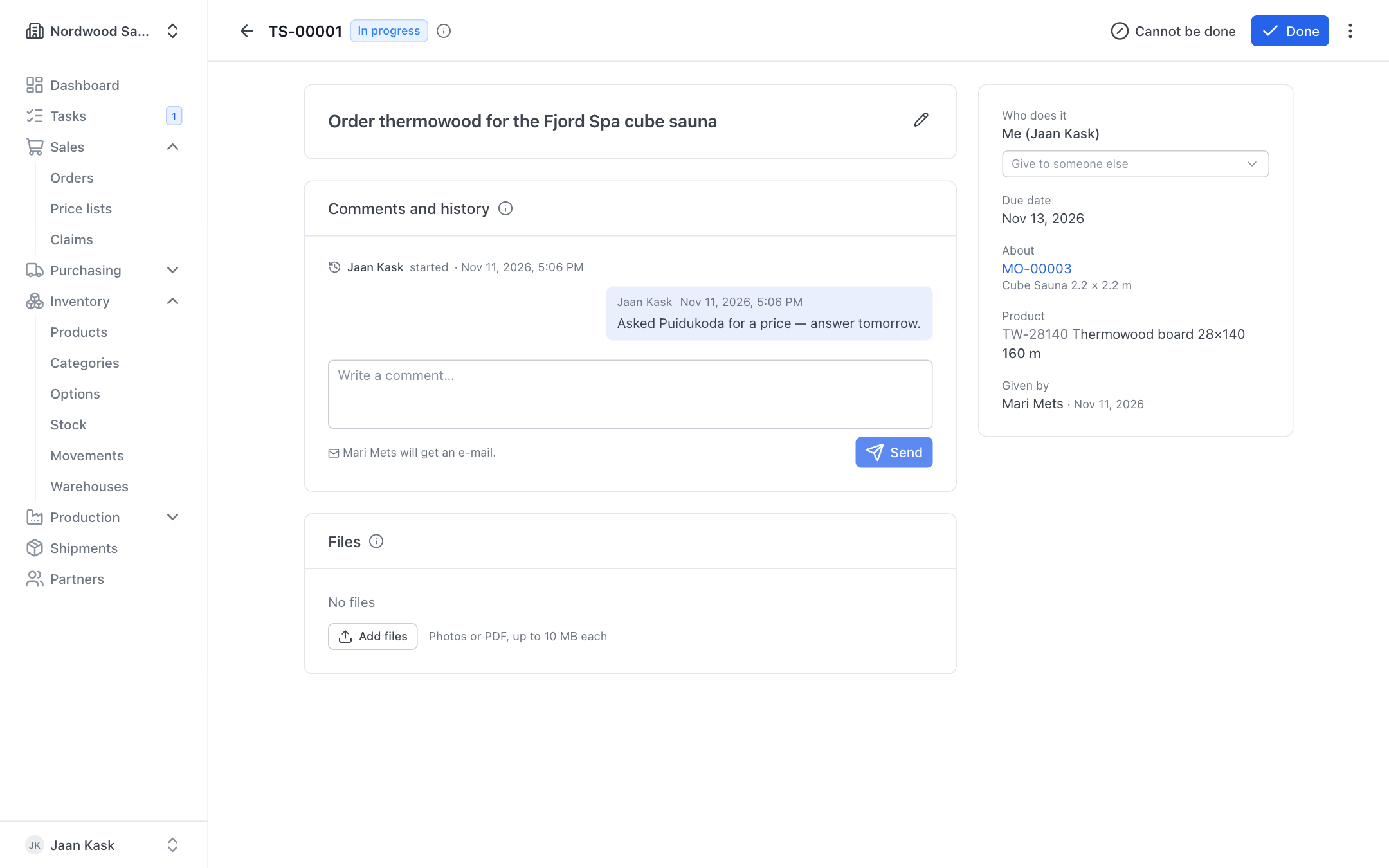
The Tasks page has the views Mine, Given by me and All, and the filters To do, Cannot be done, Done and All. An overdue due date is red.
Open a task and:
- click Start when you begin and Done when finished;
- if it cannot be done, click Cannot be done and write the reason — the person who gave the task gets an e-mail with your explanation;
- Take it — you take an unfinished task over;
- Give to someone else — you hand the task to another colleague;
- edit the title, details or due date, or delete the task, from the three-dot menu.
Comments and files
The Comments and history card shows comments and what happened to the task (who started it, handed it over, marked it done, etc.). Write a comment and click Send — the form shows who will get an e-mail.
On the Files card you can add pictures and PDFs (e.g. an offer or a drawing), up to 20 files of 10 MB each.
Who can do what
- Everyone who sees a task can comment, add files and take the task.
- The assignee, the person who gave it and owners / admins can change the status, edit it and hand it over.
- The person who gave it and owners / admins can delete it. A file can be deleted by whoever added it and by owners / admins.
Who sees tasks
An owner or admin chooses on Settings, card Tasks (Who sees tasks?):
- All team members see all tasks (default) — everyone can see what is going on, comment and take a task over;
- Only the people involved — a task is seen by the assignee, the person who gave it and owners / admins.
Owners and admins always see all tasks.
E-mails
An e-mail never goes to the person who made the change.
- A task is given to you → e-mail to the new assignee.
- A task is handed over or taken → e-mail to the previous assignee and the person who gave it.
- Done or Cannot be done → e-mail to the assignee and the person who gave it.
- Reopen → e-mail to the assignee.
- New comment → e-mail to the assignee and the person who gave it. Comments written quickly one after another are merged into one e-mail.
Menu badge and home page
Next to Tasks in the menu there is a number — your unfinished tasks. If one of them is overdue, the number is red.
The home page has a My tasks block: your unfinished tasks by due date (overdue in red) and an All my tasks link. When you have no tasks, the block is hidden.