
Merit Aktiva
ZERPY sends issued invoices and credit notes to the accounting software Merit Aktiva automatically, so your accountant does not have to enter them again. If you want, payments are sent to Merit too, and invoices can go out as e-invoices.
The connection works one way: ZERPY → Merit. ZERPY keeps the stock; invoices are sent to Merit without stock tracking.
Merit is set up on the Integrations page, on the Merit Aktiva card. Only an owner or admin can do it.
Connecting
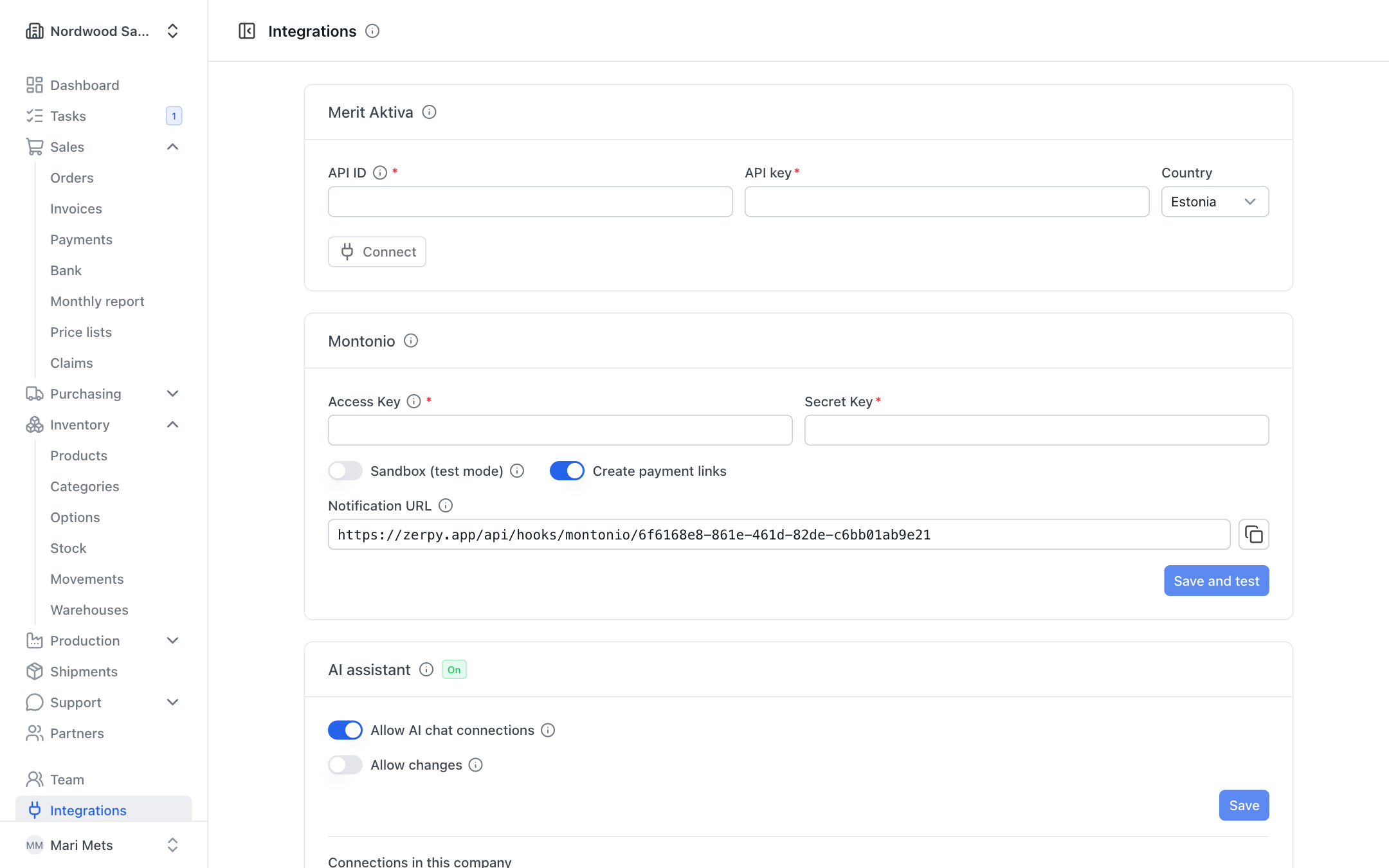
- In Merit, open Settings → API settings and copy the API ID and API key. Merit needs a PRO or PREMIUM licence for the API.
- In ZERPY, open Integrations and enter the API ID and API key on the Merit Aktiva card.
- Choose the Country (Estonia or Poland — whichever Merit version you use).
- Press Connect. ZERPY checks the connection and loads the VAT codes from Merit.
- Set up the VAT codes, start date and automatic sending (see below).
- Press Save and start sending.
The API key is stored encrypted. You can change the credentials later with Change API credentials.
VAT codes
Every ZERPY VAT rate (e.g. 24% VAT) needs a matching VAT code in Merit. Under VAT codes, pick Choose Merit VAT code next to each rate.
If you sell without VAT, the list also shows 0% EU supply (goods and services to EU businesses) and 0% export. These appear once you have such orders. Every line of such an invoice gets that code.
WARNING
If a rate has no code, you see "Not mapped: …" — invoices with these rates are not sent.
If you add a new VAT code in Merit, press Reload from Merit.
Start date and automatic sending
- Send documents issued from — invoices and credit notes issued on or after this date are sent. Earlier invoices are not sent automatically.
- Automatic sending — when on, new documents are sent within a minute. Invoices are sent before credit notes.
The card shows how many documents are Sent, Waiting and how many have Errors, and when the last one was sent (Last sent).
If Merit does not answer or the API credentials are wrong, sending pauses for a while and the card shows the error with the time of the next attempt.
One invoice's status and "Send to Merit"
The page of an issued invoice shows whether it is in Merit:
- Sent to Merit — all good.
- Will be sent to Merit automatically — the invoice is in the queue.
- Not sent to Merit — with the reason. Fix the problem (e.g. a missing VAT code) and press Send to Merit or Send to Merit again.
- Sending to Merit did not finish — check in Merit whether the document exists before sending again.
You can also send invoices issued before the start date by hand with Send to Merit.
Sending payments to Merit
When you switch on Send payments to Merit, payments recorded in ZERPY (bank statement, Montonio, by hand) are booked in Merit against the invoice, so your accountant does not enter them again.
- First press Load from Merit so ZERPY gets your Merit bank accounts.
- Switch on Send payments to Merit.
- For each payment method (Bank transfer, Card, Cash, Online payment, Other) choose a Merit bank account, Cash register or Don't send.
- Choose Send payments from — payments received before this date are not sent.
- Press Save.
Payments are only sent for invoices that are already in Merit. Prepayments are booked on the invoice date. A payment from a bank statement goes to the Merit bank account with the statement's IBAN.
Double booking
If your accountant imports the bank statement into Merit, choose Don't send for bank transfers — otherwise those payments are booked twice. Online payments (Montonio) usually go to a separate Montonio account in Merit.
The invoice page shows Payments in Merit: …. If sending failed, press Send payments again. If a payment was removed or refunded after it was sent to Merit, you see a warning — correct it in Merit by hand.
E-invoices through Merit
If a customer wants e-invoices, tick Send invoices as e-invoices in their partner form (see Partners). Then:
- When you issue the invoice, it is sent to Merit as usual.
- Once the invoice is in Merit, ZERPY asks Merit to send it to the customer as an e-invoice. Merit delivers it to its own users directly and to others through the e-invoice operator set up in Merit.
The invoice page shows the status:
- Sent as e-invoice — all good.
- Will be sent as e-invoice — waiting to be sent.
- The customer cannot receive e-invoices — they are not registered as an e-invoice recipient. Send the PDF by e-mail instead.
- E-invoice send not confirmed — check the invoice's e-invoice status in Merit before you retry, so the customer does not get it twice.
- Not sent as e-invoice — with Send as e-invoice you can send it even to a customer without the tick.
You can download the e-invoice XML file (EN 16931 / Peppol BIS 3.0) on the invoice page with E-invoice and attach it to the e-mail (see Invoices).
Disconnecting
Press Disconnect on the card. Invoices are no longer sent. Documents already in Merit stay there.