
My profile
This page explains how to change your own details, e-mail address and password, and how to choose the app language and theme. These are your personal settings – company settings are under Settings.
The user menu
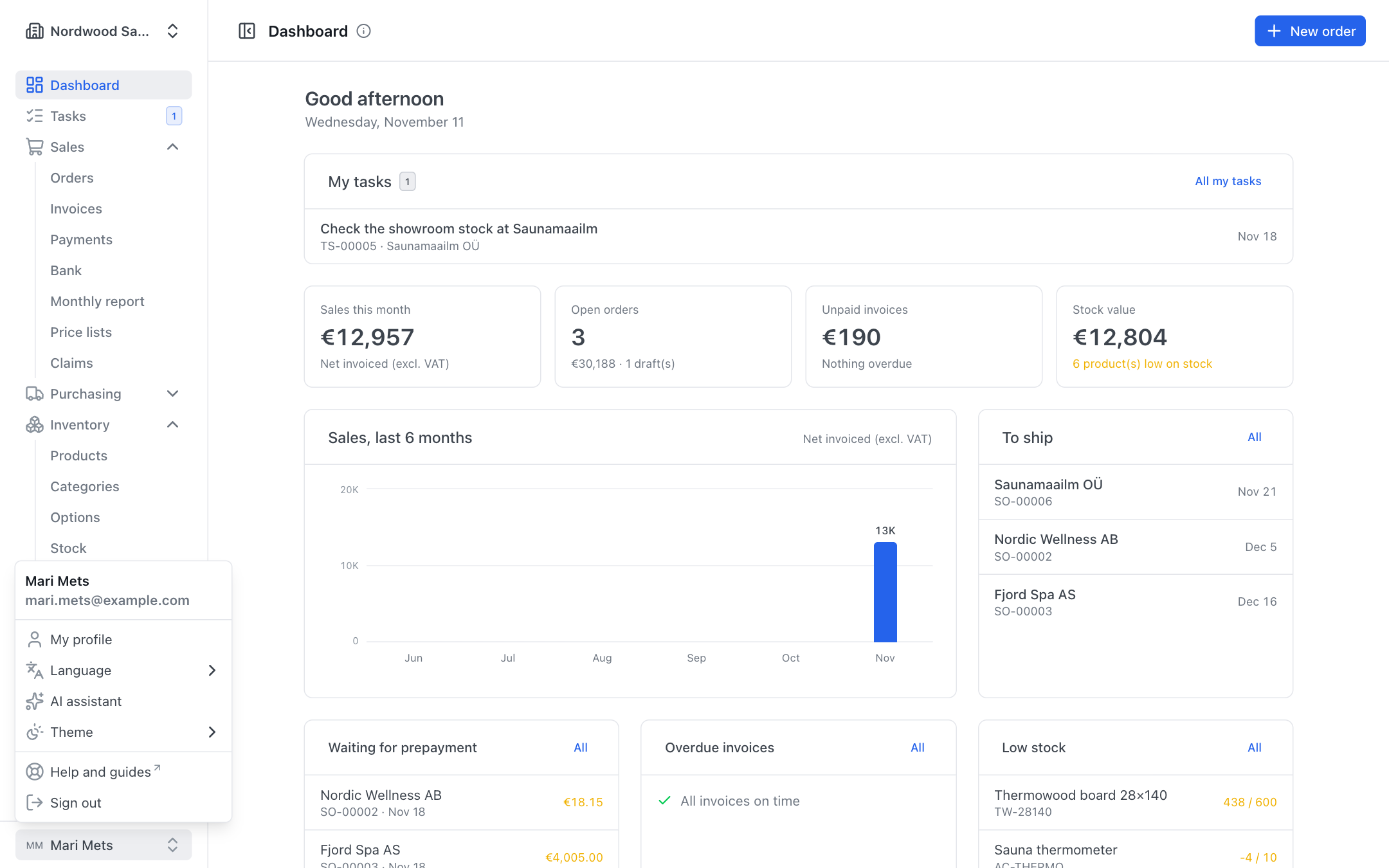
Your name (or e-mail address) is at the bottom of the sidebar. Click it to open the menu:
- My profile – your details, e-mail and password;
- Language – English or Eesti;
- AI assistant – your own AI connection; shown only while the company allows AI connections (see AI assistant);
- Theme – Light, Dark or Auto (as on your computer);
- Sign out.
My details
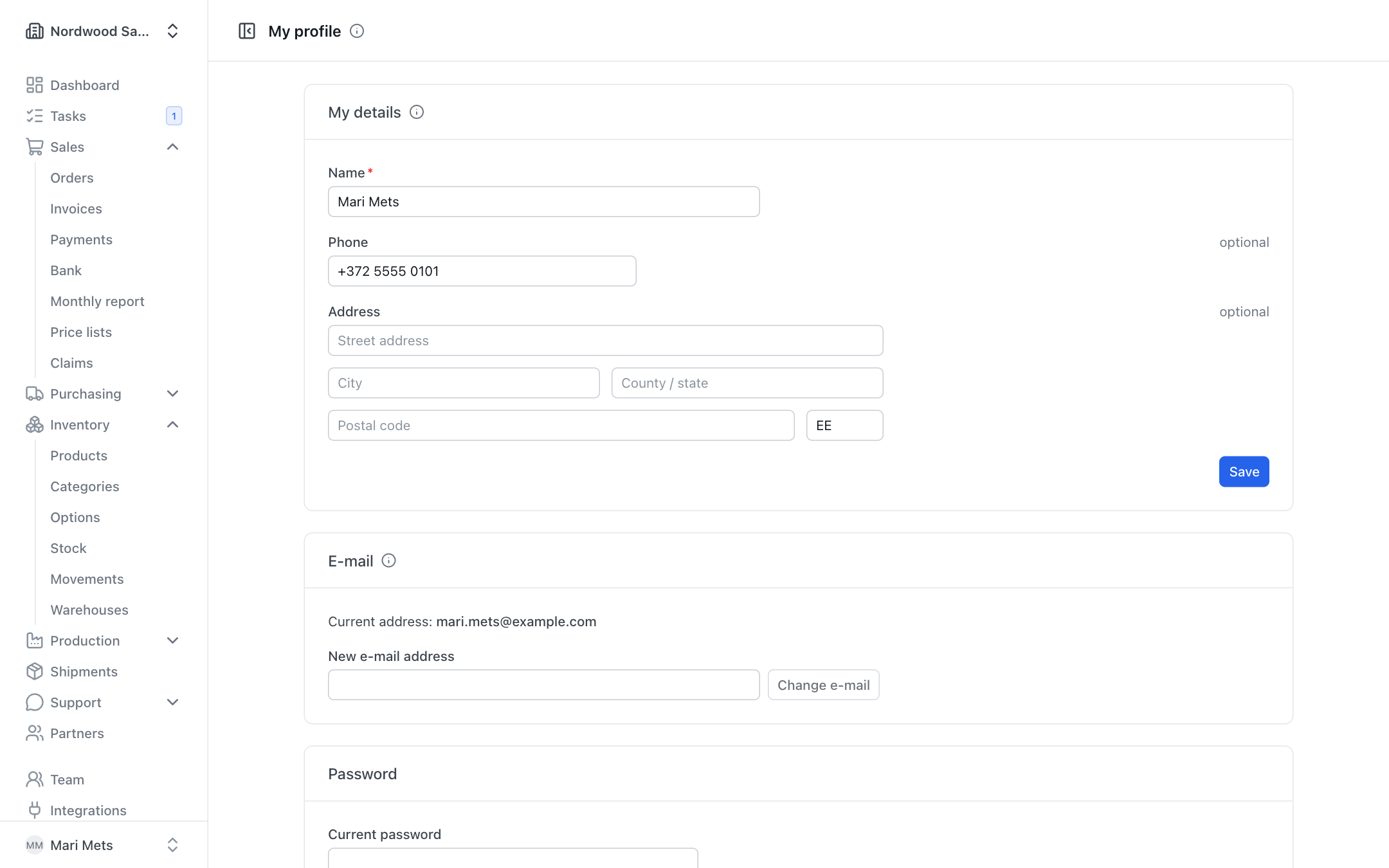
- Open My profile from the user menu.
- On the My details card, change your Name, Phone (optional) and Address (optional).
- Press Save.
Your name is shown to colleagues on tasks, comments and in the activity log.
Changing your e-mail address
You sign in with this address and get your task e-mails here.
- Open My profile. The E-mail card shows your Current address.
- Type the New e-mail address and press Change e-mail.
- ZERPY sends a link to the new address. Press the link in the e-mail (a confirmation may also be sent to your current address).
Until you confirm the change, you sign in with the old address.
Changing your password
- Open My profile, card Password.
- Enter your Current password.
- Enter the New password and New password again. The new password must be at least 10 characters – a sentence of several words makes a good password.
- Press Change password.
If you forgot your password
- On the sign-in page, press Forgot your password?.
- Enter your e-mail address and press Send link.
- Press the link in the e-mail (it is valid for 1 hour). If no e-mail arrives, check your spam folder too.
- Enter the New password, Repeat the password and press Save password. After saving you are signed in right away.
Language
Choose the app language in the user menu: Language → English or Eesti. On the sign-in page there is a language button for this. The choice is remembered in this browser.
The app language only changes what you see on screen. The language of invoices, quotations and e-mails to customers depends on the customer (see Partners).
Theme
Under Theme in the user menu you can choose:
- Light;
- Dark;
- Auto (as on your computer) – follows your computer's or phone's setting.