
Inventory
Under Inventory you see how much of each product is in stock, how much of it is already reserved for orders and how much is on its way. Here you also count stock, correct it, move goods between warehouses and see the history of every change.
Who can change stock
Stock counts, corrections and transfers are done by the owner, admin, member and warehouse roles. Only an owner or admin adds and changes warehouses.
How ZERPY keeps stock
ZERPY does not keep stock as one number that someone overwrites. Every movement of goods – receipt, shipment, production, stock count, transfer – is saved as its own line, like a bank statement. Stock is the sum of these lines.
This means:
- Stock changes by itself when you receive, ship or produce goods. You only change it by hand when goods are lost, damaged or a count shows a different quantity.
- Every change shows when, why and with which document it was made.
- Lines cannot be edited or deleted. A mistake is corrected with a new movement.
- Stock cannot go below zero: if there is not enough in stock, ZERPY does not make the change.
Warehouses
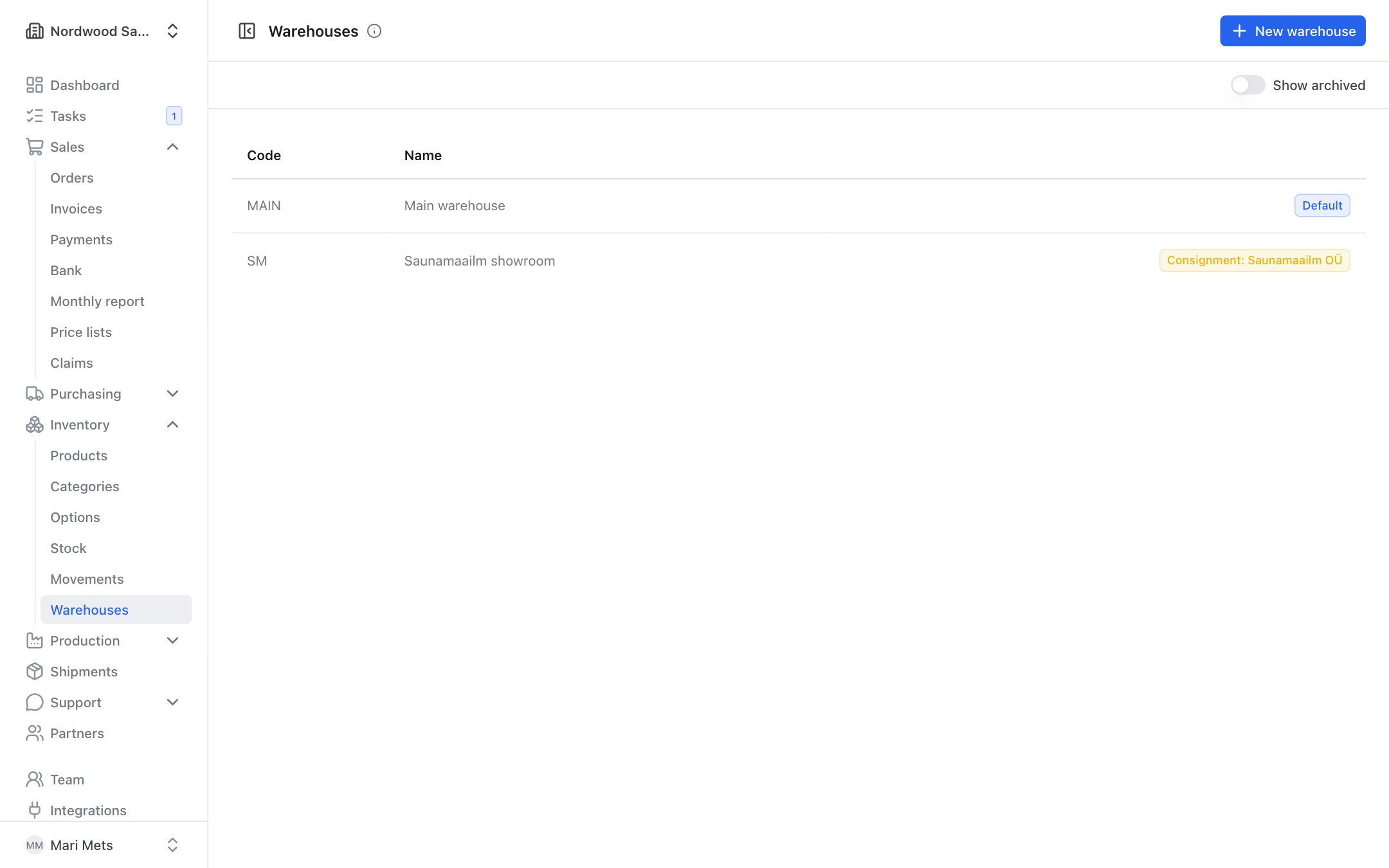
Inventory → Warehouses lists your warehouses and locations. A new company starts with one warehouse (Main warehouse), which is the Default.
To add a warehouse:
- Press New warehouse.
- Enter the Code and Name.
- If needed, choose a Consignment partner (see below) and tick Default warehouse.
- Press Save.
The default warehouse is filled in on new sales, purchase and production orders. A warehouse you no longer use can be archived (Archived) – except the default one.
Consignment warehouses
A consignment warehouse holds your goods at a partner's site (e.g. a reseller). The goods stay yours until they are sold.
- Create a warehouse and choose the Consignment partner. It is marked Consignment in the warehouse list.
- Move goods there with a transfer (see below).
- Selling from a consignment warehouse is a normal sales order with that warehouse as the ship-from warehouse. The partner can report their sales themselves in the partner portal (see Partner portal).
Stock
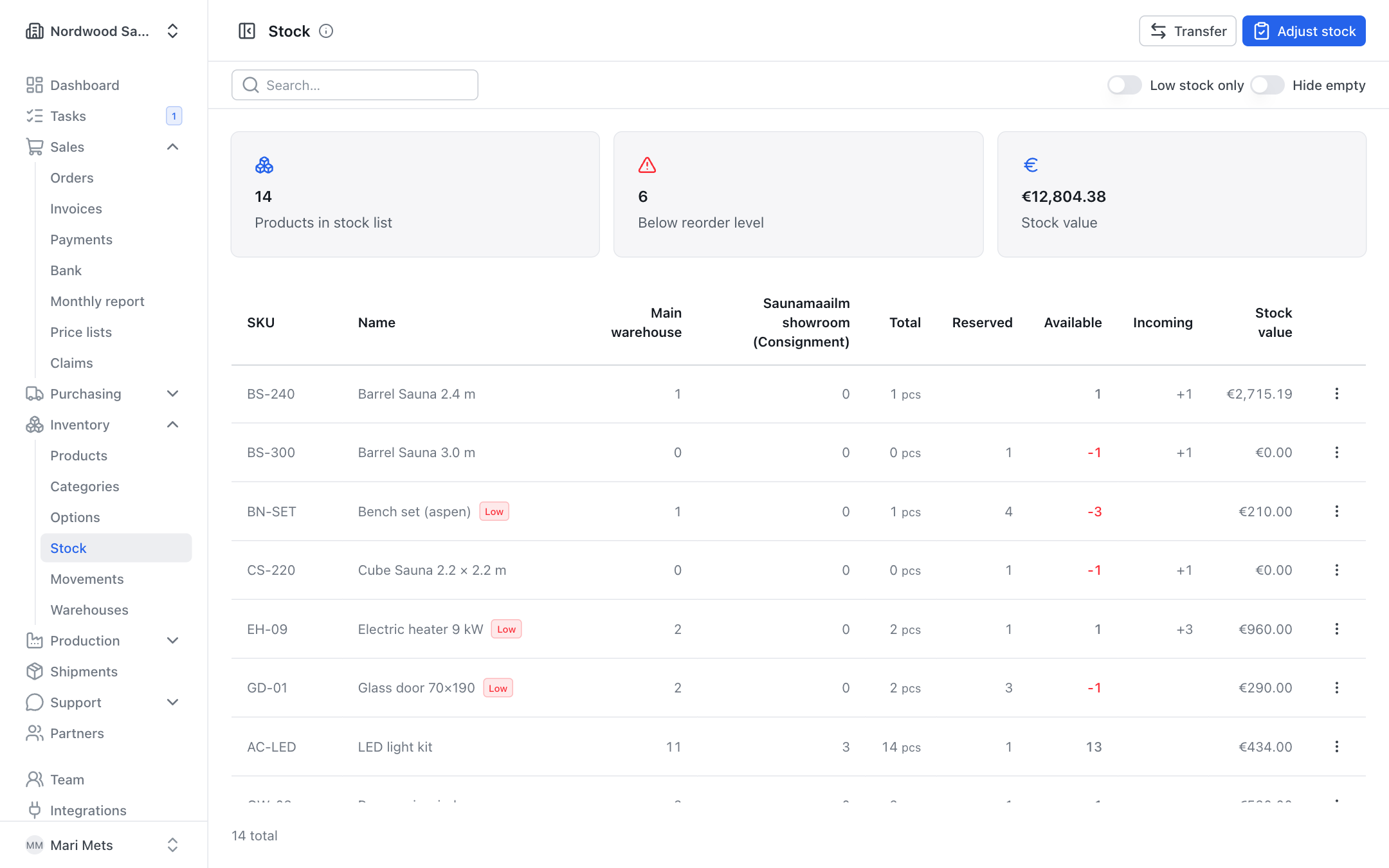
Inventory → Stock shows for each stock item:
| Column | Meaning |
|---|---|
| On hand (or a column per warehouse plus Total) | How much is physically in stock right now |
| Reserved | How much is already promised to confirmed sales orders and planned production orders (materials not yet issued) |
| Available | On hand minus reserved. It can be negative – then more is ordered than is in stock |
| Incoming | Goods coming on open purchase orders and output of planned production |
| Stock value | Quantity × cost price – only for roles that see costs |
With several warehouses, each warehouse has its own column. The top of the page shows a summary: how many products are in the list, how many are Below reorder level and (for those who see costs) the Stock value.
A product is marked Low when its available quantity is at or below the product's Reorder level (see Products). The switches Low stock only and Hide empty narrow the list down.
From a row's menu you can choose Adjust stock, Transfer or History for that product.
Entering the opening balance
When you start using ZERPY, first enter your current stock.
- Open Inventory → Stock and press Adjust stock.
- Under What are you doing? choose Stock count.
- Choose the Warehouse and the Reason → Opening balance.
- Add products (Add product) and enter the Counted quantity for each.
- Press Save.
From then on stock changes by itself when you ship, receive or produce.
Stock count
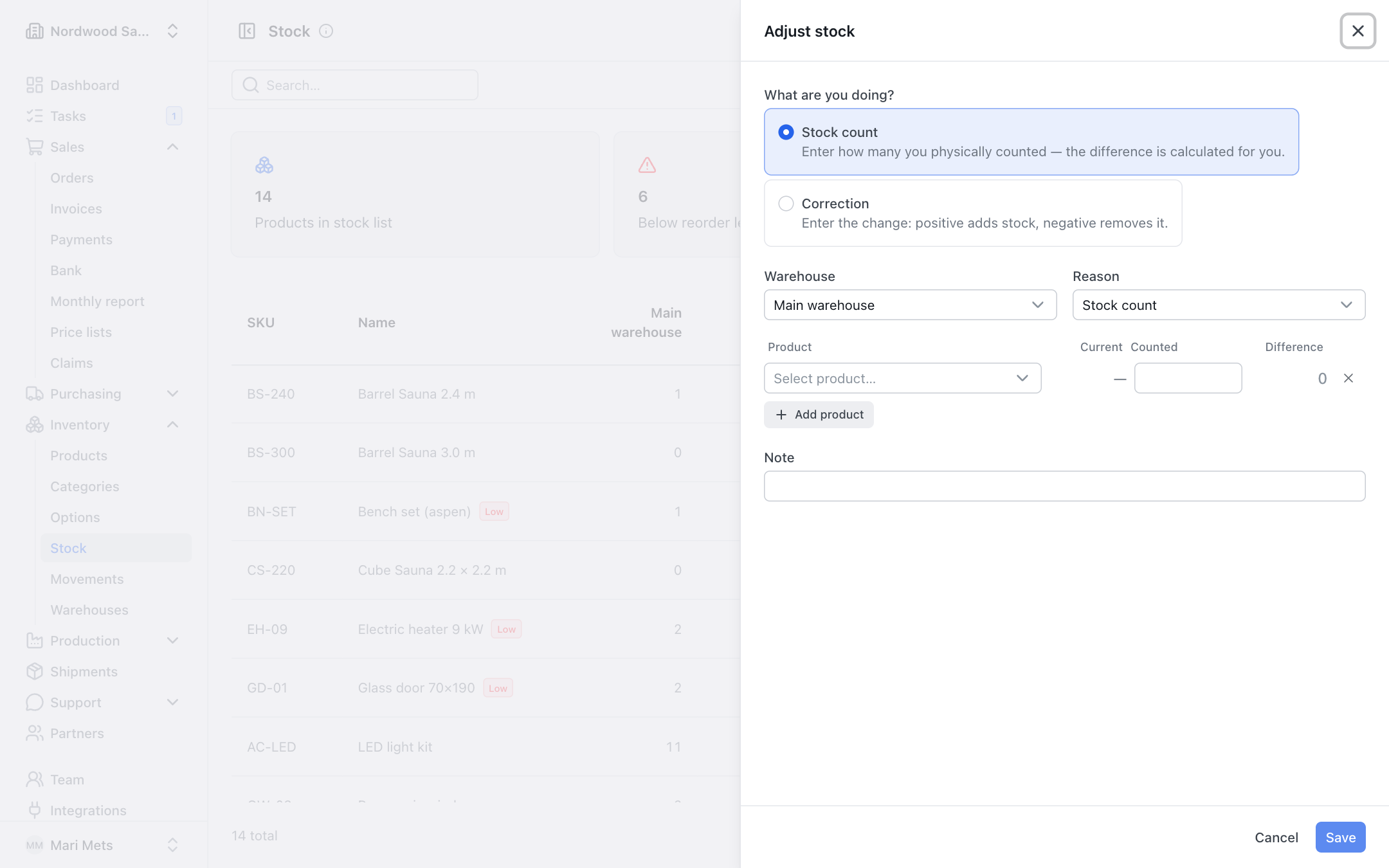
In a stock count you count how many are really on the shelf, and ZERPY works out the difference.
- Press Adjust stock and choose Stock count.
- Choose the Warehouse. The Reason is Stock count.
- Add products and enter the Counted quantity. Next to it you see the Current quantity and the Difference.
- Press Save.
If the quantities already match, you see No changes — quantities already match.
Correction
When you know the exact change (e.g. 2 pcs were damaged), use a correction.
- Press Adjust stock and choose Correction.
- Choose the Warehouse and the Reason: Damaged, Lost / stolen, Found, Opening balance, Stock count or Other.
- Add products and enter the Change: a positive number adds stock, a negative one removes it.
- Add a Note if you like and press Save.
Transfer
A transfer moves goods from one warehouse to another (also to a consignment warehouse). The button is shown when you have more than one warehouse.
- Press Transfer.
- Choose From and To.
- Add products and enter the Quantity. Next to it you see how much is Available in the source warehouse.
- Press Transfer.
Stock movements (history)
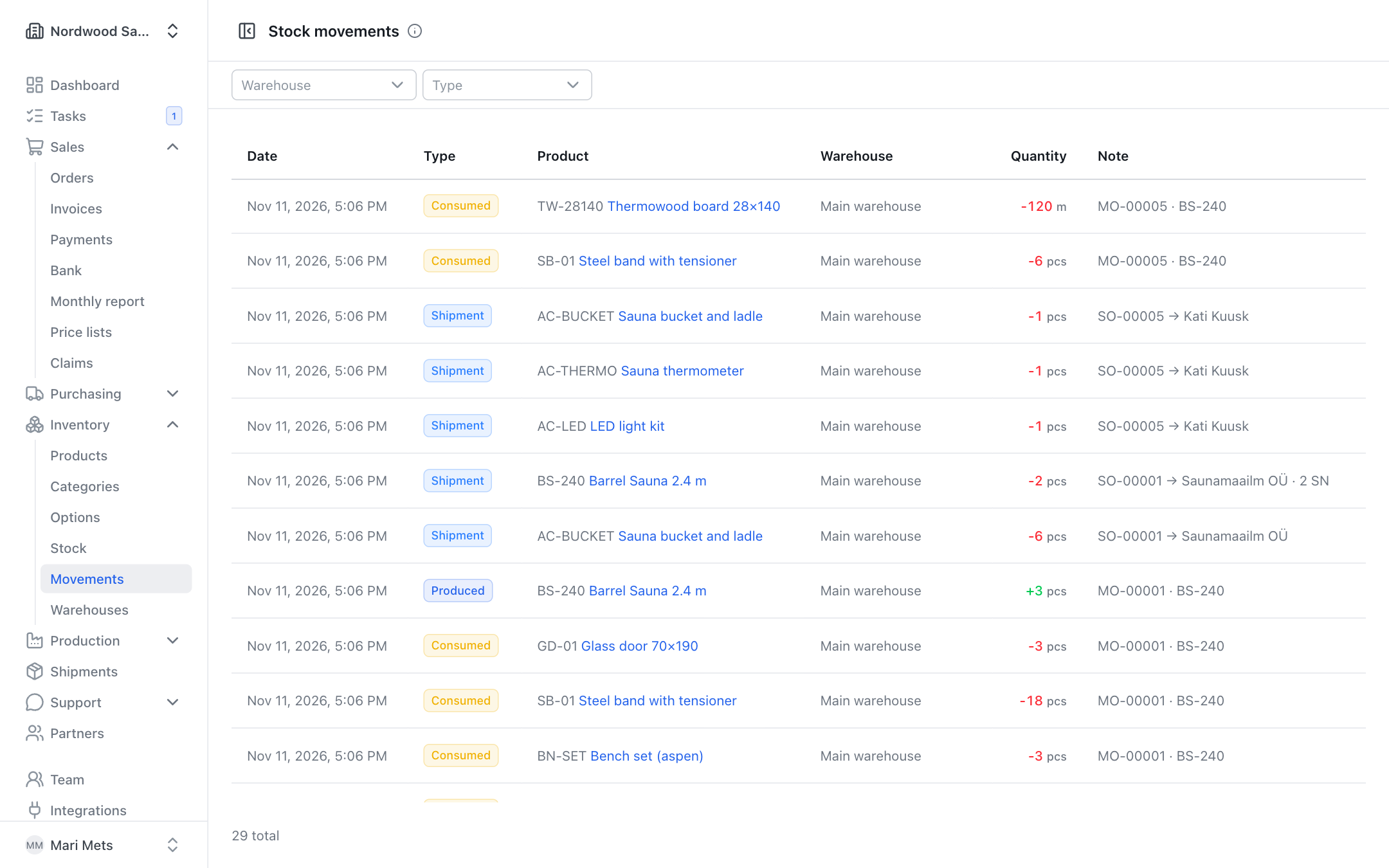
Inventory → Movements shows every stock change on its own line: date, type, product, warehouse, quantity and note. You can filter by warehouse and type. To open one product's history, use History in the row menu on the stock page.
Movement types:
| Type | What happened |
|---|---|
| Receipt | Goods were received on a purchase order |
| Shipment | Goods were shipped to a customer |
| Produced | Goods came out of production |
| Consumed | Material was used in production |
| Returned from production | Leftover material was put back in stock |
| Adjustment | A stock count or manual correction |
| Transfer | Goods were moved to another warehouse |
| Customer return | Goods came back with a credit note |
| Warranty parts | Parts were sent for a warranty claim |
See also Sales, Purchasing and Production.