
Payments and prepayments
ZERPY keeps track of how much has been paid for every order. An invoice is marked paid by itself when the payments cover it. Payments are seen and recorded by everyone with invoicing rights (owner, admin, member, sales, accountant).
Where to see payments
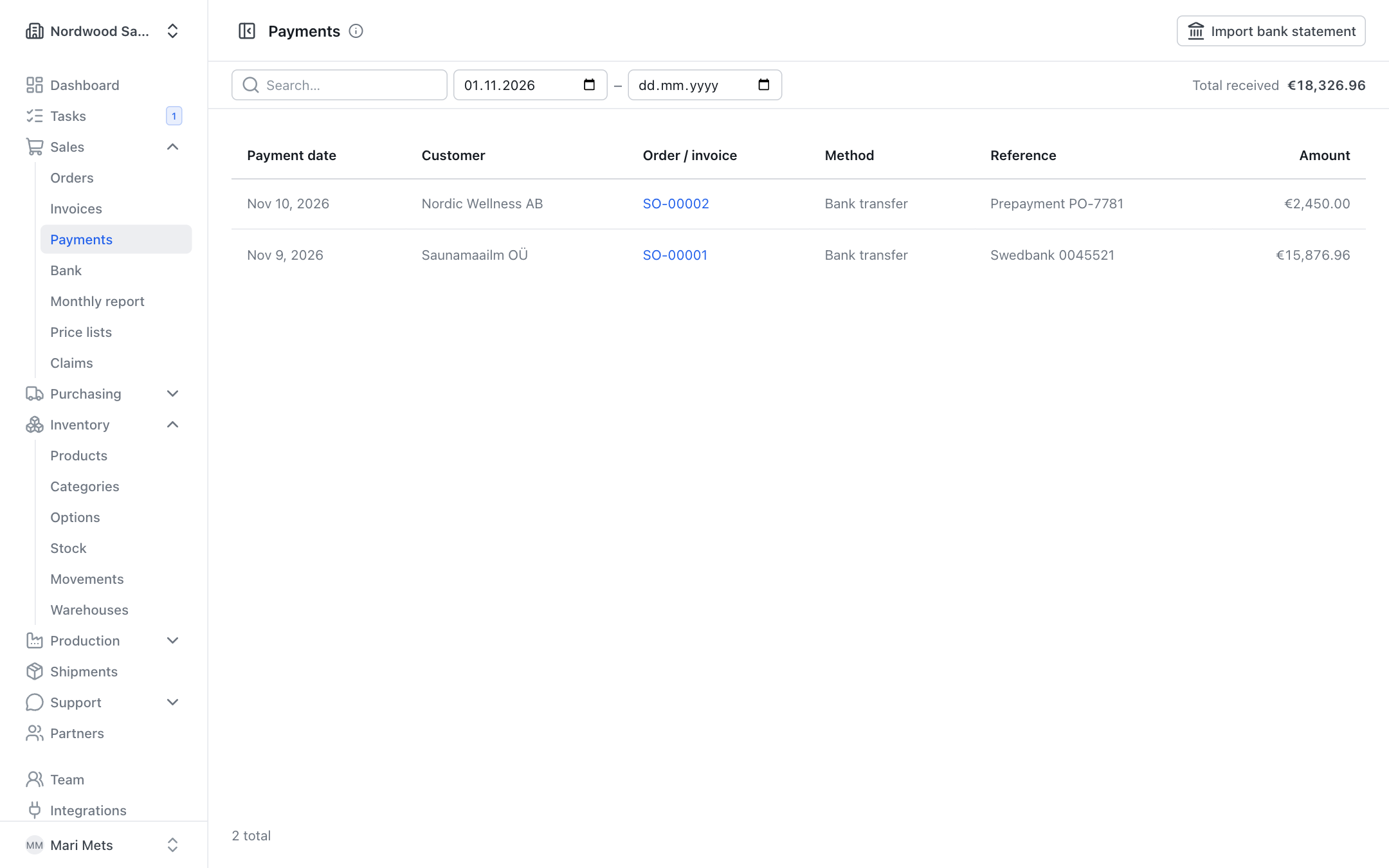
- On the sales order page, the Payments card shows the order total, the prepayment, Paid, Balance and every payment for this order. Under the card is the order's payment reference ("Payment reference for this order: …").
- Sales → Payments — all payments received and refunds. Choose a period and search; at the top is the period's Total received.
- Sales → Orders — the Payment column shows each order's payment status.
All payments for one order go into one "pool": prepayments as well as payments made against the invoice. ZERPY allocates them to the order's invoices oldest first.
Payment statuses
| Status | Meaning |
|---|---|
| Unpaid | Nothing paid yet. |
| Waiting for prepayment | A prepayment was asked but has not arrived yet. |
| Prepayment overdue | The prepayment due date has passed. |
| Partly paid | Part of the amount is paid. |
| Paid | The whole amount is paid. |
| Overpaid | The customer paid more than needed. |
| Refund due | Money has to be paid back to the customer (e.g. a cancelled order). |
Recording a payment
- Open the sales order and on the Payments card press Record payment. (The invoice page has the same button.)
- Check the Amount — it is filled in with the amount currently asked.
- Choose the Payment date and Method (Bank transfer, Card, Cash, Online payment, Other).
- If you like, enter a Reference (bank statement reference) and a Note.
- Press Record payment.
The invoice page also has Mark as paid — it records a payment for the whole amount still due.
Refunds
For a refund, enter a negative amount. A cancelled order that has been paid shows a Record refund button.
Removing a wrong payment
Press the bin icon on the payment row (Remove payment). Use this only for a payment recorded by mistake — invoices it paid become unpaid again.
Prepayment
A prepayment means the customer pays part (or all) of the amount before delivery, e.g. 30% when ordering.
Default prepayment
Open Settings and on the Sales card fill in Default prepayment (a percentage). It is asked automatically when you confirm an order. Leave it empty for none. Webshop and partner orders are not affected. Settings are changed by the owner and admins.
Prepayment on one order
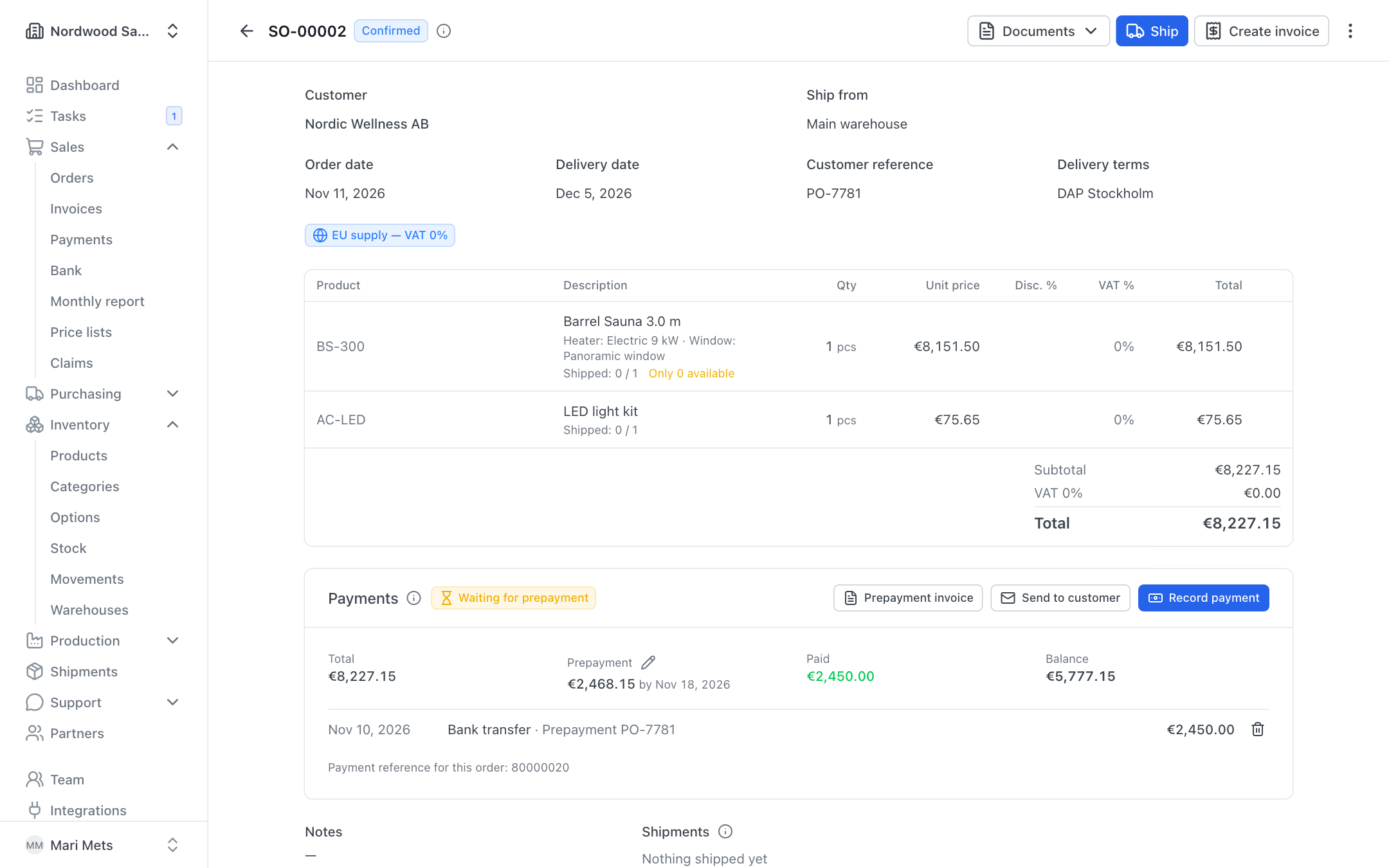
- On the Payments card, press the pencil icon next to Prepayment.
- Choose a quick button 30%, 50% or 100%, or enter an Amount.
- If you like, set Pay by.
- Press Save. To remove the prepayment, press No prepayment.
Prepayment invoice and payment request
The Payments card has a Prepayment invoice button (while the prepayment is unpaid) or Payment request (for the remaining amount) — it opens a PDF. Send to customer e-mails it.
A prepayment invoice is a payment request, not a VAT invoice. The final invoice shows Paid in advance and Amount due.
On the dashboard
The dashboard lists orders waiting for a prepayment. The production plan and the production order warn when the prepayment for a made-to-order job is missing, and the ship dialog warns when the order is not fully paid.
Online payment link (Montonio)
When Montonio is connected, you can press Create payment link on the Payments card. You can copy the link (Copy link), and it is also added to the prepayment e-mail and printed on the prepayment invoice. When the customer pays, the payment is recorded automatically (method Online payment).
Bank statement import
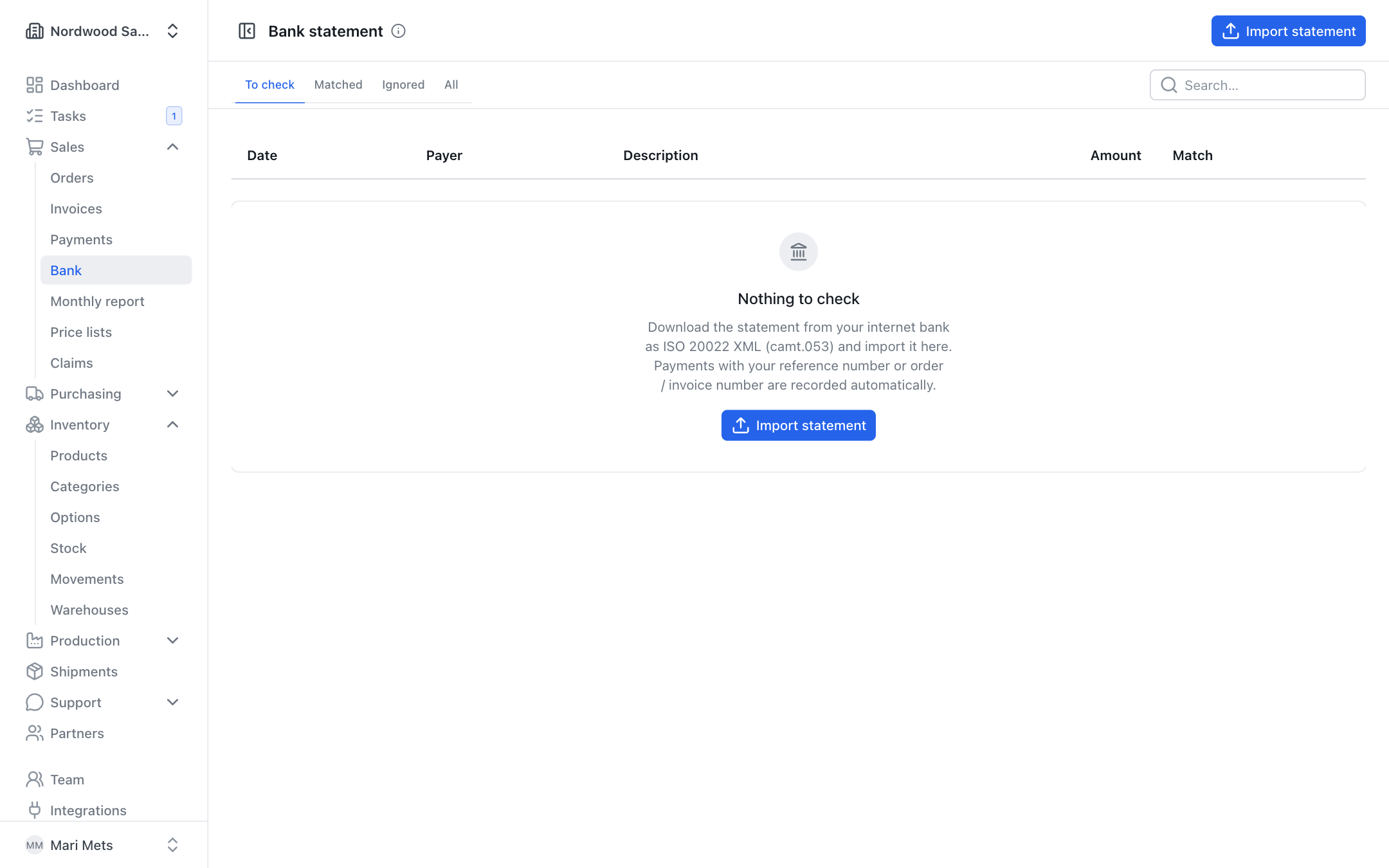
You can also record payments from a bank statement: menu Sales → Bank.
- Download the statement from your internet bank as ISO 20022 XML (camt.053). Statements from all Estonian banks work.
- Press Import statement and choose the file.
- ZERPY shows the result, e.g. "5 new incoming payments: 4 recorded automatically, 1 to check."
Only incoming payments are imported. Transactions imported earlier are skipped, so you can safely import the same or an overlapping period again. If the statement's account is not among your company bank accounts (Settings), you see a warning.
Automatic matching
ZERPY matches a payment by itself when:
- it carries the reference number of your invoice or order, or
- its description contains an order or invoice number and the payer name or the amount fits.
If you had already recorded the same amount by hand, the bank line is linked to that payment — it is not recorded twice.
If you have added invoices or orders since the import, press Match again.
Matching by hand
The To check tab lists the payments ZERPY could not match.
- Press Match on the row.
- ZERPY suggests fitting orders and invoices (marked Reference matches when the reference fits). Or search by order, invoice or customer.
- Choose the right one and press Record payment. The payment is recorded as a bank transfer.
If it is not a customer payment (loan, own transfer, card or Montonio payout …), press Ignore. You can bring an ignored payment back with Back to check.
To undo a wrong match, press the undo icon on the matched row (Undo match). A payment recorded from this transaction is removed and its invoices become unpaid again. A transaction you unmatched is never matched automatically again.
Tabs: To check, Matched, Ignored, All.