
Production plan and capacity
The production plan shows week by week whether the materials for planned production are there, what is missing and what to order. The capacity page shows how many hours of work are planned each week compared with the hours you have.
Both pages are in the Production menu: Plan and Capacity.
Production plan
Open Production → Plan. The page has two tabs: Schedule and Materials.
Schedule
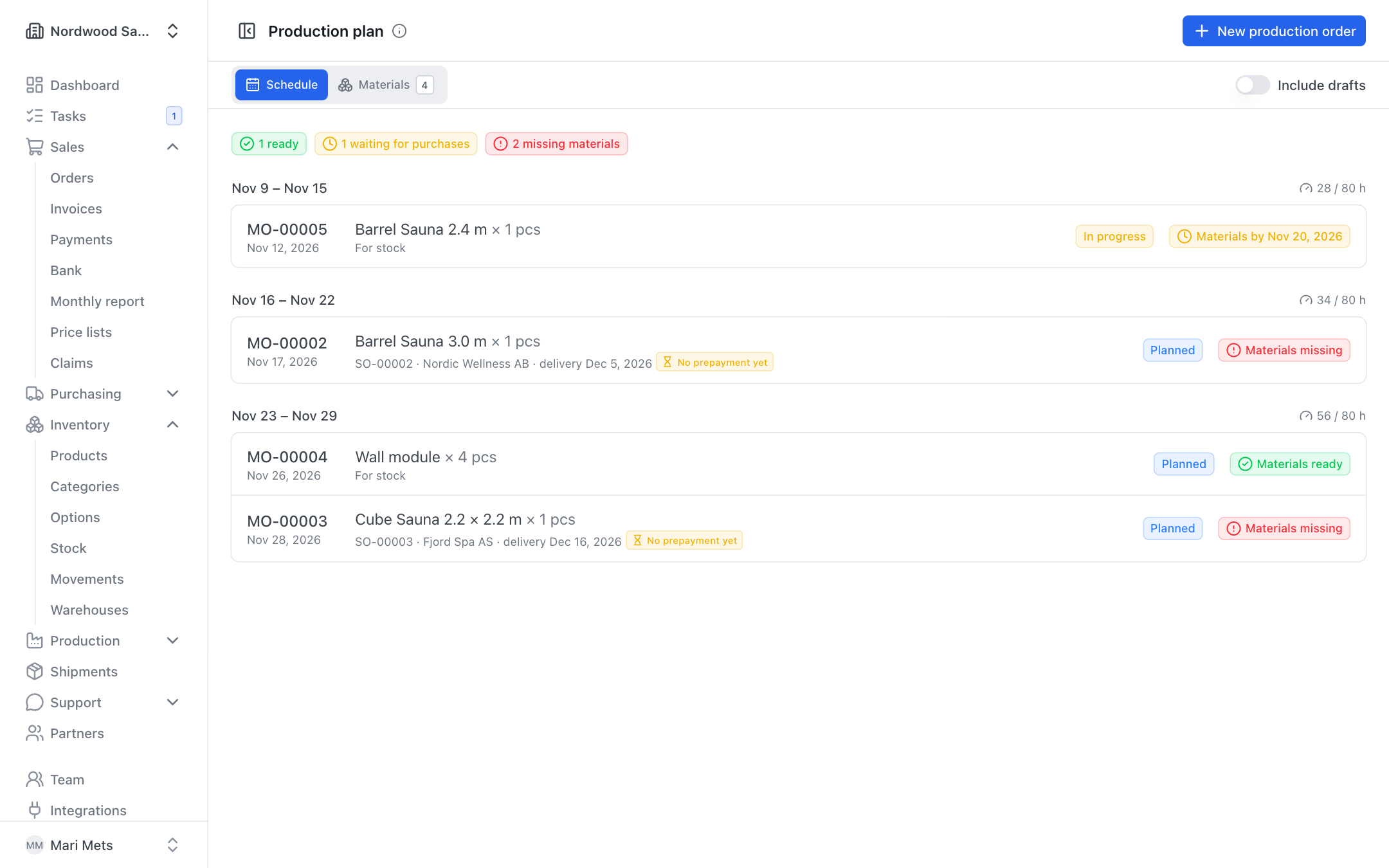
Open production orders are grouped by week of their planned date; orders without a date are in a separate No planned date group. ZERPY allocates stock to the orders in order of planned date (after the reservations of sales orders), then open purchase orders by their expected date. Each order shows its readiness:
- Materials ready — everything needed is in stock.
- Materials + a date (waiting for purchase) — the missing goods are ordered and arrive by that date.
- Materials missing — something is short and not ordered; hover over the status to see what exactly.
At the top of the page a summary shows how many orders are ready, how many wait for purchases and how many miss materials.
You also see:
- overdue in the week heading when the week has passed, and the planned hours / capacity of the week (the link opens the capacity page);
- the customer order number, the customer and the delivery date — the delivery date is red when production is planned later than the delivery;
- No prepayment yet when the customer order's prepayment is unpaid;
- sub-assembly orders — the main order waits until its sub-assemblies are made (see Production).
A service not ordered yet makes the order Materials missing; an ordered service not yet marked done makes it wait until the purchase order's date.
Drafts are shown in the plan, but they count into material requirements only when you switch on Include drafts.
Materials and draft purchase orders
The Materials tab shows for each material:
- Needed — the need for production (and sales orders, e.g. "5 for sales orders", and sub-assemblies not planned yet);
- In stock, Ordered (open purchases);
- Left after = in stock − needed + ordered;
- Order by — the date needed minus the supplier's delivery time;
- Order qty — the suggested quantity. The suggestion also tops up the product's minimum stock and counts what is already in draft purchase orders.
Materials you make yourself are marked made in-house and are not selected for purchase orders.
Creating purchase orders:
- Select rows (suggested rows are already selected) and check the quantity and supplier.
- Click Create purchase orders.
- ZERPY creates one draft purchase order per supplier, at cost price, into your default own warehouse. If a row has no supplier, ZERPY asks you to pick one.
- Open the drafts, review them and send them to the supplier (see Purchasing).
Purchase orders can be created by roles with purchasing rights. The same calculation is on Purchasing → Reorder, where quantities are rounded up to the supplier's minimum and pack size.
Assign ordering
If you do not order yourself, click Assign ordering on a material row. A new task form opens with the product and quantity filled in; the suggested assignee is the first colleague with the purchasing role. Once the task exists, the row shows Assigned: name and the link opens the task. See Tasks.
Planned hours
To plan work time you need two things:
- Settings → Production → Production capacity — own work hours in a normal week (e.g. 4 people × 37.5 h = 150). Only an owner or admin can change it.
- Work hours in recipes — own work for one batch.
A production order's Planned hours are calculated from the recipe (hours × quantity / batch size). You can change them on the order. On completion they prefill the actual hours worked.
Next to the planned date on a production order you see:
- the load of that week with this order (e.g. "Week 12: 160 / 150 h with this order") and an over capacity warning;
- First week with room — the first week (within the next 26 weeks) where the order fits; Use it sets it as the date.
Capacity page
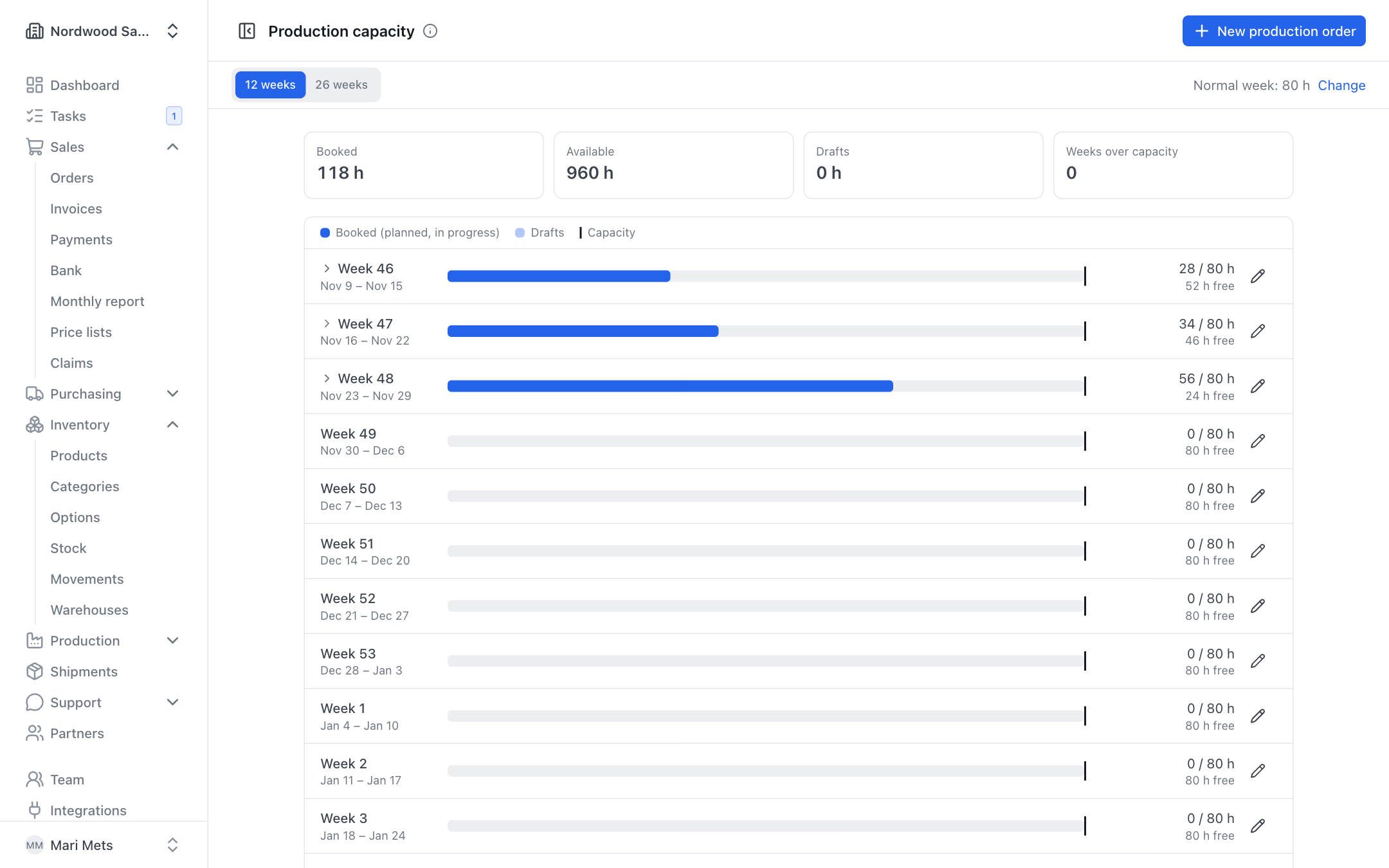
Open Production → Capacity. For each week you see:
- Booked — hours of planned and in-progress orders;
- Drafts — lighter, they do not take capacity yet;
- Capacity and how many hours are free or over.
Open orders planned earlier but not finished count in the current week (Late). An order without planned hours is marked no hours. If the weekly capacity is not set, the page tells you where to set it.
Holiday and overtime weeks
- Click the pencil icon of a week (Change capacity of this week).
- Enter Hours available this week and optionally a Note (e.g. Christmas holidays).
- Save. Only this week changes; the week is marked Changed.
Back to normal restores the hours of a normal week.
Rescheduling
- The One week earlier / One week later arrows move an order by a week.
- The Without a date card lists orders without a date. Plan into week … puts the order into the first week with enough free time.
- On the production order page you can change the date and hours of a planned or in-progress order without taking it back to draft — click Save date and hours.
Show as table shows the same data as a table.