
Partners
Partners keeps your customers and suppliers in one place. Here you keep contacts, addresses, payment terms, price lists and VAT handling. These details fill in automatically on orders, invoices and purchase orders.
Who can change partners
Partners are added and changed by the owner, admin, member, purchasing and sales roles. Other roles can see them but not change them.
Customers and suppliers
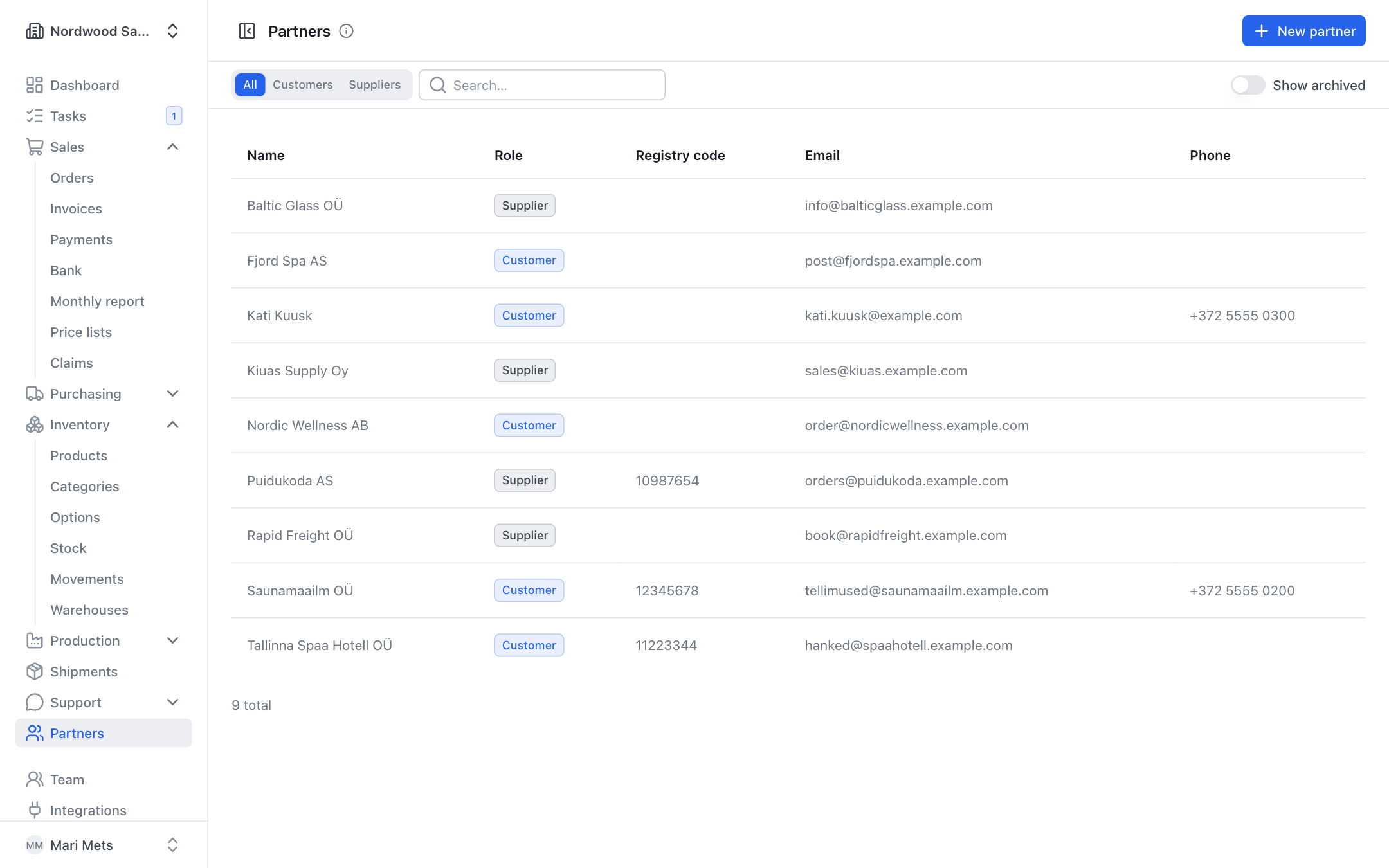
One partner can be both a customer and a supplier. In the partner form, tick:
- Customer – you sell to them;
- Supplier – you buy from them;
- Company – the partner is a company (then Registry code and VAT number are shown). Untick it for a private person.
At the top of the list choose All, Customers or Suppliers and search by name.
Adding a partner
- Open Partners and press New partner.
- Enter the Name and tick whether it is a customer, supplier and/or company.
- For a company, enter the VAT number and press Check – or, for an Estonian company, the Registry code and the search button next to it (see below). The name, registry code and address are filled in for you.
- Fill in Email, Phone and the Billing address. If goods go somewhere else, tick Different shipping address and enter the Shipping address.
- Check the Payment terms (days) (14 by default).
- For a customer, choose the Price list, Currency, Delivery terms and VAT if needed (see below).
- Press Save.
Details from the register and VIES
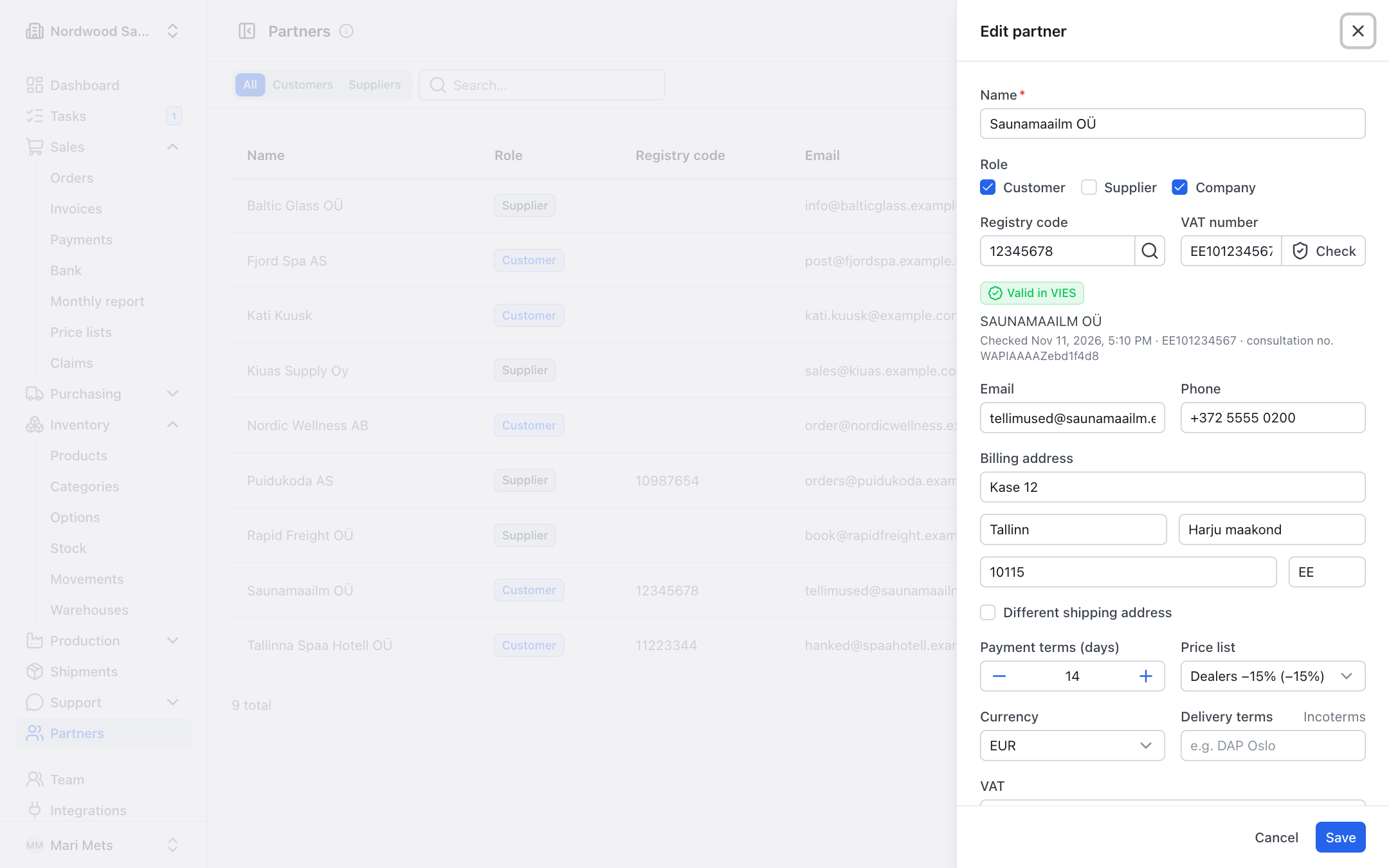
ZERPY can find a company's details for you.
VAT number and VIES. Enter the VAT number and press Check. ZERPY asks the European Commission's VIES system whether the number is valid. The form shows the result: Valid in VIES, Not valid in VIES or VIES not available, with the check date and the consultation number. The consultation number is your proof for the tax office.
Registry code. For an Estonian company, enter the 8-digit registry code and press Find in the business register next to it.
The details found fill in only empty fields. If the register has different details than the form, you see The register has different details – press Use register data to replace the name, registry code and billing address with the register's.
TIP
When a partner is saved, a new VAT number is checked in VIES automatically. If VIES does not answer, the partner is saved anyway.
Currency and price list
- Currency – the currency you sell to this customer in (EUR, SEK, NOK, DKK, USD, GBP, CHF, PLN). Your company currency by default. Standard prices are converted into the customer's currency at the latest ECB rate.
- Price list – the customer's price list or Standard prices. Only price lists in the customer's currency are offered. See Price lists.
VAT treatment
The VAT field is Automatic by default – ZERPY decides from the delivery country and the VAT number:
| Situation | Treatment |
|---|---|
| Delivery in your own country | Domestic VAT – normal VAT rates |
| Delivery to a business in another EU country with a VAT number | EU supply — VAT 0% – the invoice shows the legal note and the customer's VAT number |
| Delivery to another EU country without a VAT number | Domestic VAT |
| Delivery outside the EU | Export — VAT 0% – keep the export proof (CMR / customs declaration) |
The delivery country comes from the order's shipping address, else the partner's shipping address, else the billing address. You can also choose the treatment by hand.
WARNING
If VIES says the customer's VAT number is not valid, they are charged normal VAT. If the number is not checked or VIES was not available, the order and the invoice show a warning with a Check now button.
Delivery terms
Delivery terms (Incoterms, e.g. "DAP Oslo") are copied to the customer's new orders and printed on documents.
Document language
Document language decides the language of invoices, quotations, order confirmations and e-mails to this partner. It is Automatic by default:
- a partner in your own country gets your company's document language;
- a partner abroad gets their country's language when that language is switched on under Settings → Other document languages, else English.
You can also choose the language by hand. See Settings.
E-invoices
For a company customer you can tick Send invoices as e-invoices. Invoices then go to the customer's accounting software through Merit (e-invoice operator), and the e-invoice XML is attached to e-mails. Merit must be connected for this – see Merit and Invoices.
Partner portal access
People at a customer can order in the partner portal with their own prices and see their orders and invoices. Invitations are sent by an owner or admin.
- Open a saved customer.
- In the Partner portal block, enter the person's e-mail address and press Invite.
The invitation is valid for 14 days. You can cancel a pending invitation (Cancel) and take away an existing user's access (Remove access). More: Partner portal.
Tasks for a partner
At the bottom of the partner form are the tasks linked to this partner – for example "call the customer back". See Tasks.
Archiving
Partners are not deleted. When you no longer work with a partner, open them, switch on Archived and press Save. To see archived partners, switch on Show archived in the list.