
Invoices
An invoice is always made from a sales order. You find all invoices and credit notes under Sales → Invoices — with the tabs All, Draft, Issued and Paid; invoices past their due date are marked Overdue.
Draft → Issued → Paid
Creating an invoice
- Open a confirmed sales order (Sales orders).
- Press Create invoice. A Draft invoice with all the order's lines is created.
- Review the draft. If something is wrong, press Delete draft, correct the order and create the invoice again.
An order has one invoice at a time.
How do I correct the order?
If nothing has been shipped yet, delete the draft invoice, take the order back to draft (⋮ → Back to draft), correct the lines, confirm the order and press Create invoice again.
Issuing the invoice
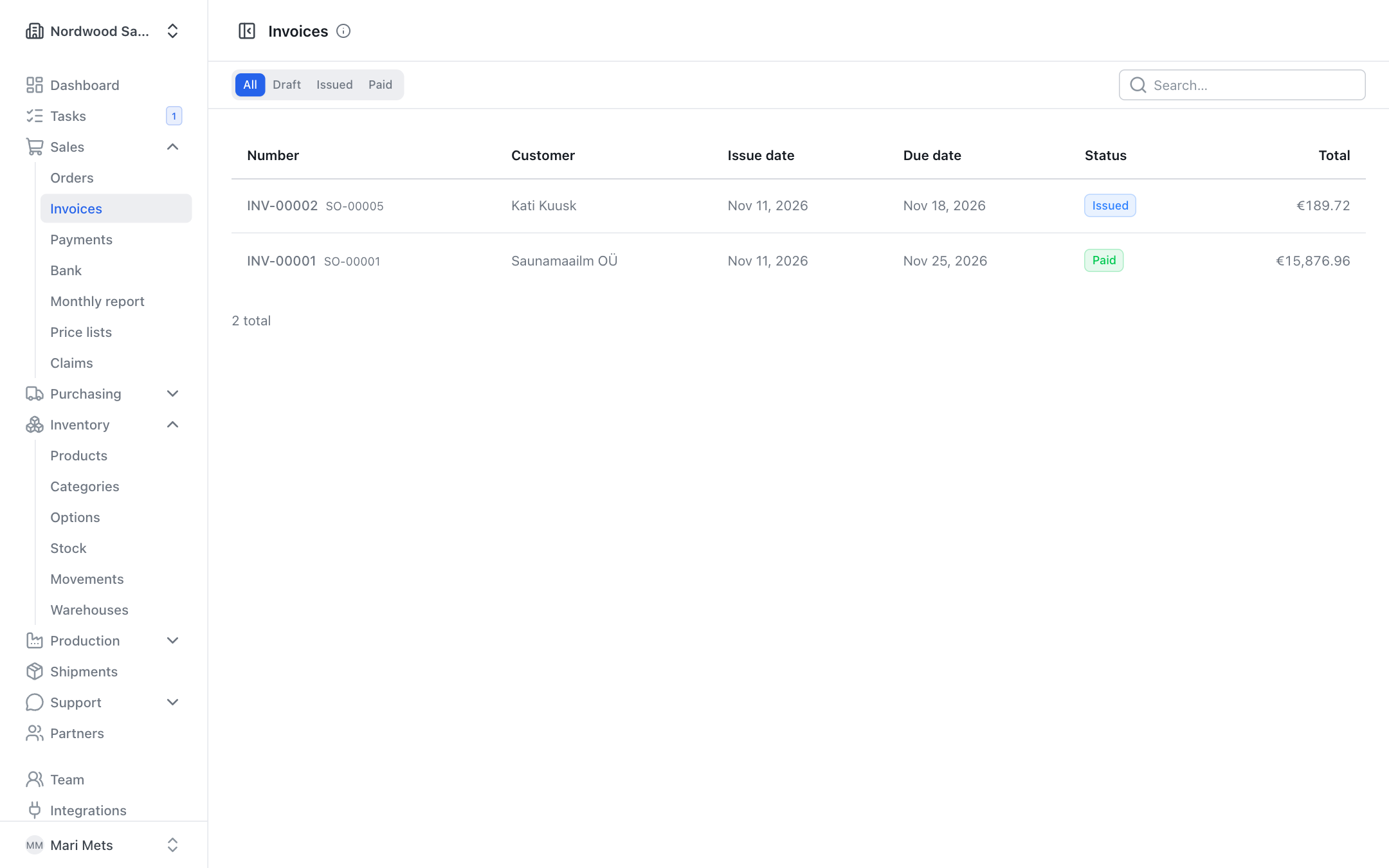
Press Issue invoice. When you issue it:
- the invoice gets its sequential number (numbers have no gaps);
- the issue date is the day you issue it, and the Due date is calculated from the payment terms (in days) on the customer's card;
- a payment reference number is added;
- an invoice in a foreign currency stores the European Central Bank exchange rate (Exchange rate (ECB)).
An issued invoice cannot be changed
Issuing assigns the document number. Issued documents cannot be changed — to correct one, make a credit note.
Invoices are created and issued by owner, admin, member, sales and accountant.
PDF, e-mail and e-invoice
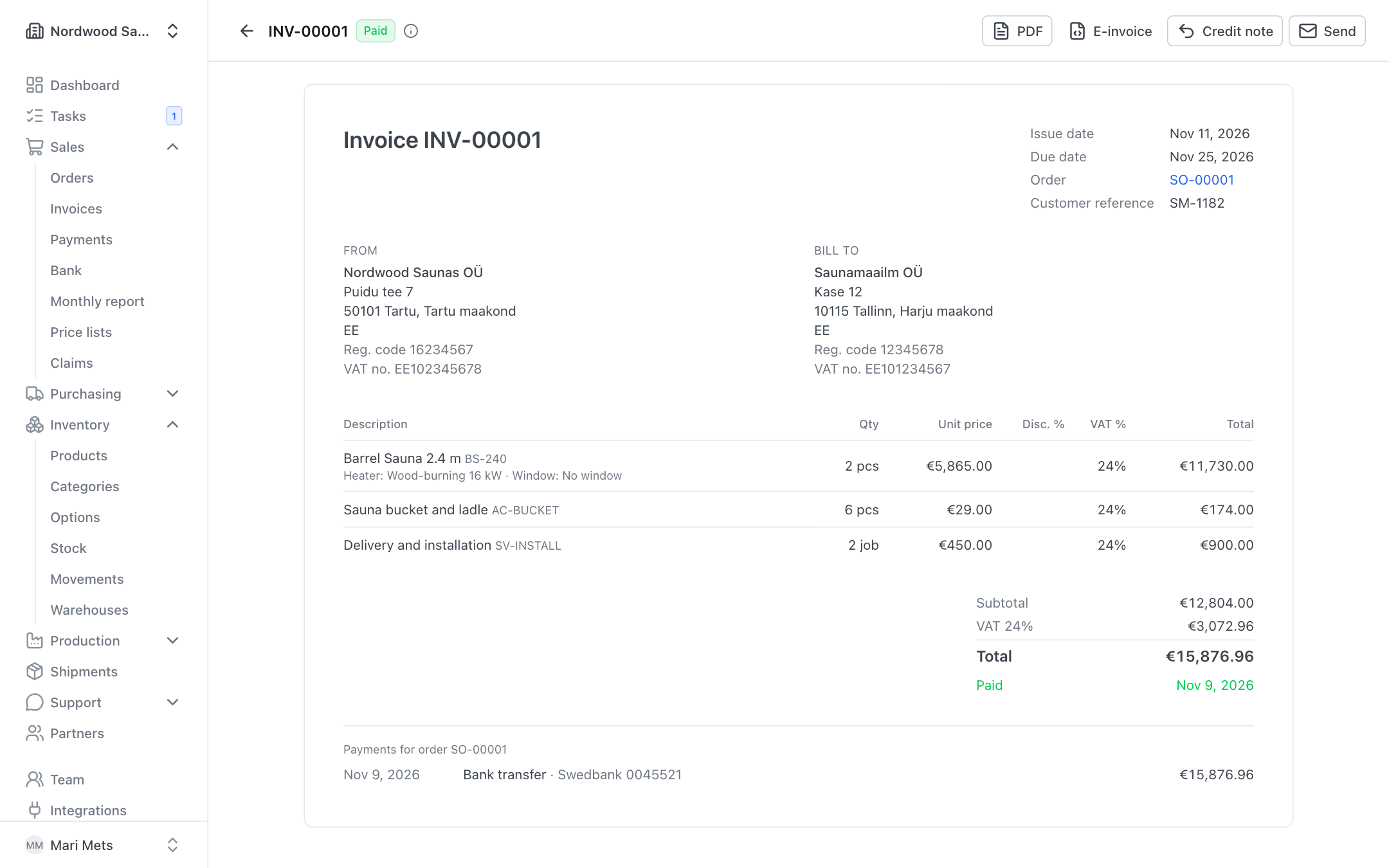
- PDF — opens the invoice as a PDF.
- Send — e-mails the invoice to the customer. In the e-mail dialog you can change the recipients, subject and message and choose the Document language. Once sent, the button becomes Send again and the invoice shows "Sent to … on …".
- E-invoice — downloads the e-invoice (XML, EN 16931 / Peppol BIS 3.0) for the buyer's accounting software. You can attach the e-invoice to the e-mail with the Attach e-invoice … checkbox.
If the customer is marked Send invoices as e-invoices and Merit Aktiva is connected, the invoice is forwarded as an e-invoice once it is in Merit. The invoice page shows its status, and you can press Send as e-invoice when needed.
Document language
The invoice language is chosen from the customer's language when the invoice is created (see Partners) and stays the same when you print it again later. You can change the language in the send dialog if needed.
Invoice payment
You never mark an invoice Paid by hand — it follows from the payments. When the payments cover the invoice total, the invoice becomes paid by itself.
- Record payment — enter how much money arrived and when.
- Mark as paid — records a payment for the whole amount still due.
If the order was prepaid, the invoice shows Paid in advance and Amount due. Everything about payments: Payments.
Credit notes
A credit note corrects an issued invoice: returned goods, a wrong price, a discount.
- Open the issued invoice and press Credit note.
- In the To credit column, enter how much of each line to credit. Credit everything fills in all lines. The quantity already credited is shown in Already credited — you cannot credit more than was invoiced.
- If goods came back, tick Return goods to stock and choose the warehouse.
- Write the Reason (e.g. returned goods, wrong price).
- Press Create draft.
- Review the Draft credit note and press Issue credit note.
When issued, the credit note gets its own number. If you chose a warehouse, the goods are taken back into stock on issue.
The original invoice lists its credit notes and the new Balance.
For a credit note "paid" means the money was refunded or offset — use the Mark as settled button for that.
Correcting with a new invoice
If you credit an invoice in full, it no longer counts as the order's invoice: the order goes back to Shipped and you can make a new, corrected invoice from the order (Create invoice).
Merit Aktiva
When Merit is connected, issued invoices and credit notes are sent to Merit automatically. The invoice page shows whether it is in Merit. See Merit Aktiva.