
AI assistant
With the AI assistant you connect your own AI chat (Claude or ChatGPT) to ZERPY. Then you can ask about your business in the chat — for example "What is the stock of product X?" or "How much did we sell last month?" — and, if the company allows it, let the chat change products and partners and create sales order drafts.
There are two parts: first an owner or admin switches it on for the company, then each team member connects their own chat.
Switching it on for the company (owner or admin)
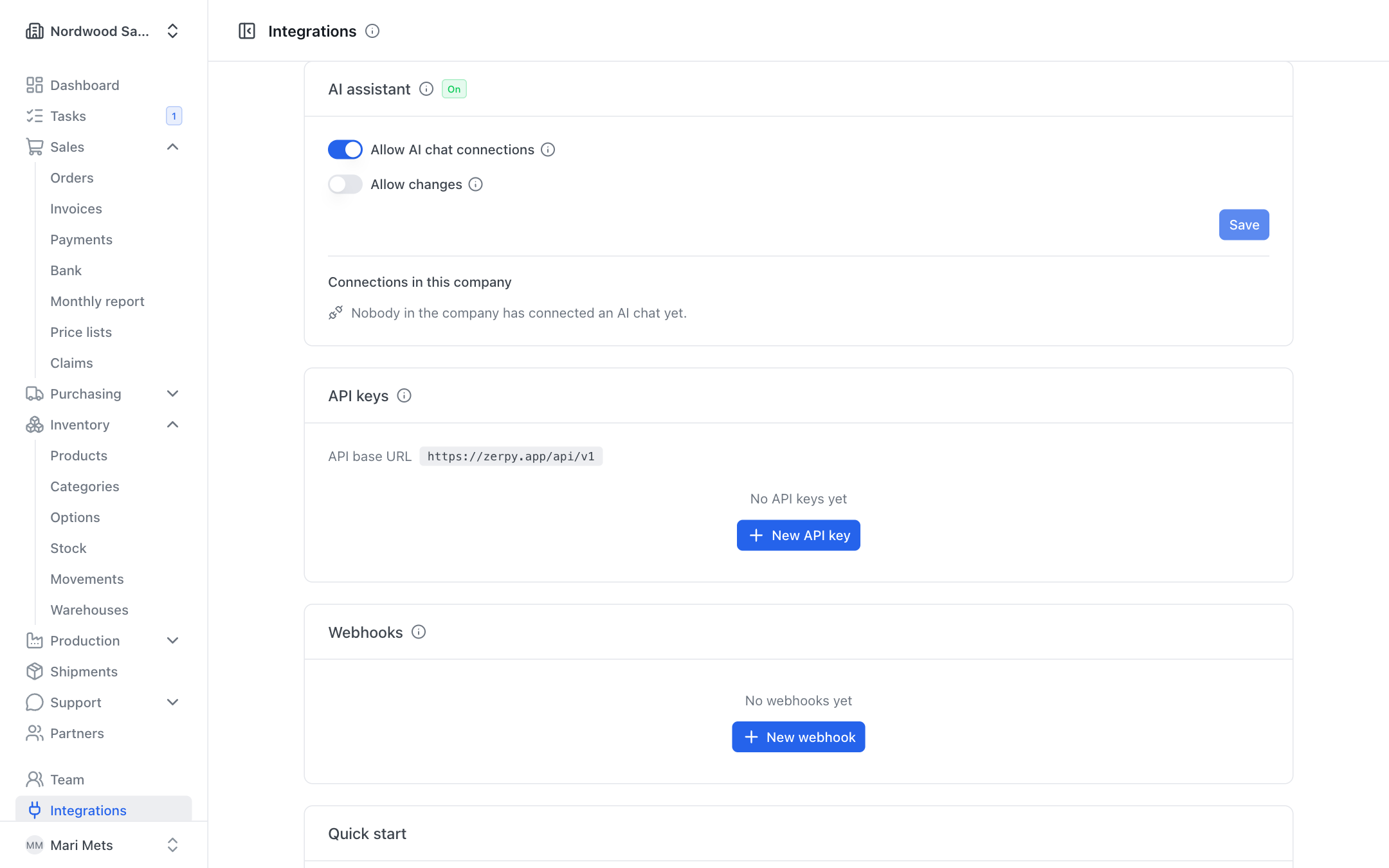
- Open Integrations and find the AI assistant card.
- Switch on Allow AI chat connections. It is off by default — then no AI chat can see anything.
- If the chat may also change data, switch on Allow changes. Then connections that were given "Read and change" may add and change products (texts, translations, prices), partners and sales order drafts. Nothing can be deleted; orders stay drafts until a person confirms them.
- Press Save.
Connections in this company
The same card lists Connections in this company: who has connected a chat, with which app, whether Read only or Read and change, when it was connected and last used. End connection ends anyone's connection — the chat loses access immediately.
Switching off
When you switch Allow AI chat connections off, every connection in the company ends. Confirm with Switch off and end connections. Everyone has to connect again later.
Connecting your own chat
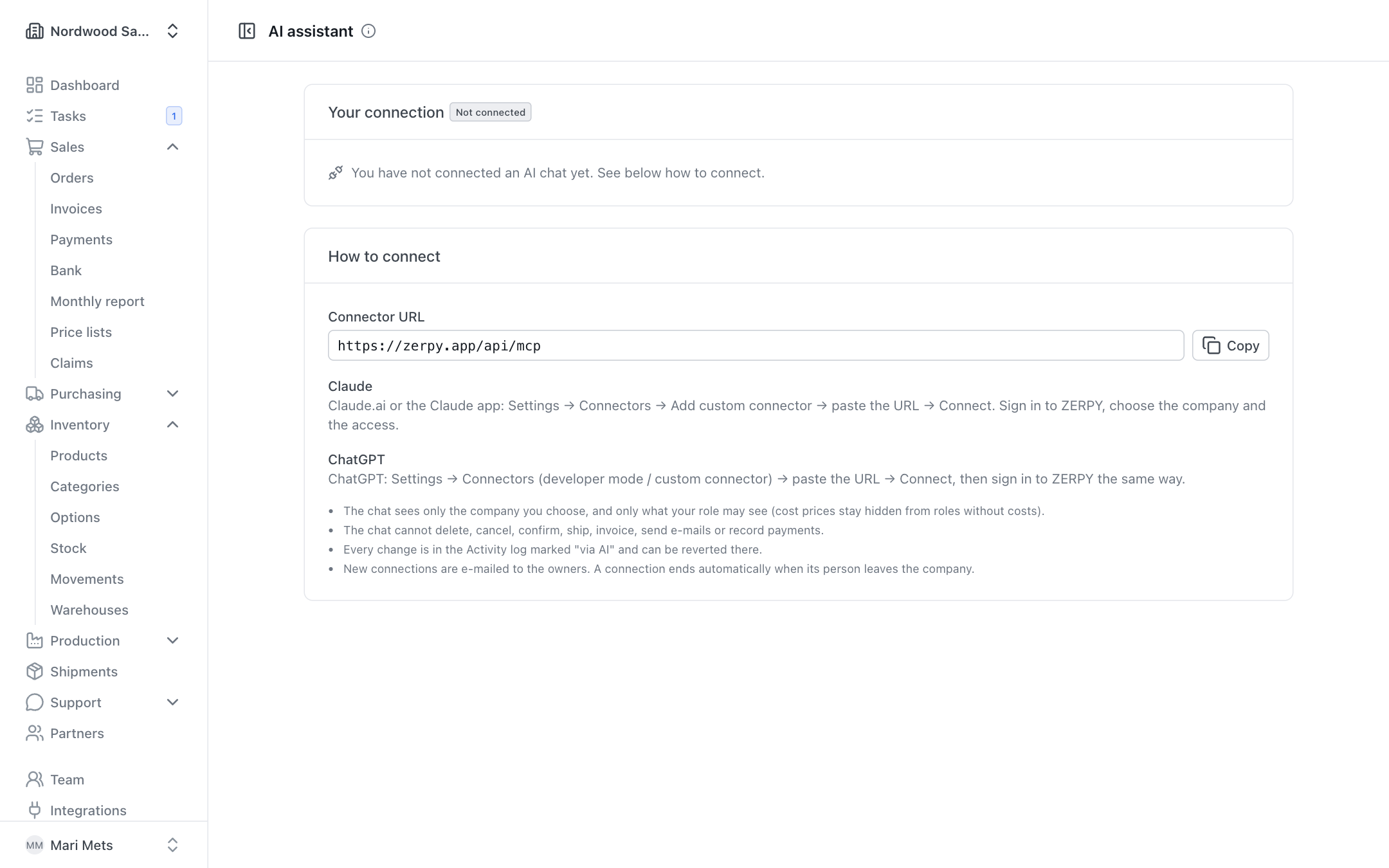
While the company allows AI connections, your user menu (bottom of the sidebar, on your name) has the item AI assistant. It shows:
- Your connection — whether you have a chat connected, with which app and which access. You can end your connection here too.
- How to connect — the Connector URL and a Copy button.
Claude
- Copy the connector URL on the AI assistant page.
- In Claude.ai or the Claude app open Settings → Connectors → Add custom connector.
- Paste the URL and press Connect.
- Sign in to ZERPY, choose the company and the access, and press Allow.
ChatGPT
- Copy the connector URL on the AI assistant page.
- In ChatGPT open Settings → Connectors (developer mode / custom connector).
- Paste the URL and press Connect.
- Sign in to ZERPY the same way, choose the company and the access, and press Allow.
Access: read only or read and change
When connecting you choose:
- Read only — products, stock, partners, orders, invoices and sales reports. Nothing can be changed.
- Read and change — also add and change products (texts, translations, prices), partners and sales order drafts. This option is offered only when Allow changes is on in the company and your role may change data.
What the chat can and cannot do
The chat sees only the company you choose, and only what your role may see. For example, roles without access to cost prices do not see cost prices in the chat either (see Team).
The chat can:
- look at the company overview, products, stock, partners, sales orders and invoices;
- make sales and monthly reports;
- with change access: add and change products and their translations, option translations, add and change partners and create sales order drafts.
The chat cannot:
- delete, archive or cancel anything;
- confirm orders, ship goods, create or issue invoices;
- send e-mails or record payments;
- change stock or cost prices.
An order created by the chat is always a draft — it reserves nothing. Check it in ZERPY and confirm it yourself (see Sales).
Reverting a change
Every change made by the chat appears in the Activity log with a "via …" badge (the app's name).
- In the chat: ask the chat to undo its last change. It can undo your own most recent change from the last 24 hours.
- In the Activity log: an owner or admin can press Revert on the change's row (see Settings).
Changes to products, partners and option translations can be reverted. If someone changed the record again since, the revert is refused — correct it by hand then. Reverting does not remove products, partners or order drafts the chat created — archive or delete them in ZERPY.
Security
- Owners get an e-mail about every new connection.
- A connection ends by itself when its person leaves the company.
- You can end your connection any time: user menu → AI assistant → End connection.
For developers
The technical reference (OAuth, tools, limits) is here: AI connector (MCP).