
Production
Production has two main parts: a recipe says what a product is made of and how much, and a production order is one concrete job — what is made, how many and when. On completion ZERPY takes the materials out of stock, puts the finished product into stock and calculates its actual cost.
The production pages are visible to roles with access to production (e.g. owner, admin, member, production). Cost prices and costs are shown only to roles allowed to see costs — the warehouse, production and sales roles do not see them.
Recipes
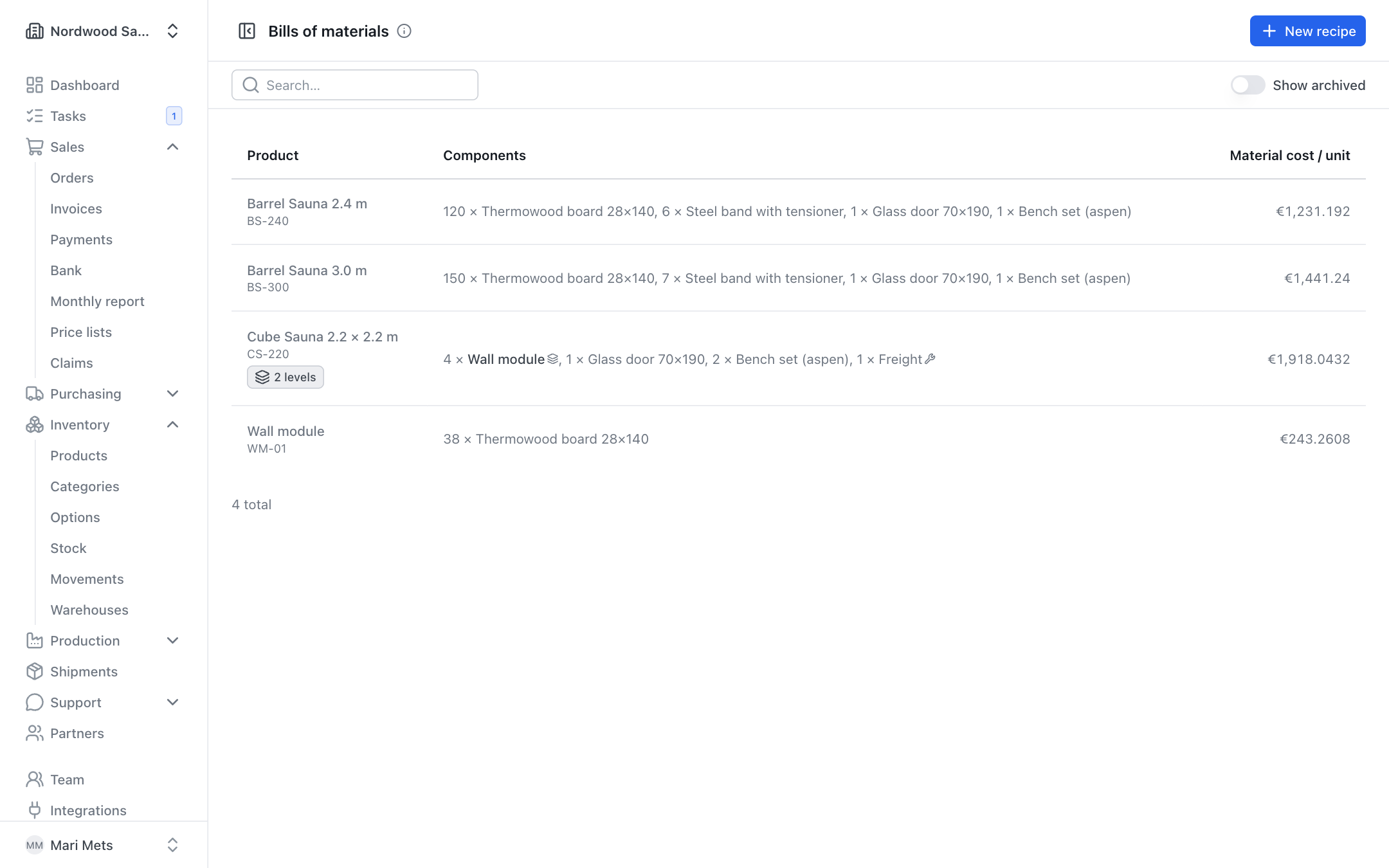
A recipe (bill of materials) lists what goes into one batch of a product. Find recipes under Production → Bills of materials.
Creating a recipe
- Open Production → Bills of materials and click New recipe.
- Choose the Product the recipe makes.
- Optionally give a Recipe name (when a product has several recipes).
- Batch makes — how many units one batch gives (e.g. 1 sauna or 10 m).
- Add the Components: stock materials and their quantities per batch.
- Optionally enter Work hours — own work for one batch. It is used to calculate a production order's planned hours and the weekly load (see Production plan and capacity).
- Click Save.
A product's first recipe becomes its default. A recipe cannot contain the product itself, or the same component twice.
Bought-in services
A recipe line can also be a service (e.g. cutting, machining, coating, transport). A service does not move in stock — it is ordered from a supplier separately for each production order. In the recipe list a service line has a wrench icon.
Sub-assemblies and multi-level recipes
A component can have its own recipe — for example a wall module that goes into a sauna. Such a component is a sub-assembly. In the recipe list its name is shown in bold with a layers icon.
When a recipe has several levels, the product row shows a button with the number of levels (e.g. 3 levels). It opens the Structure view: all levels of the recipe, with sub-assemblies expanded with their own default recipe, with quantities and (if you may see costs) the cost of each line and a Total material cost line.
The Material cost / unit column shows the material cost of one unit. When a sub-assembly has no cost price yet, its cost is calculated from its own recipe.
Cycles
ZERPY does not save a recipe that would loop back to itself (e.g. A contains B and B contains A). The error message shows the path of the loop.
Recipes are not deleted — archive an old recipe instead. Archived recipes are shown with the Show archived switch.
Production orders
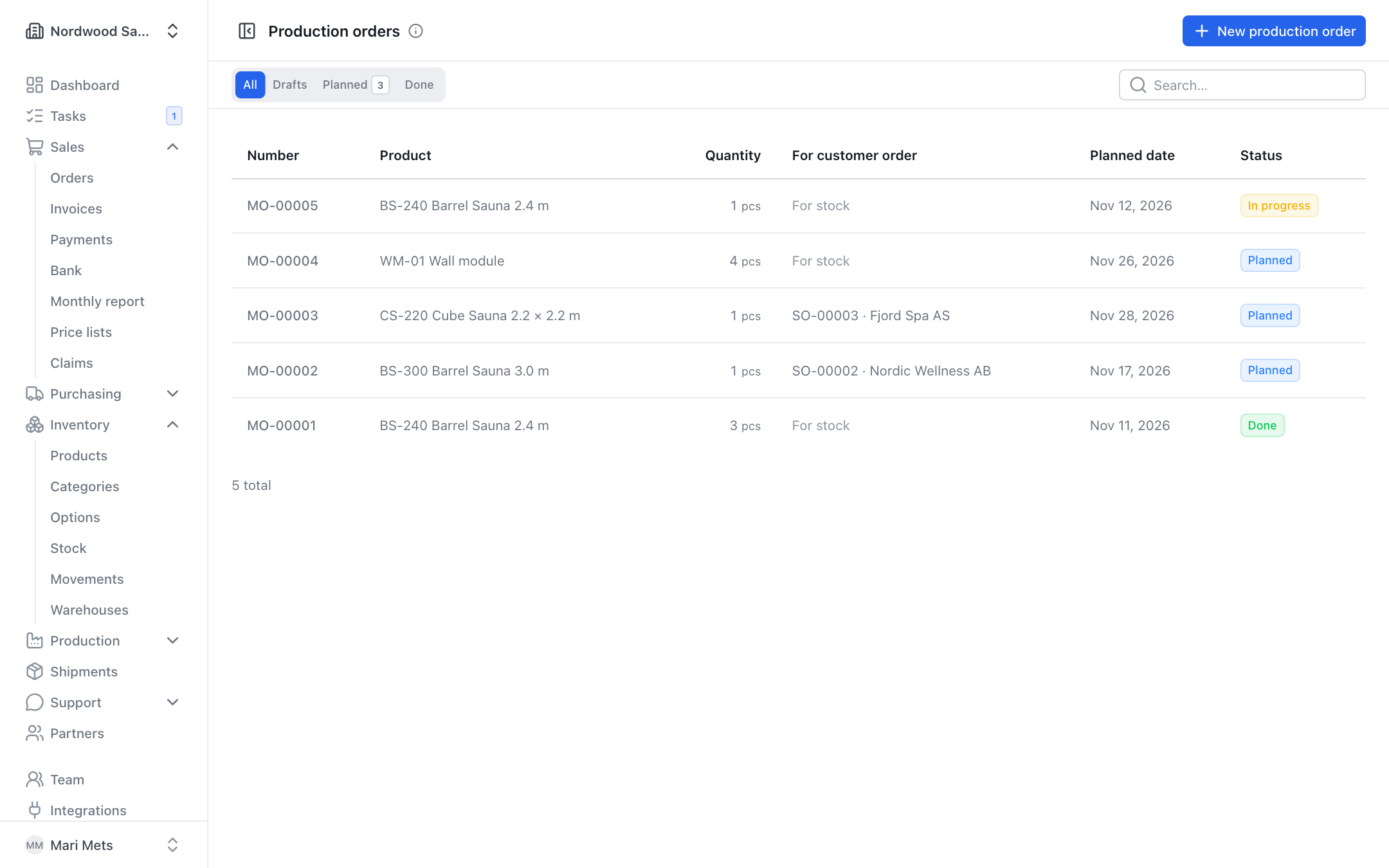
The list is under Production → Production orders. Tabs: All, Drafts, Planned, Done.
Statuses:
Draft → Planned → In progress → Done (or Cancelled)
- Draft — everything can be changed.
- Planned — the components are reserved in stock and the finished product counts as incoming stock.
- In progress — production has started (by hand, or automatically on the first material issue).
- Done — the product is in stock and its cost is calculated.
Creating a production order
- On Production → Production orders click New production order. To produce for a customer order you can also click Make on a sales order line — the product, quantity and order are then filled in (see Sales).
- Choose the Product and enter the Quantity.
- Choose the Recipe (if the product has none yet, click Create recipe).
- Choose the Warehouse the materials come from and the finished product goes to.
- For customer order — choose the sales order when you produce for a specific customer. Otherwise it stays For stock.
- Enter the Planned date and optionally the Planned hours (filled in from the recipe's work hours; you can change them).
- If the product has options (e.g. model, colour), choose them under Configuration. The chosen options add their components and services when the order is saved.
- Click Save draft.
Saving copies the recipe's components onto the order. If you change the recipe later, existing orders do not change.
Planning
Click Plan. The components are reserved in stock. If something is short you see a Missing components warning — you can still plan the order, but buy or produce the missing components before completing it.
If the job is for a customer order and the customer has not paid the prepayment, the page shows that too.
The three-dot menu also has:
- Start production — sets the order In progress.
- Back to draft and Cancel order — only as long as no material has been issued.
Issuing and returning materials
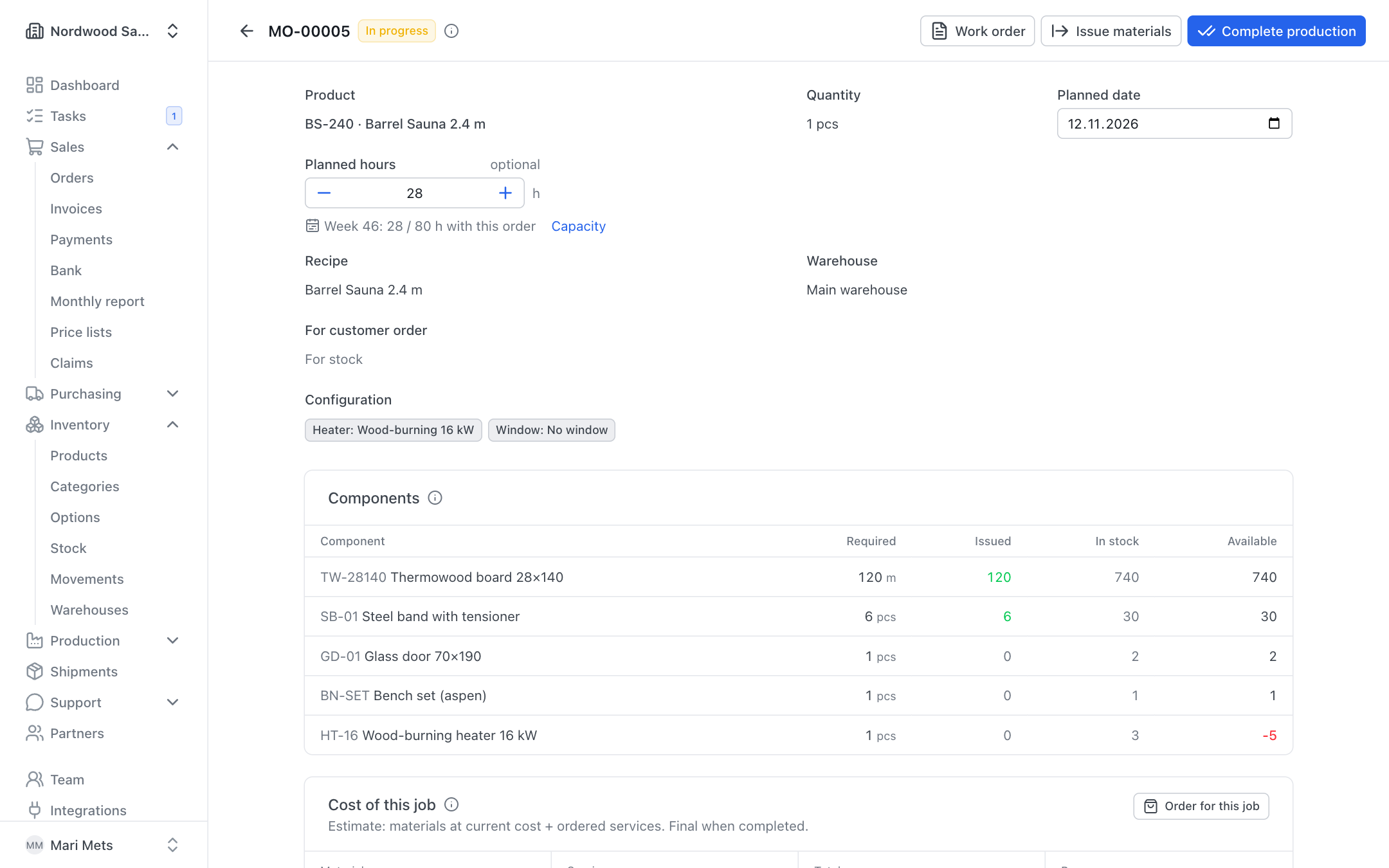
When the materials are taken from the warehouse to the workshop, click Issue materials.
- On the Issue tab enter the quantity of each material.
- Click Issue now. The materials leave stock right away.
- Leftover material can be returned on the Return tab → Return now.
The components table shows Required, Issued, In stock and Available per line. Materials can be issued by roles allowed to issue materials (e.g. warehouse and production). The first issue moves a planned order to In progress.
Completing production
- Click Complete production.
- Enter what was actually made (quantity) and how much of each material was used (Used).
- Enter Hours worked and Cost per hour (the default comes from Settings → Production, field Labour cost per hour). Hours worked are prefilled with the planned hours.
- Confirm.
What happens:
- If more was used than issued, the difference is taken from stock; if less, the leftover goes back into stock.
- The finished product is added to stock.
- Cost per unit = materials used + services ordered for this job + labour (hours × cost per hour), divided by the quantity made. The product's cost price is updated as a moving average.
If some services are not marked done, you see a warning — you can still complete.
Work order (PDF)
The Work order button opens a PDF for the workshop: what to build, for which customer order, materials required / issued / still to issue with tick boxes, services, sub-assemblies, the chosen configuration, and lines for hours worked and a signature.
Production orders for sub-assemblies
When a component of the order is a sub-assembly that stock and open production do not cover, you see a Make sub-assemblies button (with the number missing in brackets). It creates separate production orders for the missing sub-assemblies — on all levels. They are dated earlier than the main order by the sub-assembly's production time; when the main order is planned, the sub-assembly orders are planned too.
The main order shows a Sub-assemblies card and a sub-assembly order shows a Sub-assembly for link. Make the sub-assemblies first — they go into stock at their actual cost and the main order takes them from there.
Services on a production order
When the recipe or the chosen options contain services, the order has a Services card. Each service's status:
To order → Draft PO → Ordered → Done
- Click Order services. ZERPY creates draft purchase orders for the suppliers (price from the product's suppliers, see Purchasing). These purchase lines are booked to this production order.
- Review the drafts and send them to the suppliers.
- When a service is done, click Mark as done.
Services not ordered yet are added to the estimated cost at the preferred supplier's price.
Cost of the job
The Cost of this job card shows materials, services and labour, the total and the cost per unit. Before completion it is an estimate (materials at current cost + ordered services); after completion it is the actual cost.
How to buy something for a specific job (e.g. CNC cutting, painting, transport):
- click Order for this job on the card — a new purchase order opens, already booked to this job, or
- choose the job (production order or sales order) on a purchase order line. You can change it after ordering too.
Counting rule: services and free-text lines count into the job once the purchase order is ordered. Stock materials are only shown on the job — their cost arrives when the material is used from stock in production (so nothing is counted twice). Services added after completion go into the sales order's profit, not into the stock value.
The Profitability card on a sales order shows revenue minus the cost of goods, services booked to the order and warranty costs (see Sales).
Serial numbers
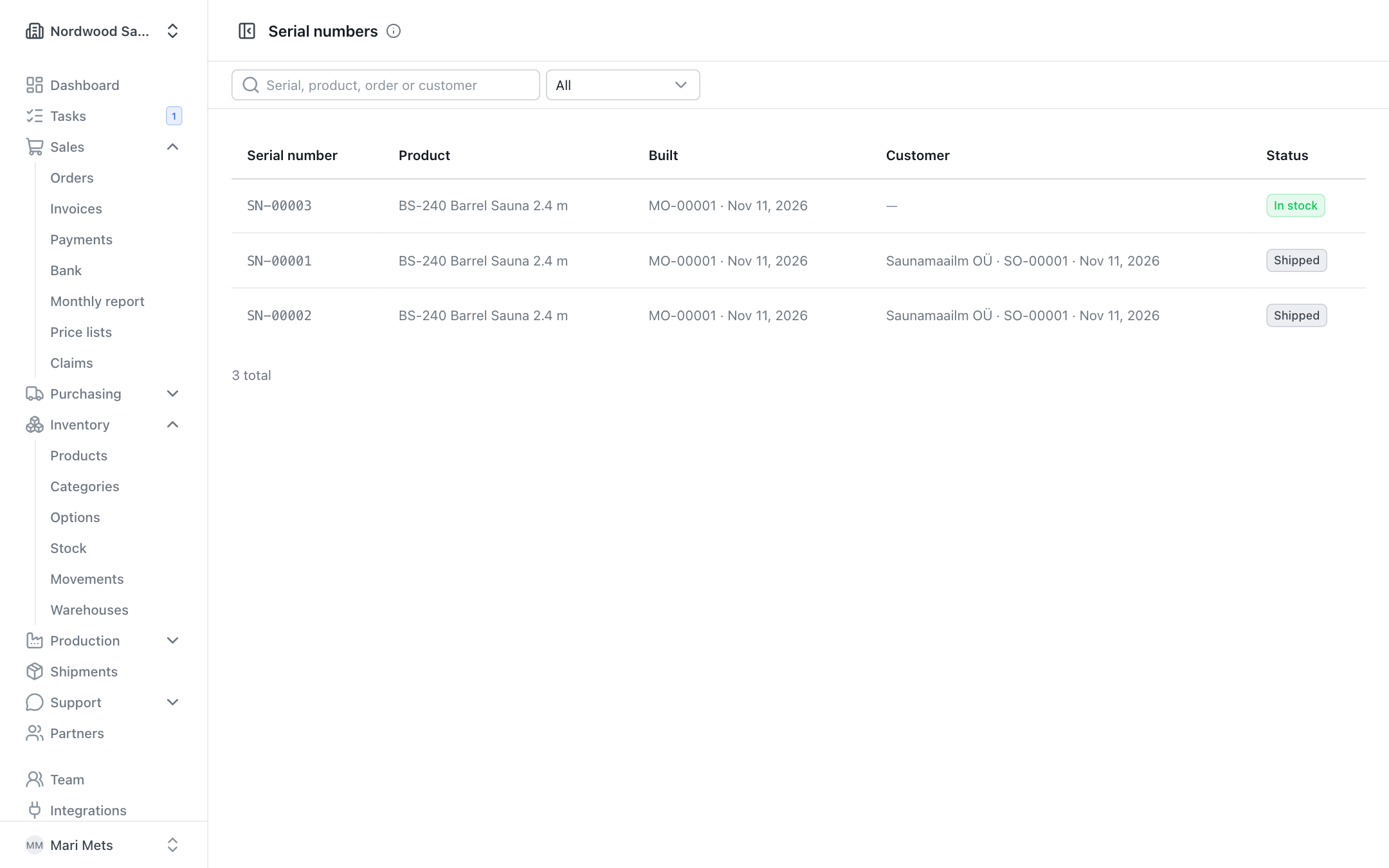
When Serial numbers is switched on for a product (see Products), every unit made gets its own number (e.g. every sauna). Such products are produced in whole units.
- On completion a serial number is created for each unit, with its cost. They are shown on the production order.
- When shipping, serial numbers are picked either by you (Pick serial numbers) or automatically — first the ones made for this order, then the oldest.
- Stock that existed before serial tracking can still be shipped without a number.
Production → Serial numbers lists all numbers (status In stock or Shipped). Search by serial number, product, order or customer.
Open a row to see the unit's full story: when it was Built, Materials used, services and suppliers Bought for this unit, its cost, who bought it, when it was Delivered, invoices and warranty claims. You can also create a New claim there (see Claims).