
Settings
Settings hold the company details printed on invoices and other documents, plus settings for sales, production, notifications and tasks. Only an owner or admin can see and change them. Open the page from the sidebar: Settings.
Company details
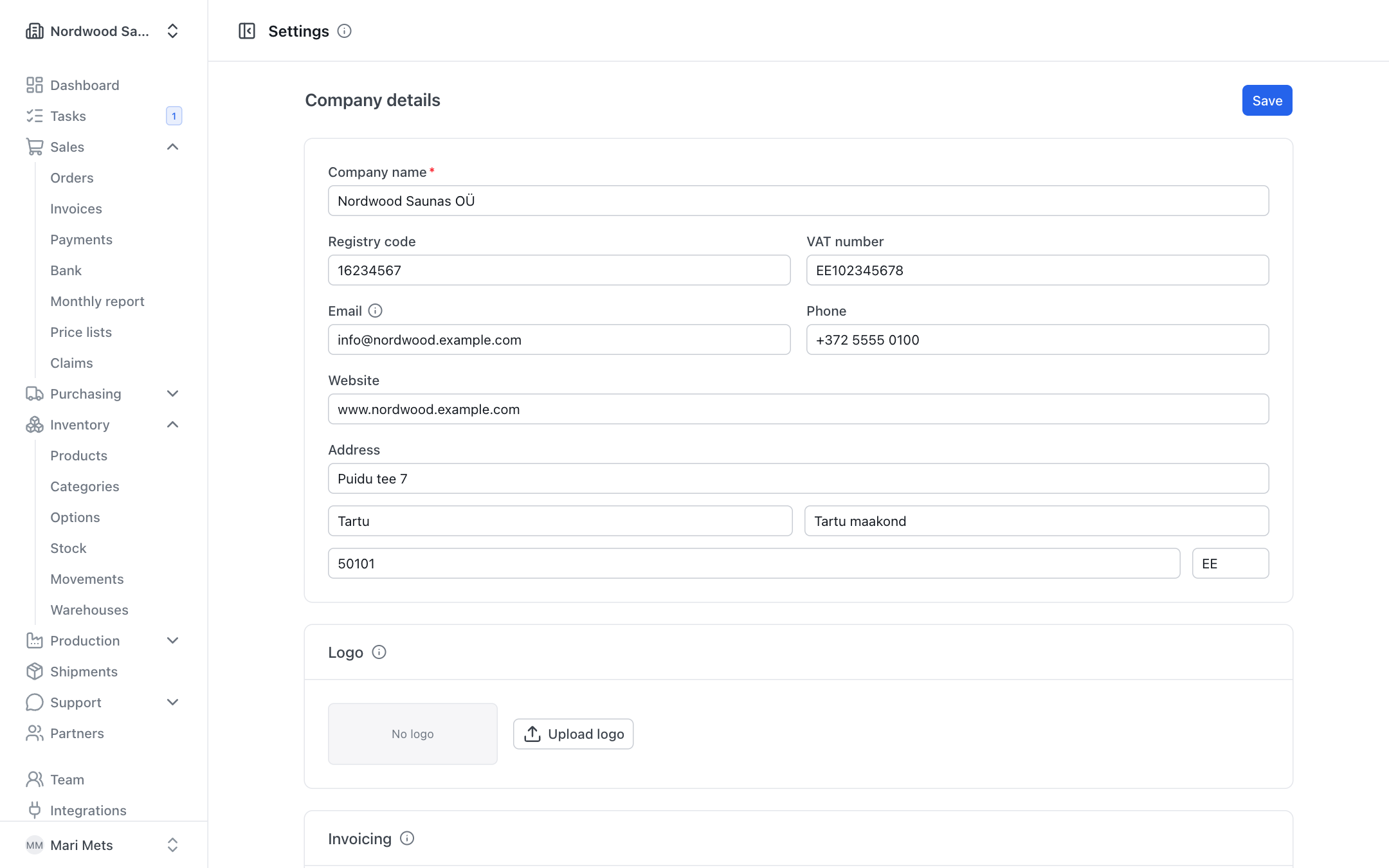
The Company details card holds what is printed on invoices, quotations, delivery notes and other documents:
- Company name
- Registry code and VAT number
- Email — customers reply here. When you send an invoice or quotation from ZERPY, the e-mail comes from the ZERPY address with your company name, and the customer's reply goes to this address.
- Phone, Website
- Address (street, city, county / state, postal code, country)
Press Save at the top of the page to keep your changes.
TIP
Without a company e-mail, customers cannot reply to the documents you send. The send dialog reminds you of this.
Logo
You can add two logos:
- For light backgrounds — the main logo. It is printed on invoices, orders and other documents and shown in the light theme.
- For dark backgrounds (optional) — for example a white version of your logo. It is shown instead of the main logo in the dark theme (e.g. in the partner portal). Without it, the main logo is used.
- Press Upload logo under the logo you want to add.
- Choose a PNG or JPEG image of up to 300 KB. A PNG with a transparent background works best.
- Press Save at the top of the page.
The preview shows the logo on the background it is meant for. To remove a logo, press Remove and save.
Invoicing
The Invoicing card holds:
- Bank accounts — bank and IBAN. Add more with Add bank account. All accounts are printed on invoices.
- Document language — your company's language. Invoices, quotations and e-mails to customers in your country, and internal documents (work orders, picking lists, monthly report) are in this language.
- Other document languages — languages you send documents in besides your own and English, e.g. Finnish for Finnish customers. Product translations, the partner form and the send dialog offer these. A partner abroad automatically gets their country's language when it is switched on here, otherwise English — unless the partner form says otherwise.
- Invoice footer note — a short text at the bottom of invoices, e.g. "Late payment interest 0.1% per day."
Sales
Default prepayment — the percentage asked automatically when you confirm a sales order (e.g. 30%). Leave it empty for none. Webshop and partner orders are not affected. Read more about prepayments in Payments.
Production
- Labour cost per hour — the hourly rate used for labour cost when you enter work hours on completing production.
- Production capacity — own work hours available in a normal week (e.g. 4 people × 37.5 h = 150). Single weeks (holidays, overtime) are changed on Production → Capacity. See also Production plan.
Notifications
On the Notifications card you decide who gets e-mails from ZERPY and when.
- Send notifications to — up to 5 e-mail addresses. If empty, notifications go to the company e-mail.
- New claims and partner messages — an e-mail when a partner files a warranty claim in the portal or writes on one.
- E-mail partners about their claims — your replies (not internal notes) and resolved or rejected claims are e-mailed to the partner's portal users.
If sending fails, ZERPY tries again several times a little later. If an e-mail still cannot be sent, the card shows a warning "… e-mails could not be sent in the last 7 days".
Website chat questions go to the address set in Support → Chat settings (see Website chat). Read about claims in Claims.
Tasks
On the Tasks card you choose Who sees tasks?
- All team members see all tasks — everyone can see what is going on, comment and take a task over.
- Only the people involved — a task is seen by the person doing it, the person who gave it and owners / admins.
Press Save. Read more in Tasks.
First steps
The switch First steps on the home page shows a guide on the home page that helps you get started with ZERPY. If you hid the guide on the home page with Hide, you can bring it back here. See also Getting started.
Activity log
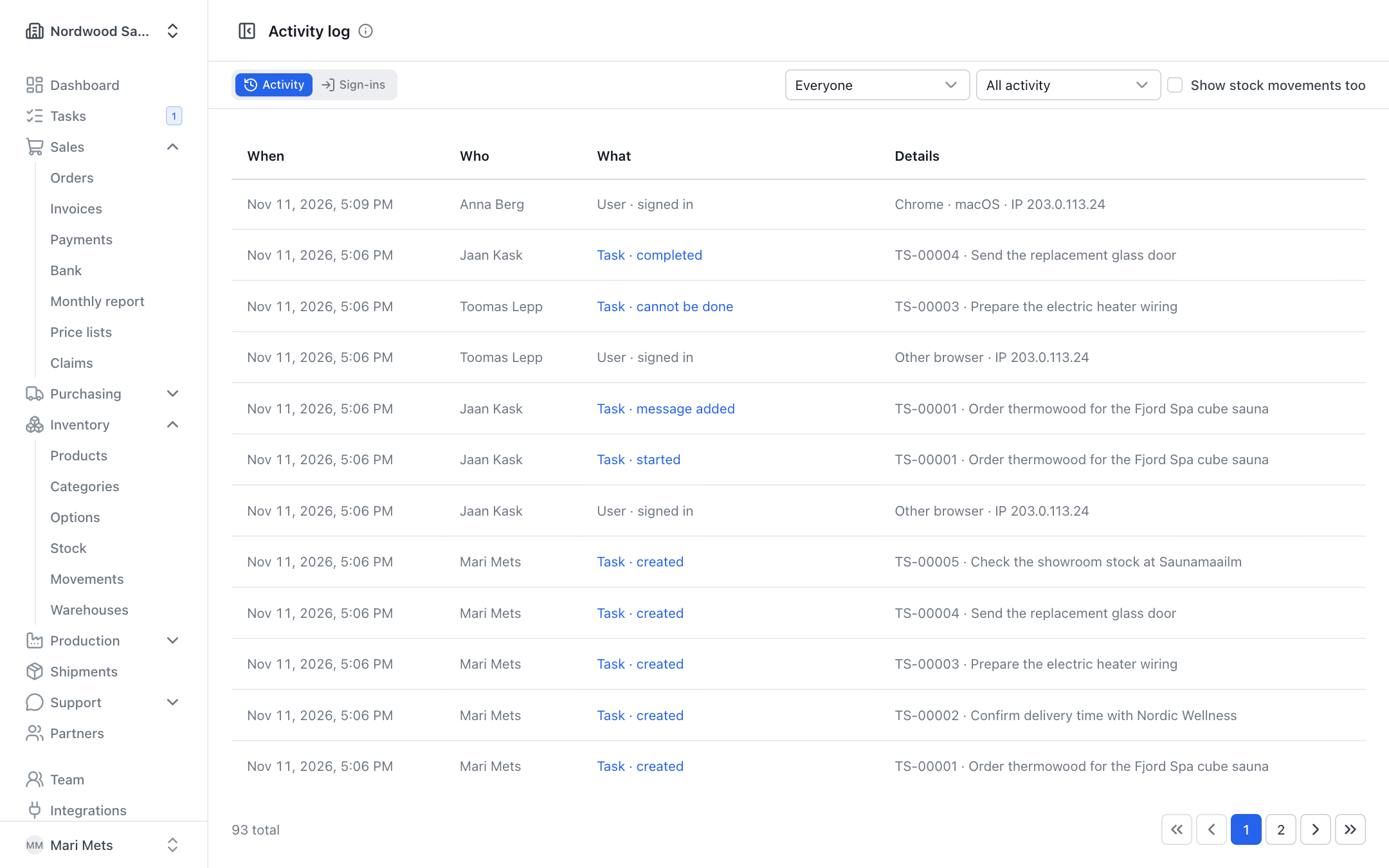
The sidebar item Activity log shows who did what and when in your company: orders, invoices, team and settings changes. Only an owner or admin can open it.
Activity
On the Activity tab you can filter by person (Everyone or one team member) and by type (All activity or e.g. Invoice). Stock movements are hidden by default — tick Show stock movements too to see them.
The Who column shows the team member, System (automatic) for automatic actions, or the API key's name for a webshop or other software.
Reverting AI changes
When someone changed a product, a partner or option translations through an AI chat, the row has a "via …" badge (the chat app's name) and a Revert button. It restores the values from before the change. If the record has been changed again since, the revert is refused — correct it by hand then. A reverted change shows the badge reverted. See also AI assistant.
Sign-ins
The Sign-ins tab lists the sign-ins of the last 90 days: who, when, which device and which IP address. When someone signs in from a new device, they get an e-mail about it.
Unknown device or IP address?
Remove the person from the team and ask them to change their password (see Team and My profile).
Security e-mails
Owners get an e-mail when someone is removed from the team, a role changes, an API key or webhook is created, an integration is removed or a new AI chat is connected. The person who made the change does not get it.