
Sales orders
The sales order is the centre of every sale: from it you get the quotation, the order confirmation, the delivery note and finally the invoice. You find orders under Sales → Orders.
Draft → Confirmed → Partially shipped → Shipped → Completed
- Draft — the order can be changed freely. Also works as a quotation.
- Confirmed — the goods are reserved in stock for this customer.
- Partially shipped / Shipped — some or all of the goods have left the warehouse.
- Completed — everything is shipped and the invoice has been created.
You never change the status yourself — ZERPY works it out from the shipments and invoices.
Creating a new order
- Open Sales → Orders and press New order.
- Choose the Customer. If the customer does not exist yet, you can create it right from the same field.
- Check Ship from — your main warehouse is filled in by default.
- If you like, fill in Delivery date, Customer reference (the customer's PO number) and Delivery terms (e.g. Incoterms "DAP Oslo" — filled in from the customer's card).
- Add lines: choose the Product and enter the Qty. Price and VAT come from the customer's price list or the product price. A new empty line appears by itself.
- Press Save draft, or Confirm order straight away.
Under a line you see when stock is short: "Only … available".
Prices
Prices are always net (without VAT). The price comes from the customer's price list (fixed price or discount), otherwise from the product's sales price. You can change a line's price and discount by hand.
Volume discounts
If the customer's price list has quantity discounts, the line area shows "Volume discounts of …: …". When enough is ordered, the Disc. % column is filled in by itself. If you type a discount by hand, your number is kept. See Price lists.
Products with options
If a product has options (e.g. size, colour, extras), option menus appear under the line. Choose a value from each group — the line price changes by the option's price add-on. A required group needs a value; in an optional group you can choose No option. Options are printed on the quotation, invoice and delivery note and also go to production. Setting up options: Products.
Quotation and order confirmation
From the Documents menu:
- for a draft: Quotation (PDF) and Send quotation…
- for a confirmed order: Order confirmation (PDF) and Send order confirmation…
In the e-mail dialog you can change the recipient, subject and message and choose the Document language. By default the document is in the customer's language (see Partners).
Confirming the order
Press Confirm order. After confirming, the goods are reserved in stock: other orders see that this quantity is already promised.
If stock is short, the order is still confirmed and you see the warning "Not enough stock for: … You can still ship partially or when stock arrives." A shortage never blocks confirming.
If your company settings have a default prepayment, it is added to the order when you confirm it (see Payments).
Need a change?
You can take a confirmed order back to draft from the three-dot menu ⋮ → Back to draft — as long as nothing is shipped or invoiced. To cancel an order: Cancel order (a draft, or a confirmed order without an invoice).
Shipping goods
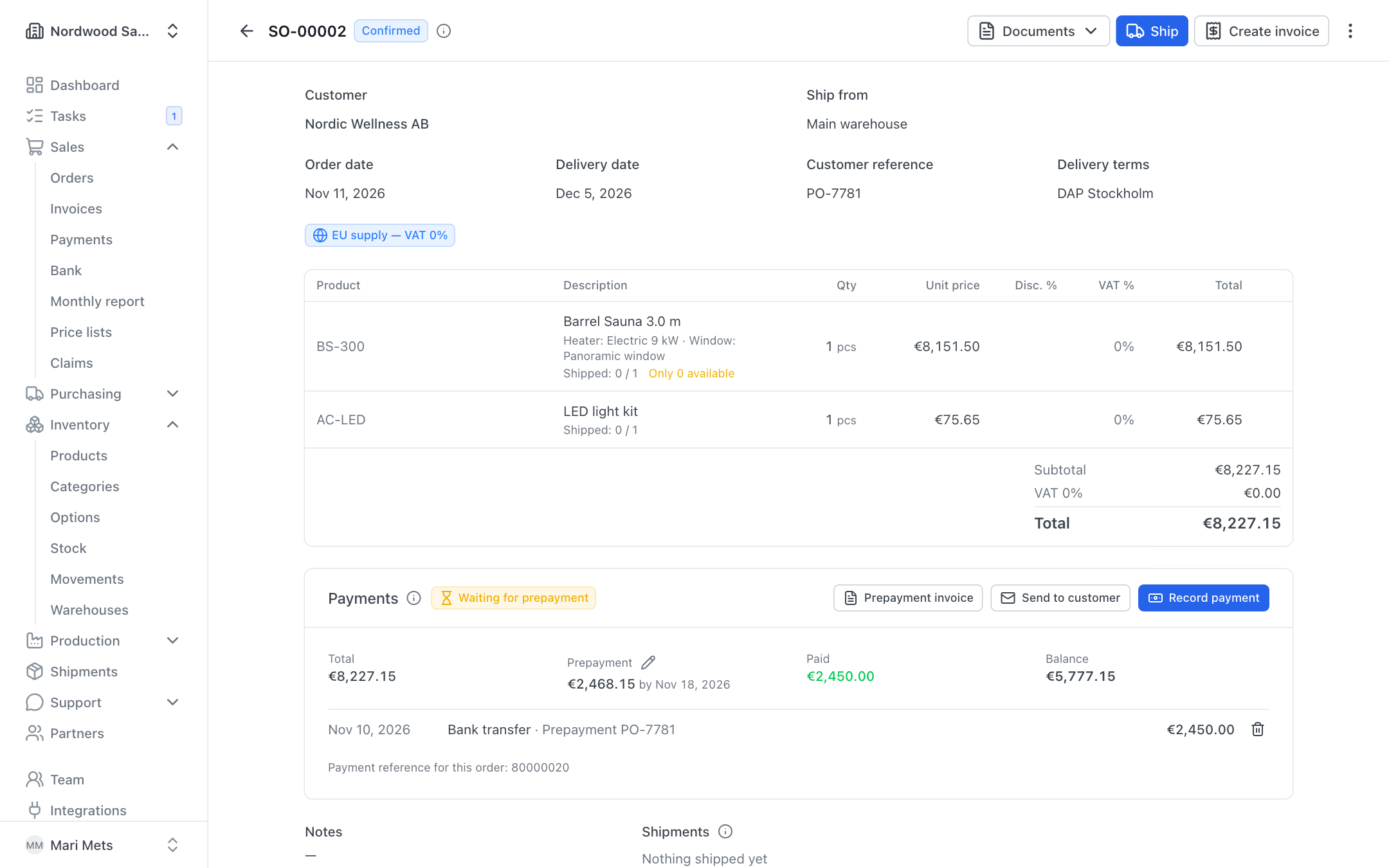
- If the goods need to be picked, open Documents → Picking list (PDF) — it lists all stock items not yet shipped.
- Press Ship.
- In the Ship now column, enter how many of each item leave the warehouse now. You can ship the rest later.
- If you like, choose the Carrier and enter the Tracking number.
- Press Ship.
Each shipping creates a shipment (with its own number) and reduces stock. You can ship in several parts.
If a product has serial numbers, you can choose which serial numbers go out (Pick serial numbers). Units made for this order are offered first.
Order not paid
If the order is not fully paid, the ship dialog shows the warning "Not fully paid: … still open." You can still ship.
Shipping is allowed for roles with the right to ship (e.g. owner, admin, member, warehouse, sales).
Delivery note, CMR and shipping notification
On the order page, in the Shipments section, each shipment has:
- Delivery note (PDF) — ordered quantity, this delivery and what follows later, with a signature line;
- CMR — CMR consignment note for international road transport (print 3 copies);
- the envelope icon Send shipping notification — an e-mail to the customer with the delivery note and the tracking number.
Creating the invoice
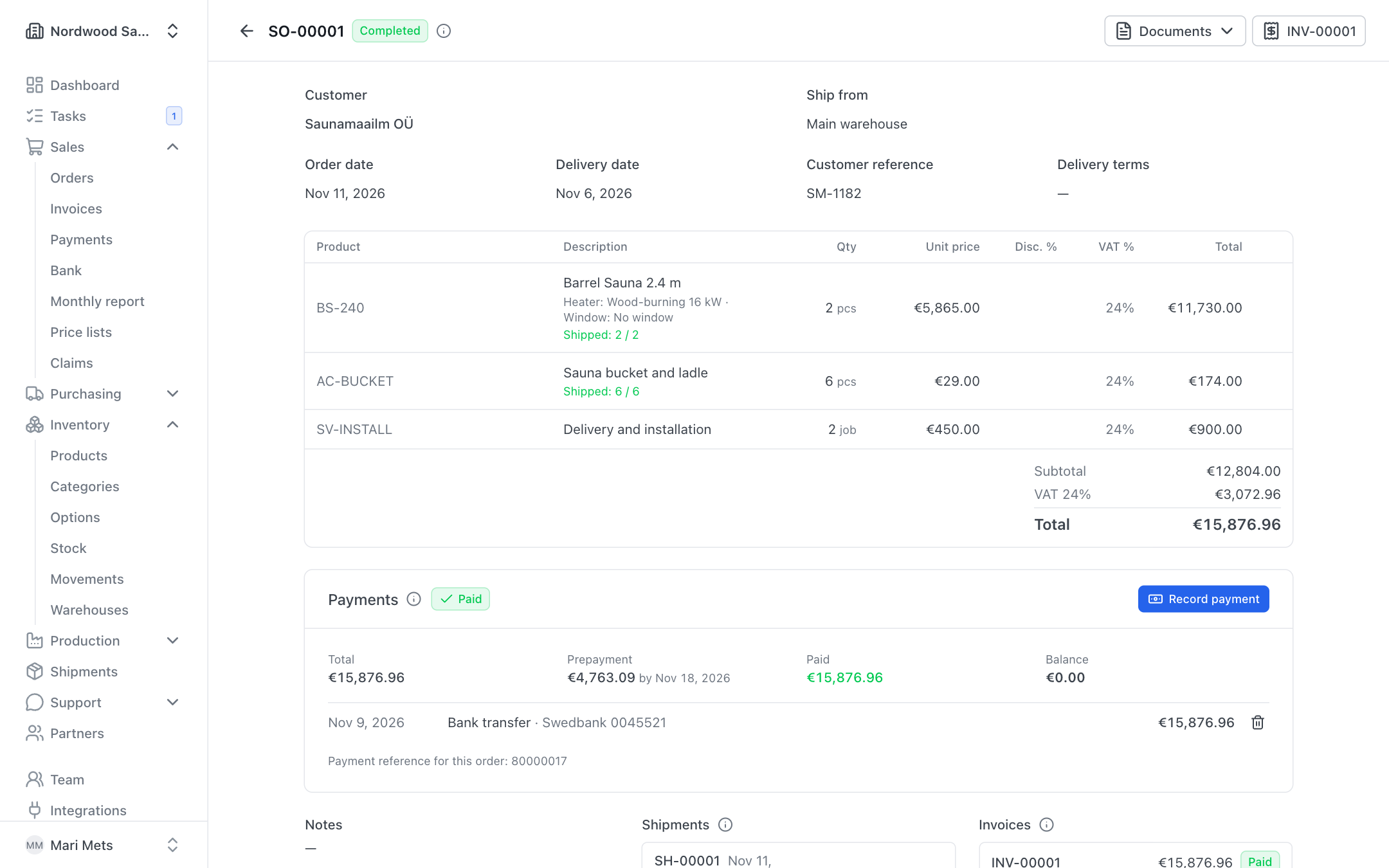
Once the order is confirmed, press Create invoice. A draft invoice with all the order's lines is created. Continue in Invoices.
You can invoice before or after shipping. The order becomes Completed when everything is shipped and the invoice exists.
Export sales: currency and VAT
The currency and VAT treatment set on the customer's card apply to the order automatically (see Partners):
- If the customer buys in another currency, you see the badge "Prices in …".
- EU supply — VAT 0% — a business in another EU country with a VAT number. The invoice shows the legal note and the customer's VAT number.
- Export — VAT 0% — delivered outside the EU. Keep the export proof (CMR / customs declaration).
- Otherwise Domestic VAT applies.
The country is taken from the delivery address. The treatment is decided when the order is saved, and every line gets 0% VAT.
VAT number
If the customer's VAT number is not confirmed in VIES, the order shows a warning. Press Check now to check the number again. VAT 0% for an EU supply needs a valid number — check it before you issue the invoice.
Consignment sales
If your goods are held in a partner's consignment warehouse, choose that warehouse as Ship from on the order (the list marks it "Consignment: partner name"). Everything else works like a normal order. The partner can also report sales themselves in the partner portal.
Production for an order
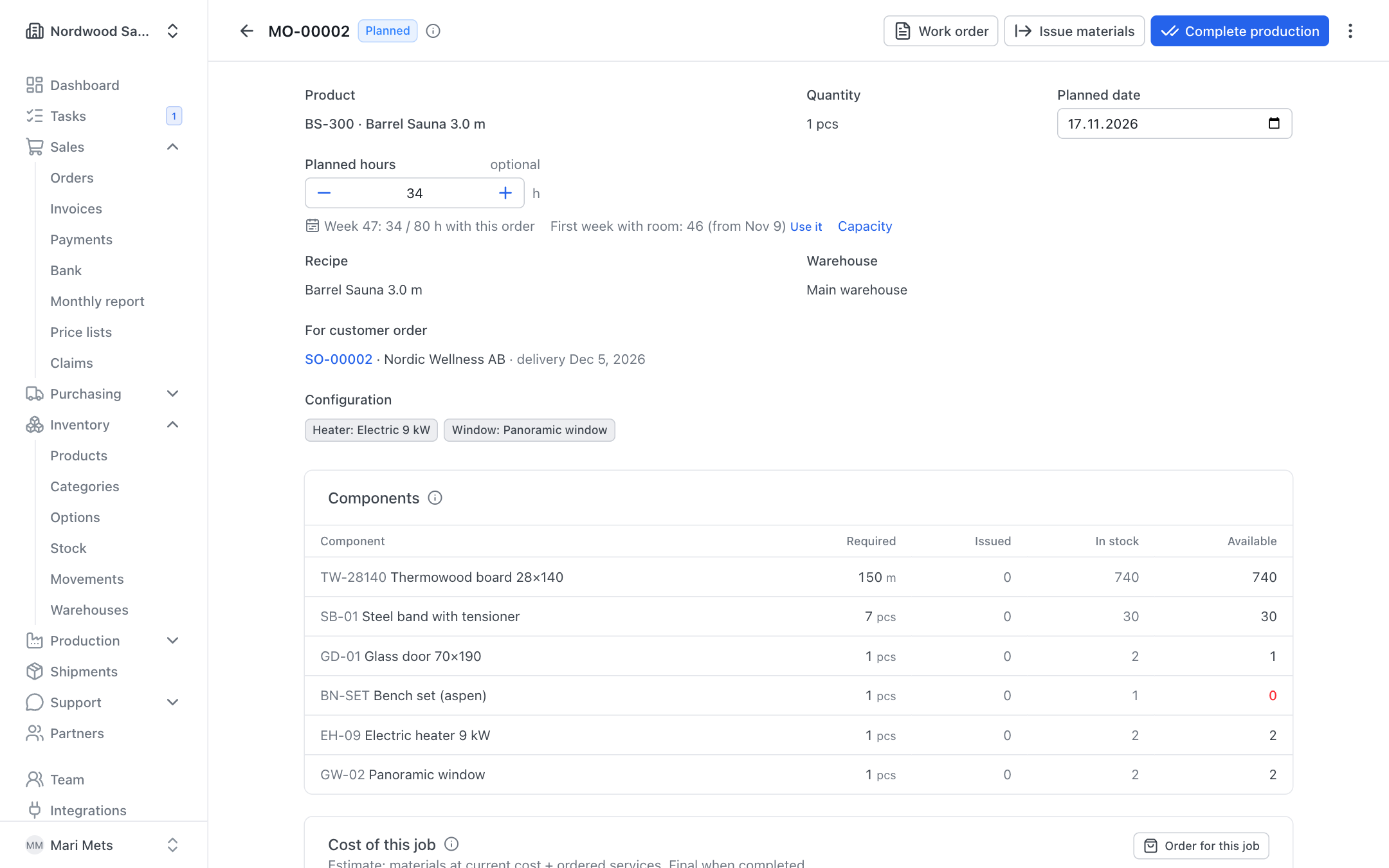
If the order has a product you make yourself, you see the Production card with a Make button. It opens a new production order with the product, quantity, the customer's options and the delivery date already filled in. The production order stays linked to this sales order. See Production.
The button is shown to users with production rights.
Profitability
The Profitability card shows: Revenue (excl. VAT) minus Cost of goods shipped, the estimated cost of goods still to ship, Services for this order (e.g. transport), production costs added later and warranty costs — resulting in the Margin. Until everything is shipped it is an estimate.
With Order for this order you can make a purchase order (e.g. transport) whose cost goes into this order's profit. See Purchasing.
Who sees it?
Profitability is shown only to roles that see cost prices: owner, admin, member, accountant, viewer and purchasing. Warehouse, production and sales do not see it.
Order list
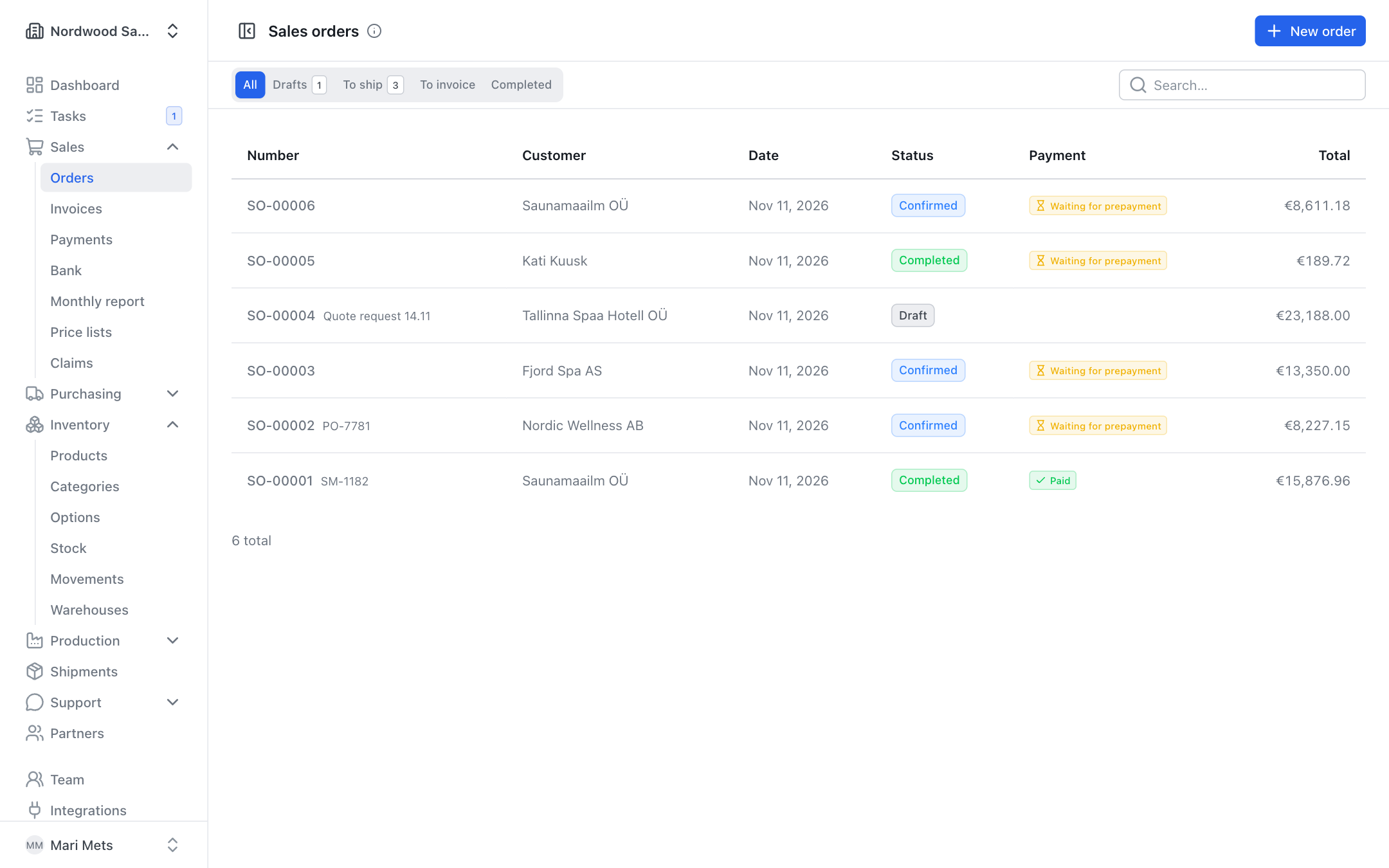
Sales → Orders has the tabs All, Drafts, To ship, To invoice and Completed. The Payment column shows the order's payment status.
Shipments
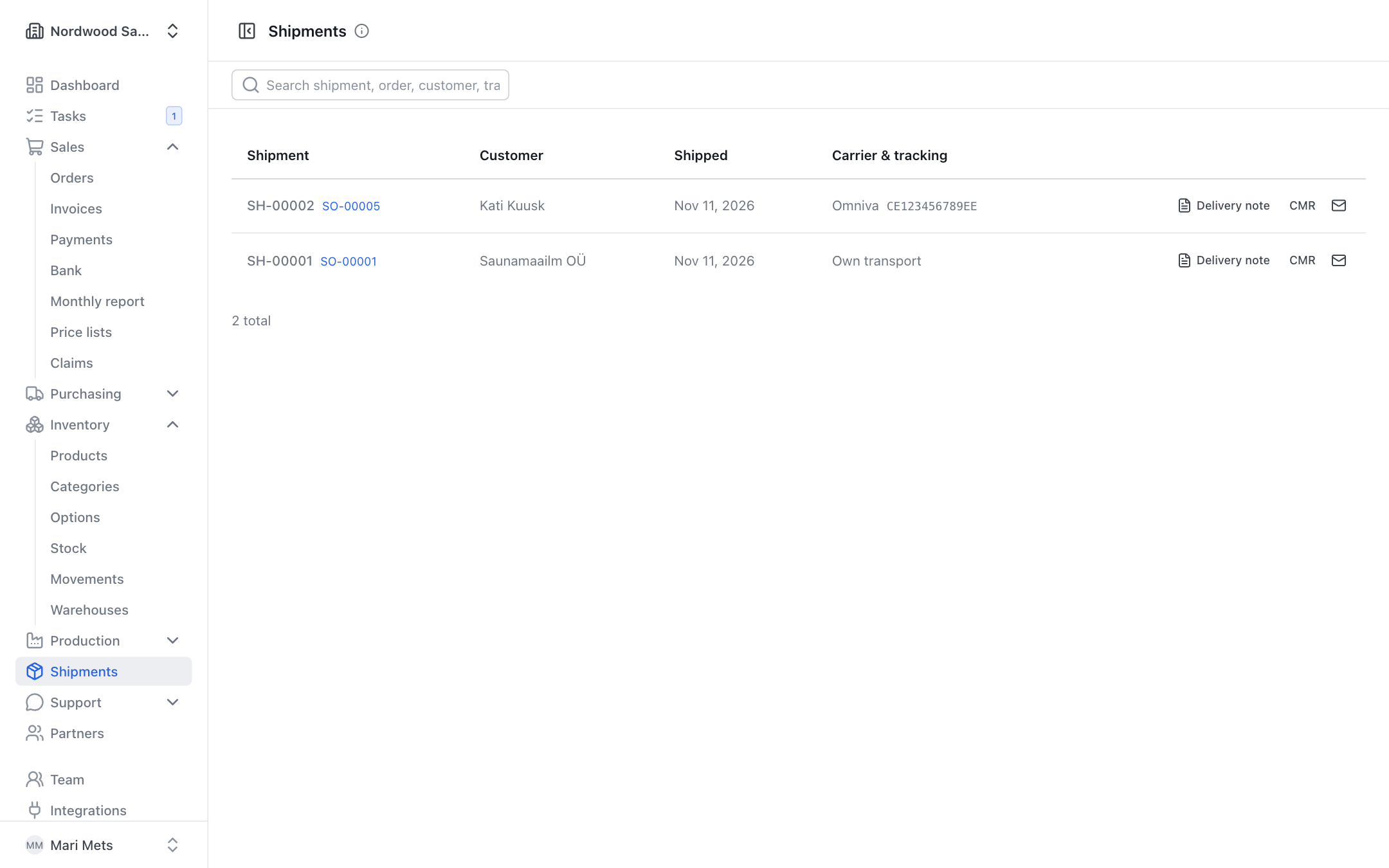
The Shipments menu lists every shipment sent out. Search by shipment, order, customer or tracking number. On each row you can open the delivery note and the CMR and send the customer a shipping notification.